Overview
Graphiant’s RMA process offers you:
Seamless transition without traditional RMA handling
Configuration transfer streamlined for both physical and virtual Edges
Preservation of service continuity and configuration
Caution:
The device to be returned, and the replacement device, must be like-for-like models.
RMA Process for Both Physical and Virtual Edges
Step 1: Move the intended RMA device to Deactivated
From the Graphiant Portal Landing page, click ‘Maintain’ in the sidebar; select ‘Device Lifecycle’.
.jpeg)
Click on the ellipses to the right of intended device to RMA; select ‘Change Lifecycle State’.
.png)
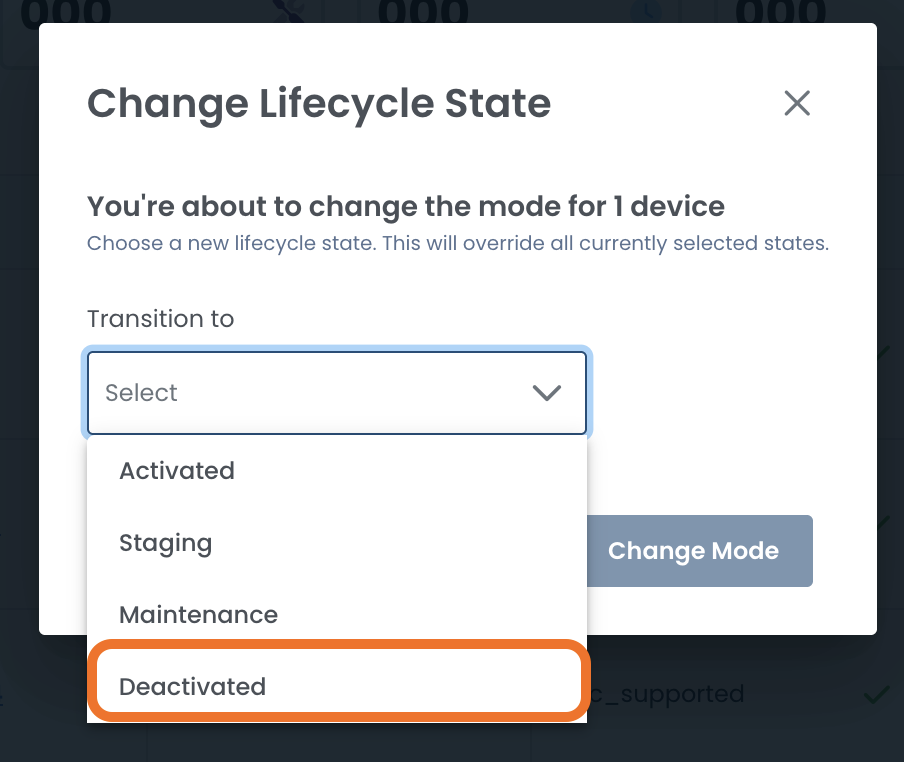
A modal will open to select the new Lifecycle State.
Select ‘Deactivated’.
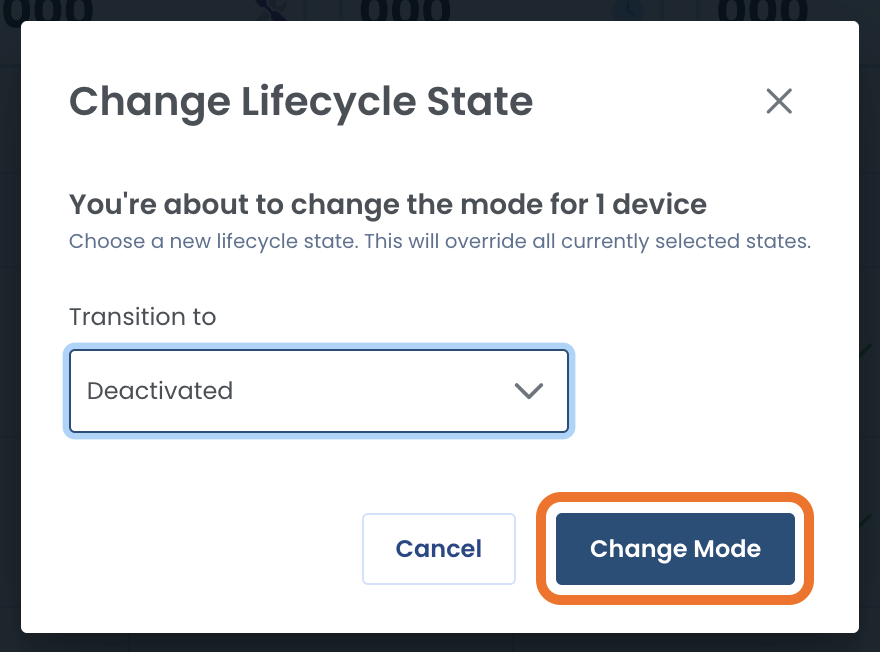
Click ‘Change Mode’.
The device’s Device Mode will now be listed as Deactivated.
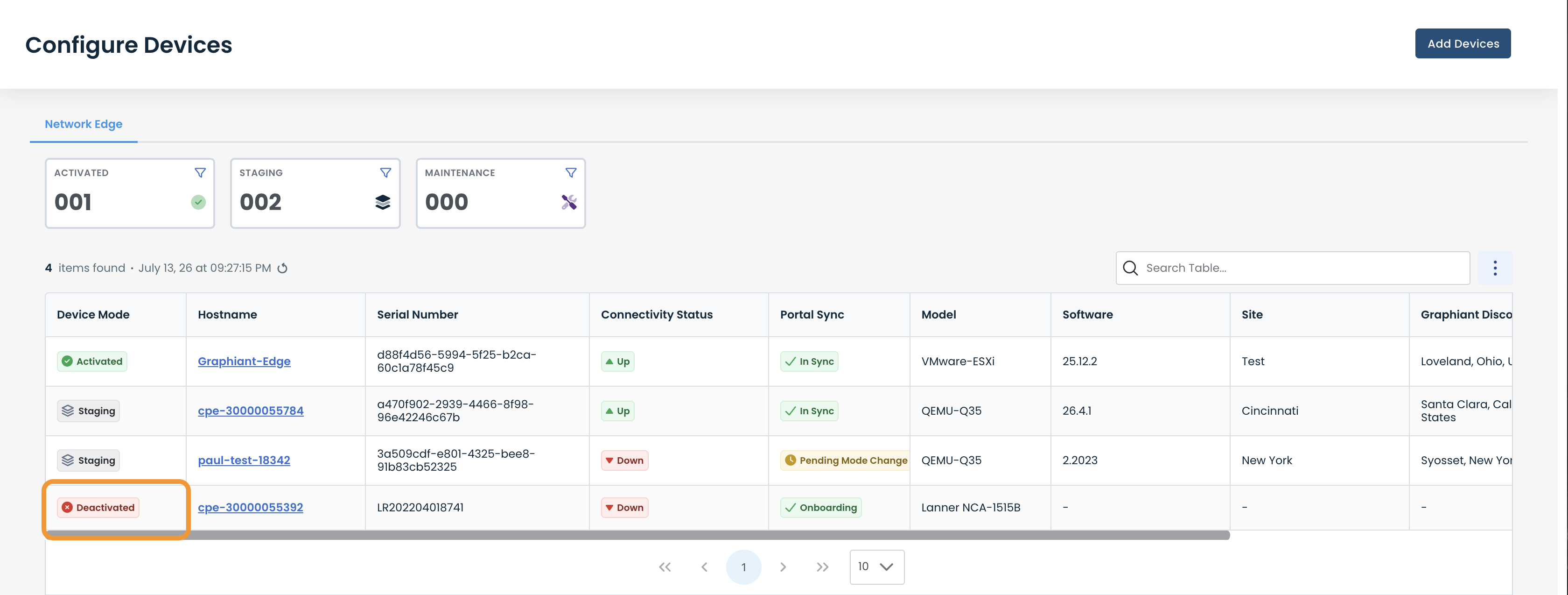
You will also see the Deactivated status of this device in the Device Lifecycle page.
(Click here for more information about Device Lifecycle.)
Step 2: Deploy a New Device
Deploy a new Edge using the instructions found here.
The new device will show a Lifecycle Status of “Staging”.
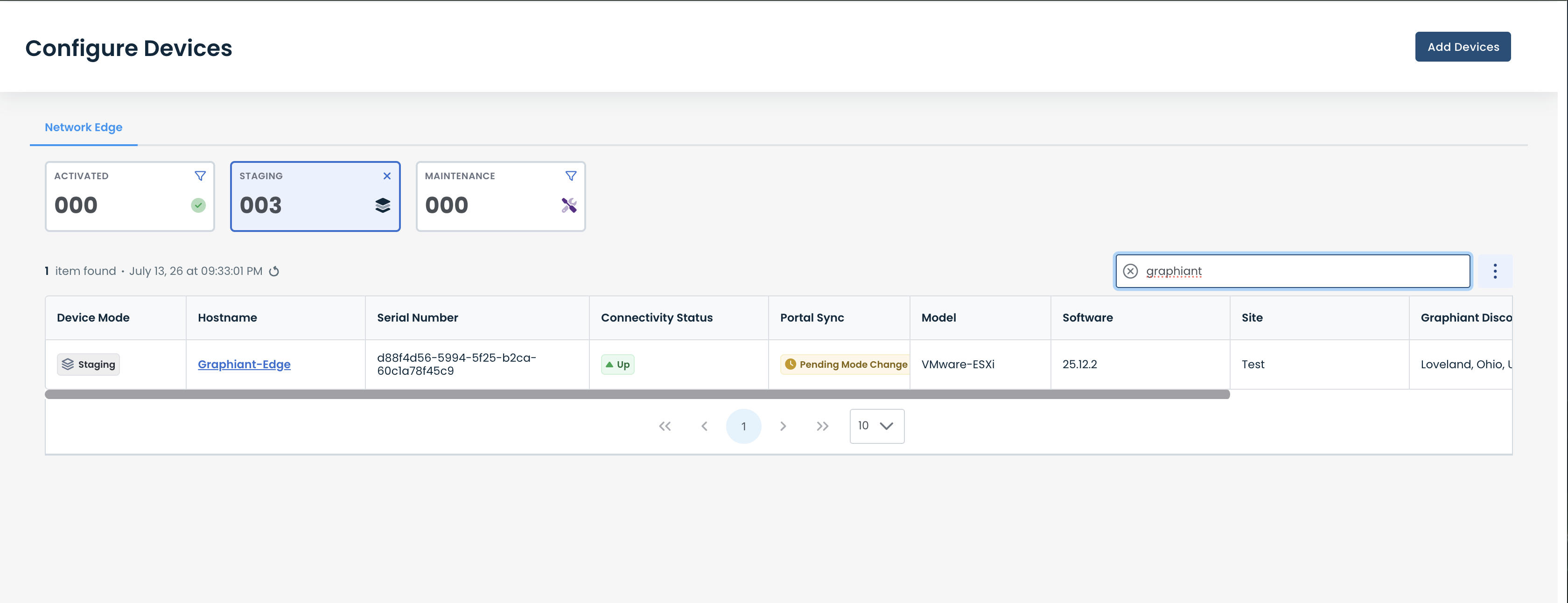
Step 3: Transfer the Configuration to the New Device
In the list of deactivated edges, there is an option to move the configuration from the deactivated device to a device in staging.
To the right of your deactivated Edge containing the configuration you wish to keep, click the 3 dots, and in the dropdown, select .
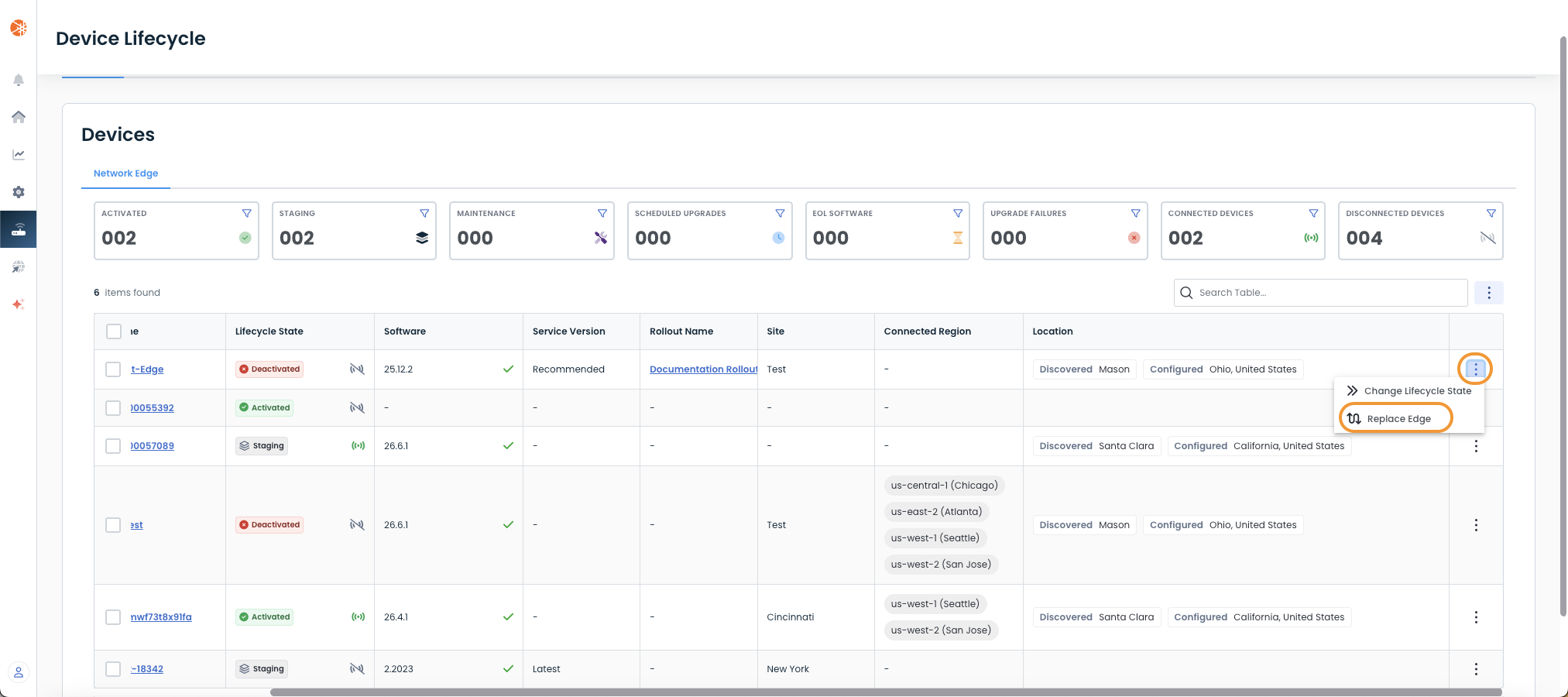
Confirm that the Current Edge and Replacement Edge are correct.
Click ‘Replace Edge’.
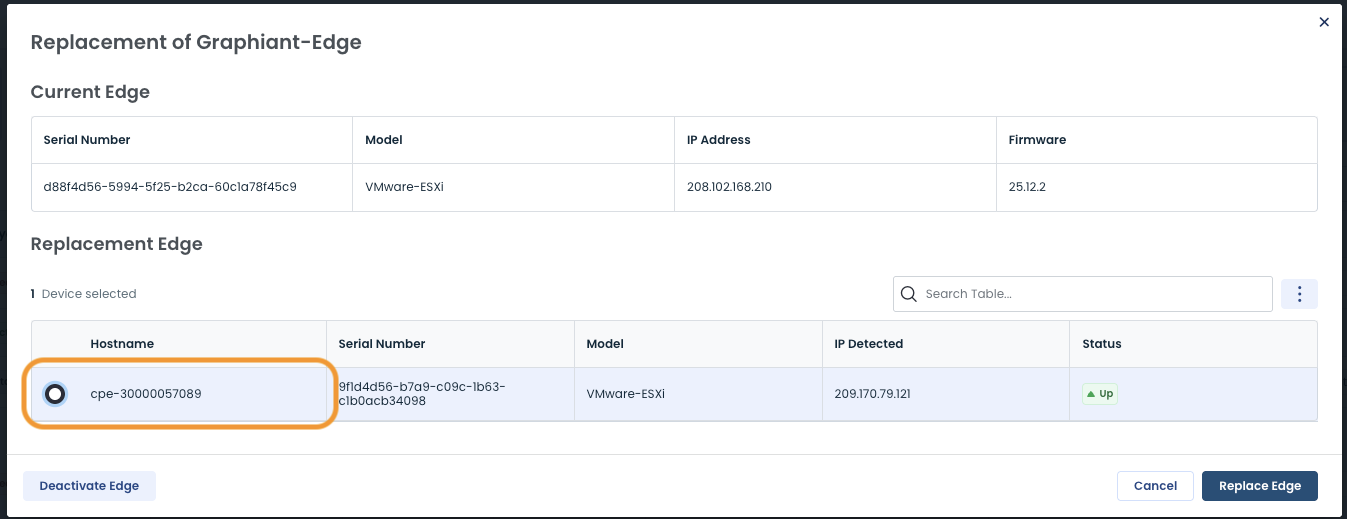
The device will no longer be in the Deactivated Edges table, as it is decommissioned automatically upon being replaced.
After the configuration has been moved successfully (this may take a few moments), the configuration of the deactivated Edge will be moved to the new device that is still in Staging.
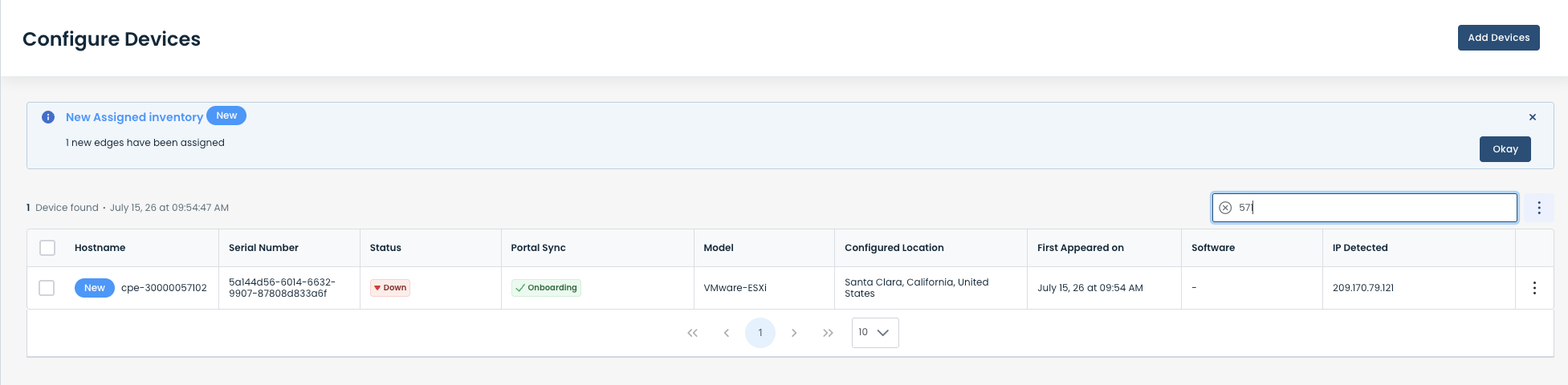
When the RMA is complete, the new device can be onboarded using these instructions.
Step 4: Decommissioning of Your Deactivated Device
The deactivated device will now be decommissioned automatically.
Decommissioned devices are no longer in your environment, and are removed from any tables/lists.

To return any decommissioned hardware:
Open a case with Graphiant Support.