Overview
Zero-Touch Provisioning (ZTP) allows a Graphiant Edge to automatically onboard to the Graphiant platform using a bootstrap token stored on a USB drive. Once the Edge powers on, it reads the onboarding information, establishes connectivity to Graphiant services, and completes the onboarding process without requiring manual configuration through the CLI.
Generate a Bootstrap Token
Navigate to: Maintain > Device Lifecycle > Provisioning.
Click ‘Generate Bootstrap’.
Enter the token name and configure any optional settings as needed.
Click ‘Generate Token’ to download the bootstrap package.
See “Generating a New Bootstrap Token” for more information.
.png)
Create the Cloud-Init Files
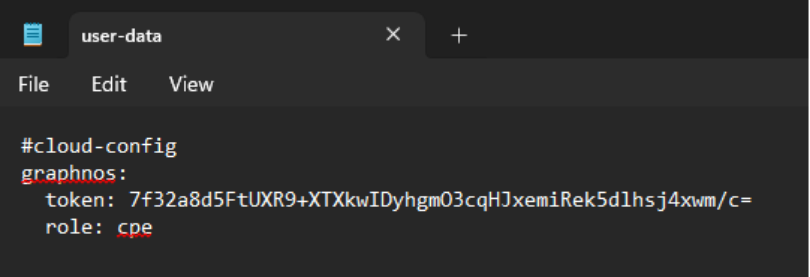
The downloaded bootstrap package contains a configuration file that includes the onboarding token and Edge role information.
Create the following files:
File | Purpose |
|---|---|
user-data | Contains the bootstrap configuration |
meta-data | Provides device identification information |
Copy the contents of the downloaded bootstrap YAML file into the user-data file.
Configure the Meta-Data File
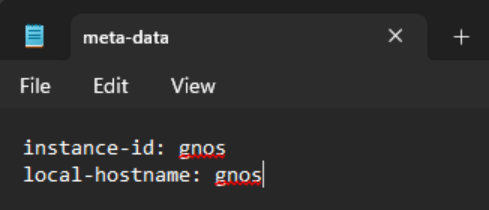
Create a file named meta-data containing:
instance-id: gnos
local-hostname: gnos
This information is used during the initial onboarding process.
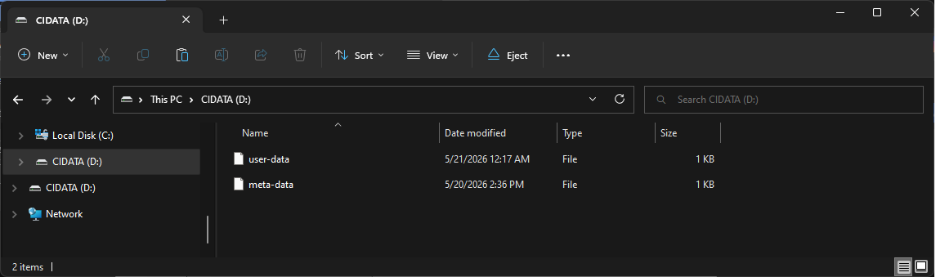
Prepare the USB Drive
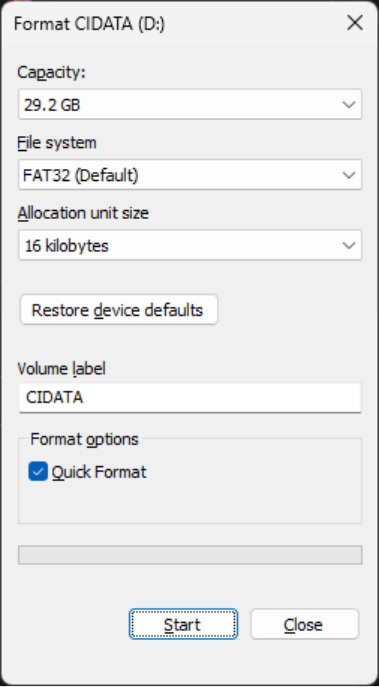
Format the USB drive using:
File System: FAT32
Volume Label: CIDATA
After formatting, copy both files to the root directory of the USB drive:
user-data
meta-data
The USB drive should contain only these onboarding files.
Onboard the Edge
Safely eject the USB drive.
Insert the USB drive into the Graphiant Edge.
Power cycle the Edge.
During startup, the Edge automatically reads the onboarding information from the USB drive and begins the onboarding process.
No manual interaction is required.
Verify Successful Onboarding
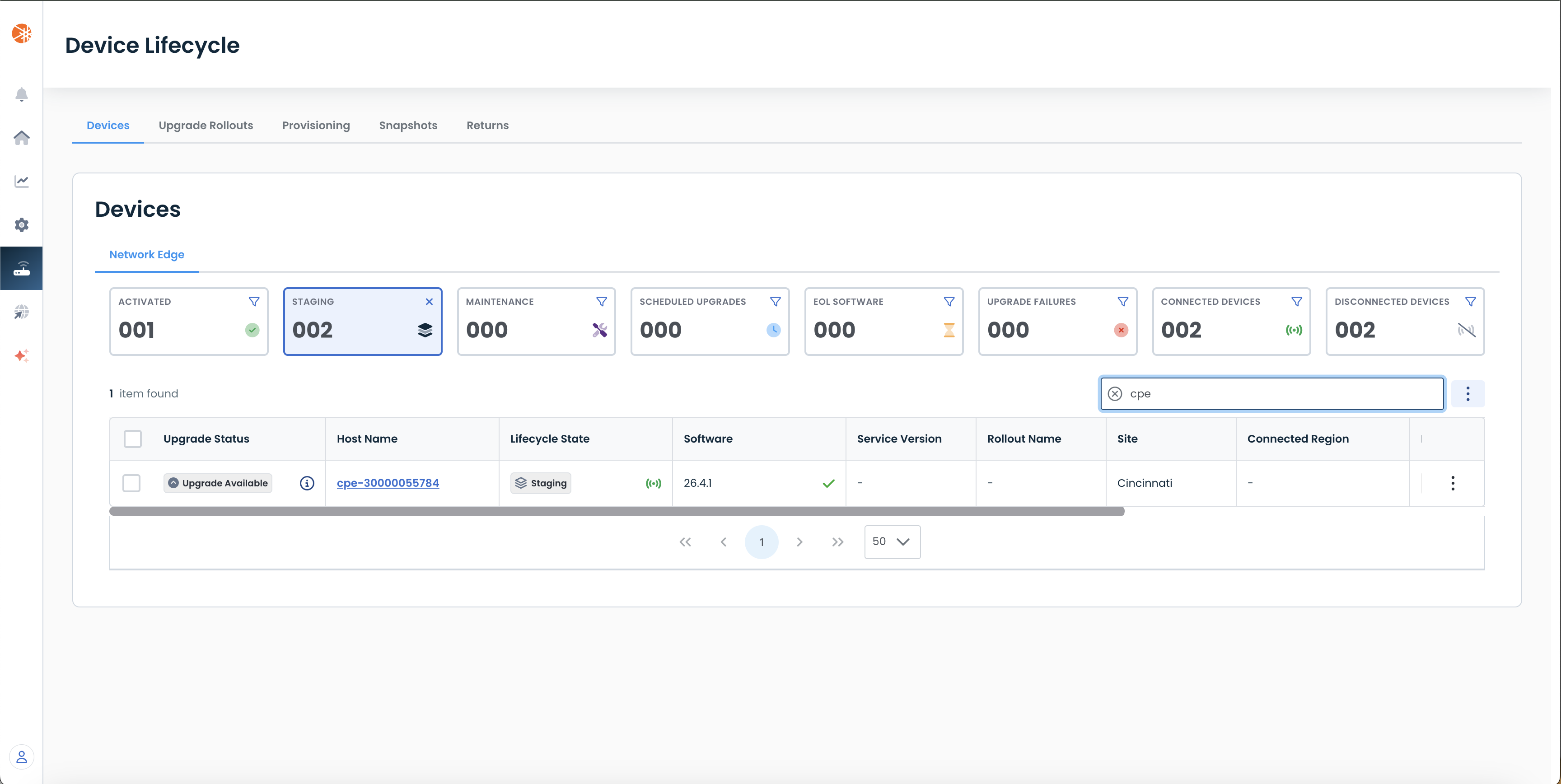
After the onboarding process completes, verify that the Edge appears in the Graphiant Portal.
Navigate to the Edge inventory page by clicking 'Maintain' in the sidebar and selecting 'Device Lifecycle'.
This will take you to the ‘Device Lifecycle’ page of the Graphiant Portal where you can view all active, staged, and deactivated Edges.
Here you should see your new device onboarded and with the status of “Staging”.