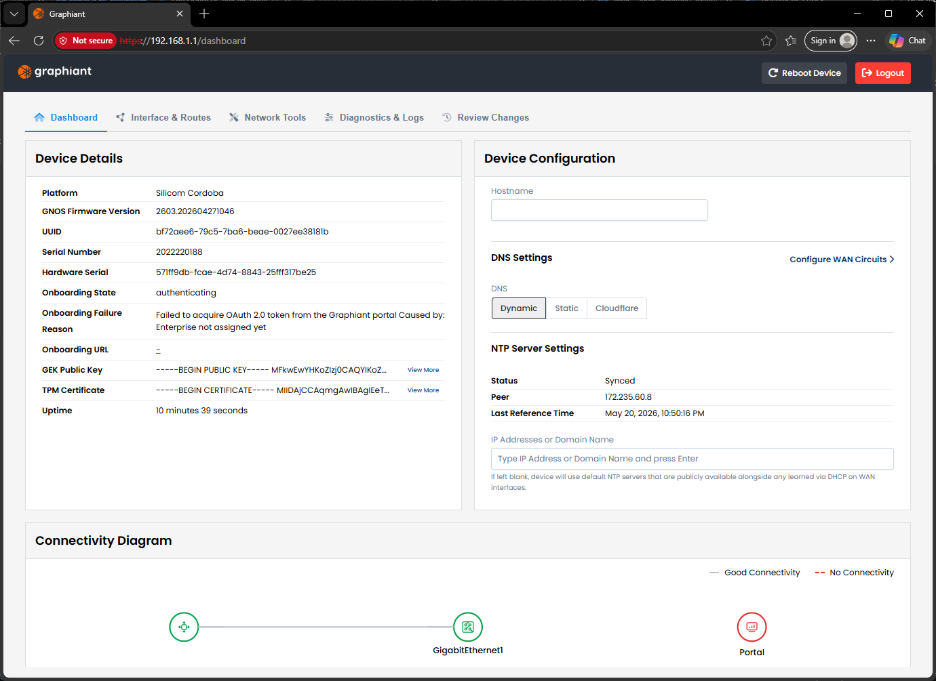
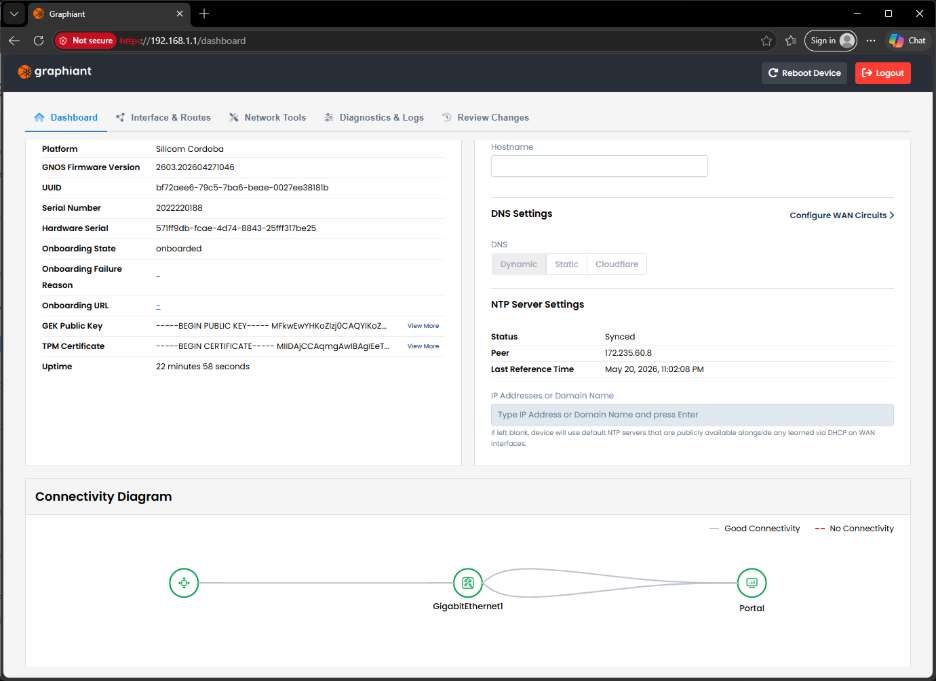
Before onboarding, the local web server will show your Edge as not being connected to the Graphiant Portal (see here for more details on how to locate this).
One way to onboard your Edge is by adding it to your Graphiant inventory.
From the Home screen, navigate to the Edge Configuration screen by one of the following:
Locate the "Configurations" section within the “Quickstart” area of the screen; select 'Configure Edges'.
or
Click 'Configure' in the sidebar; select 'Devices'.
.png)
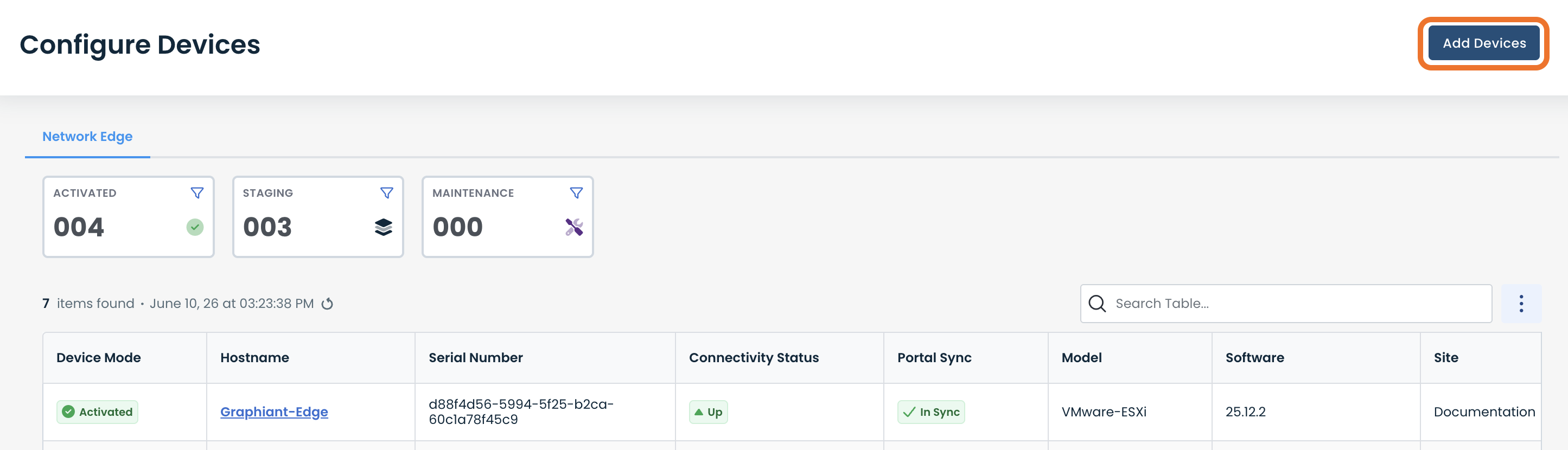
This will take you to the ‘Configuration’ page of the Graphiant Portal where you can view all active, staged, and deactivated Edges.
Click ‘Add Devices’ in the upper right hand corner.
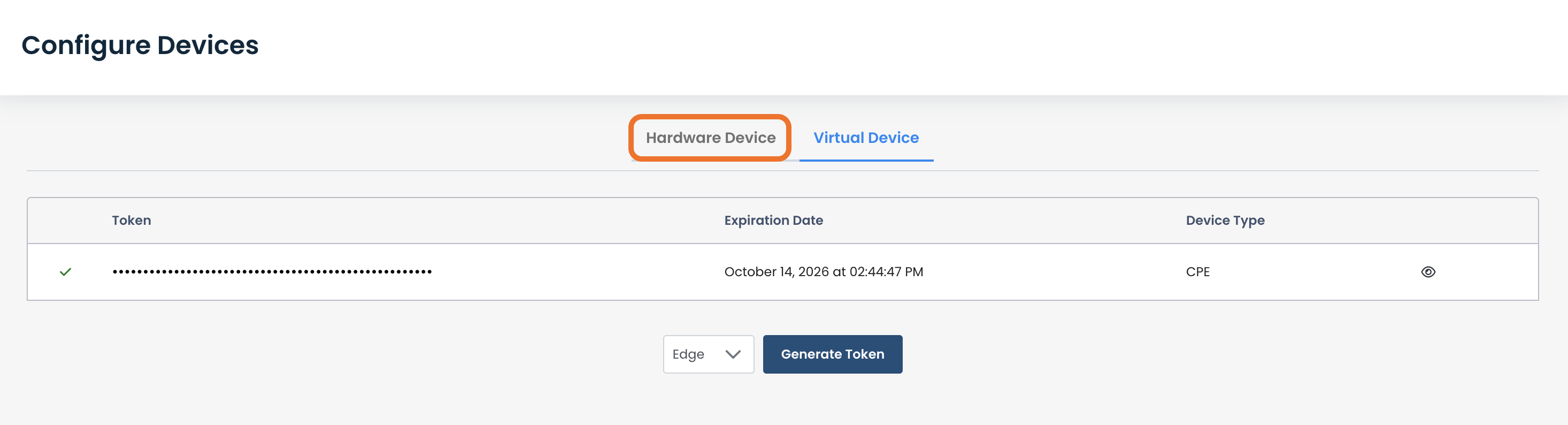
Click the ‘Hardware Device’ tab.
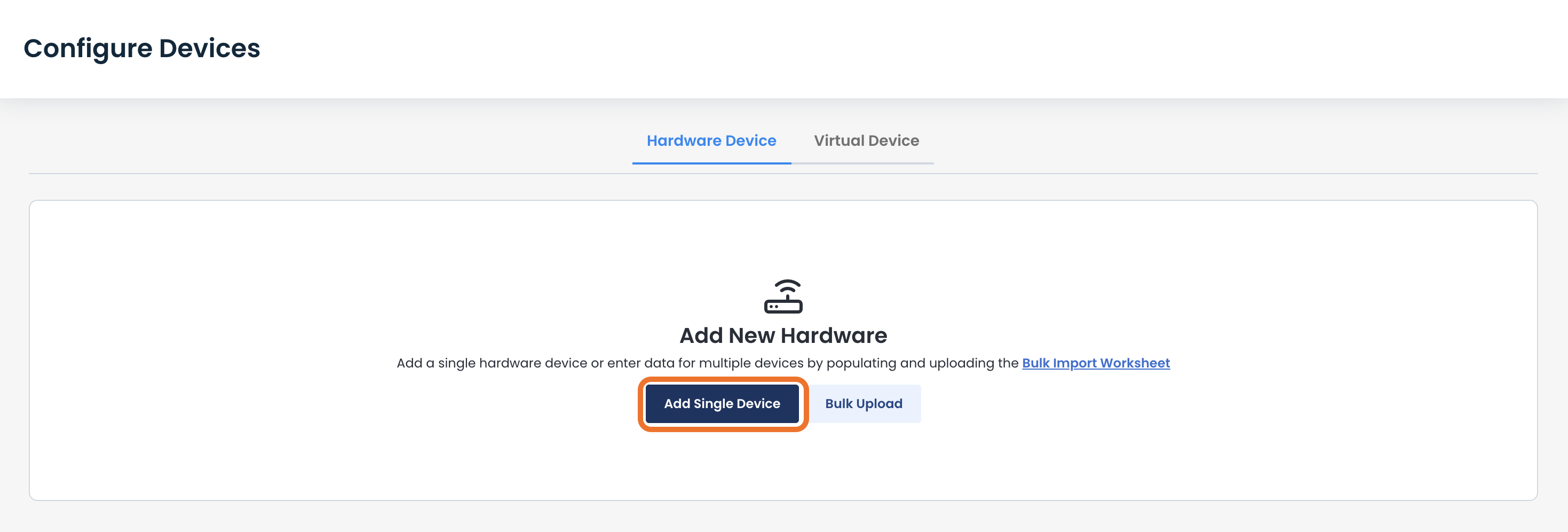
Click ‘Add Single Device’.
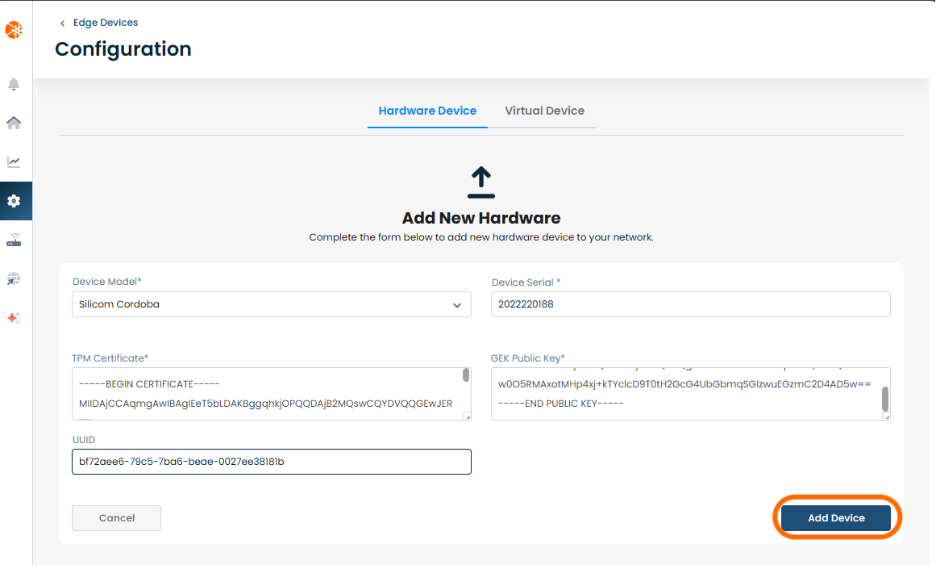
Enter the following information for your Graphiant Edge:
Device Model
Device Serial Number
TM Certificate
GDX Public Key
UUID
After completing all required fields, click ‘Add Device’.
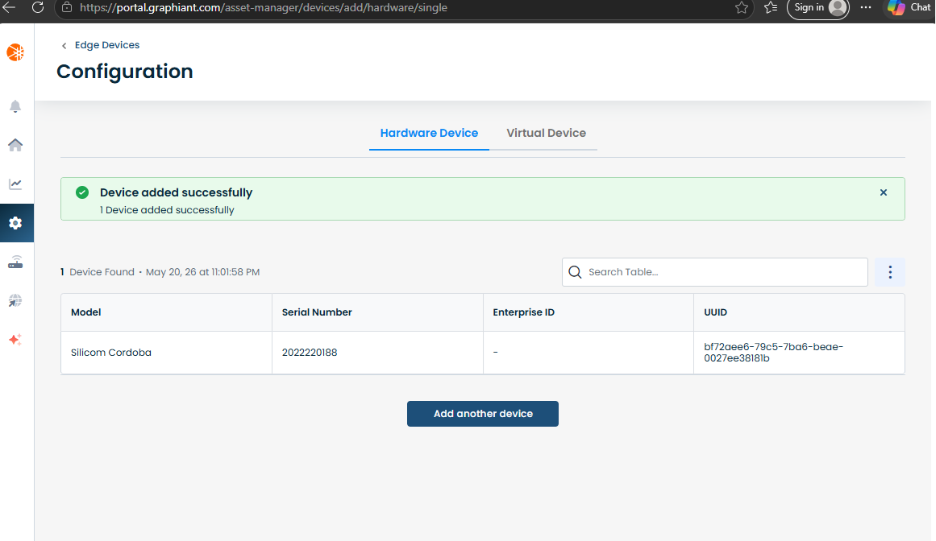
You will receive a green banner stating that your device was added successfully.
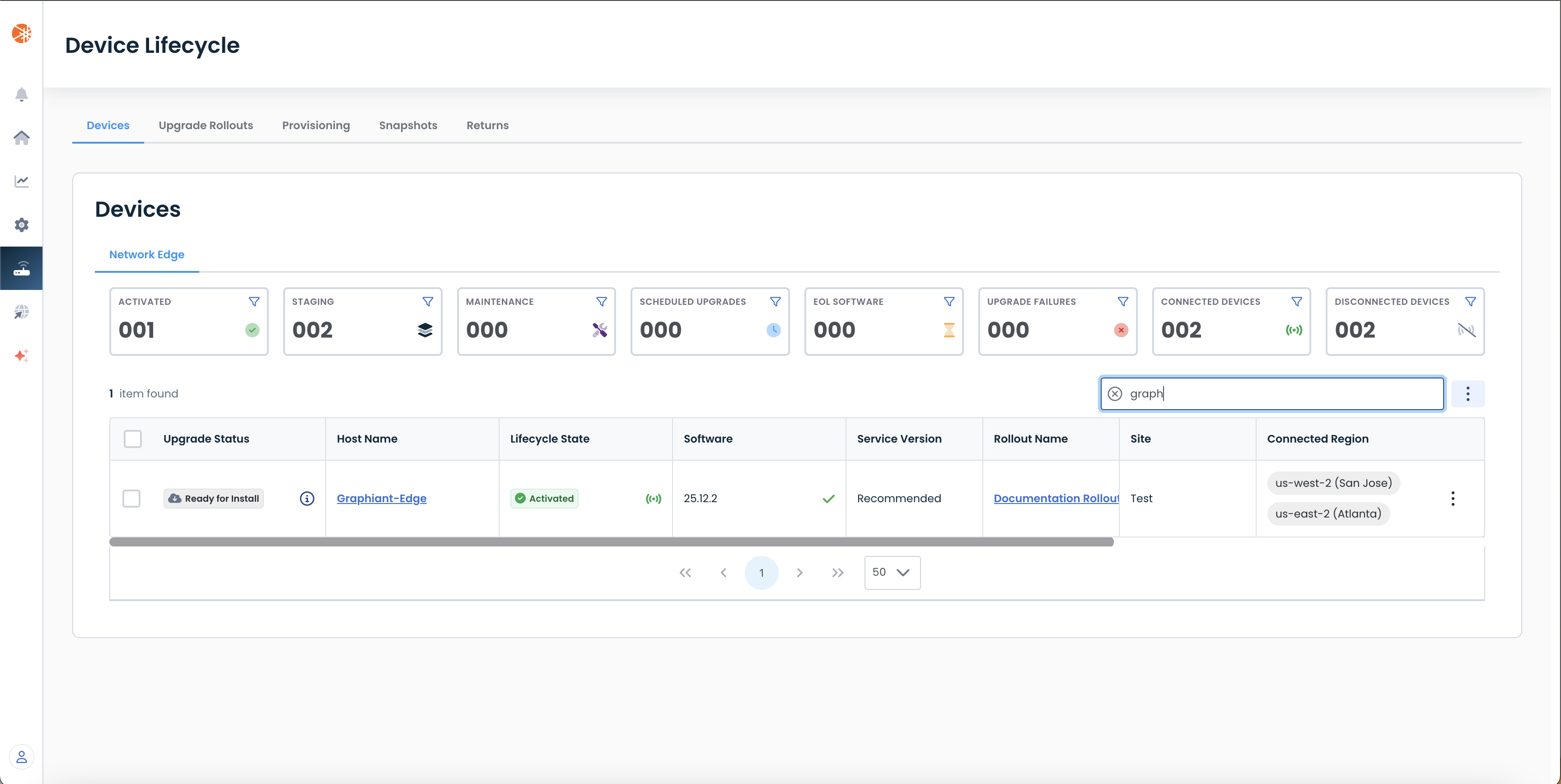
To see the new Edge, navigate to the Edge inventory page by clicking 'Maintain' in the sidebar and selecting 'Device Lifecycle'.
This will take you to the ‘Device Lifecycle’ page of the Graphiant Portal where you can view all active, staged, and deactivated Edges.
Here you should see your new device onboarded and with the status of “Staging”.
The Local Web Server will now show that the Edge is connected to the Portal.
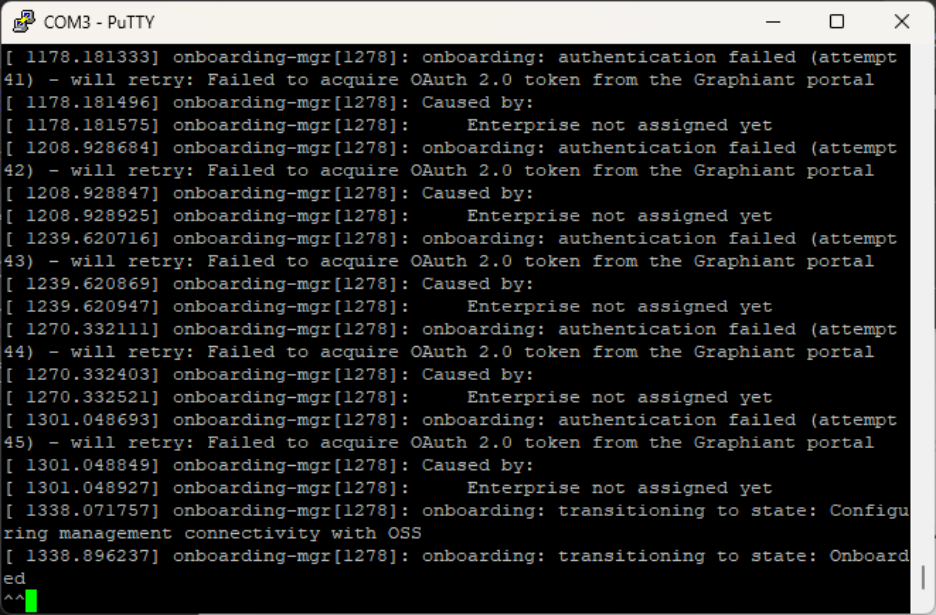
PuTTY output confirms the transition from "Enterprise not assigned yet" to successful onboarding.