What is an NTP (Network Time Protocol) Server?
The Graphiant Edge can connect to an NTP server, which acts as the "timekeeper" for your Edge to keep all the processes and data synchronized.
This ensures that authentication, data synchronization, and troubleshooting function smoothly, as well as providing accurate and consistent timestamps on files, logs, and security events across your entire system.
NTP in the Graphiant Portal
From within the Graphiant Portal, you will be able to set the location of which NTP server will retrieve the exact time.
Step 1: Locating DHCP in the Graphiant Portal
From the Home screen, navigate to the Edge Configuration screen by one of the following:
Locate the "Configurations" section within the “Quickstart” area of the screen; select 'Configure Edges'.
or
Click 'Configure' in the sidebar; select 'Devices'.
.png)
This will take you to the ‘Configuration’ page of the Graphiant Portal where you will be able to view all active, staged, and deactivated Edges. From here you can select an Edge to configure NTP.
On the left-hand side, select and click the Edge you wish to manage under the column 'Hostname.'
.png)
This will take you onto a Configuration page with a focus on the Edge you have just chosen.
You will see a list of headings along the lefthand side of the page, such as ‘Configure Network’, ‘Configure Services’, ‘Configure Policies’, etc.
From here, select and click ‘Configure Services’.
A dropdown menu will appear. From the dropdown menu, select and click ‘Edge Services’.
.png)
This will take you onto an Edge Services page dedicated to the chosen Edge.
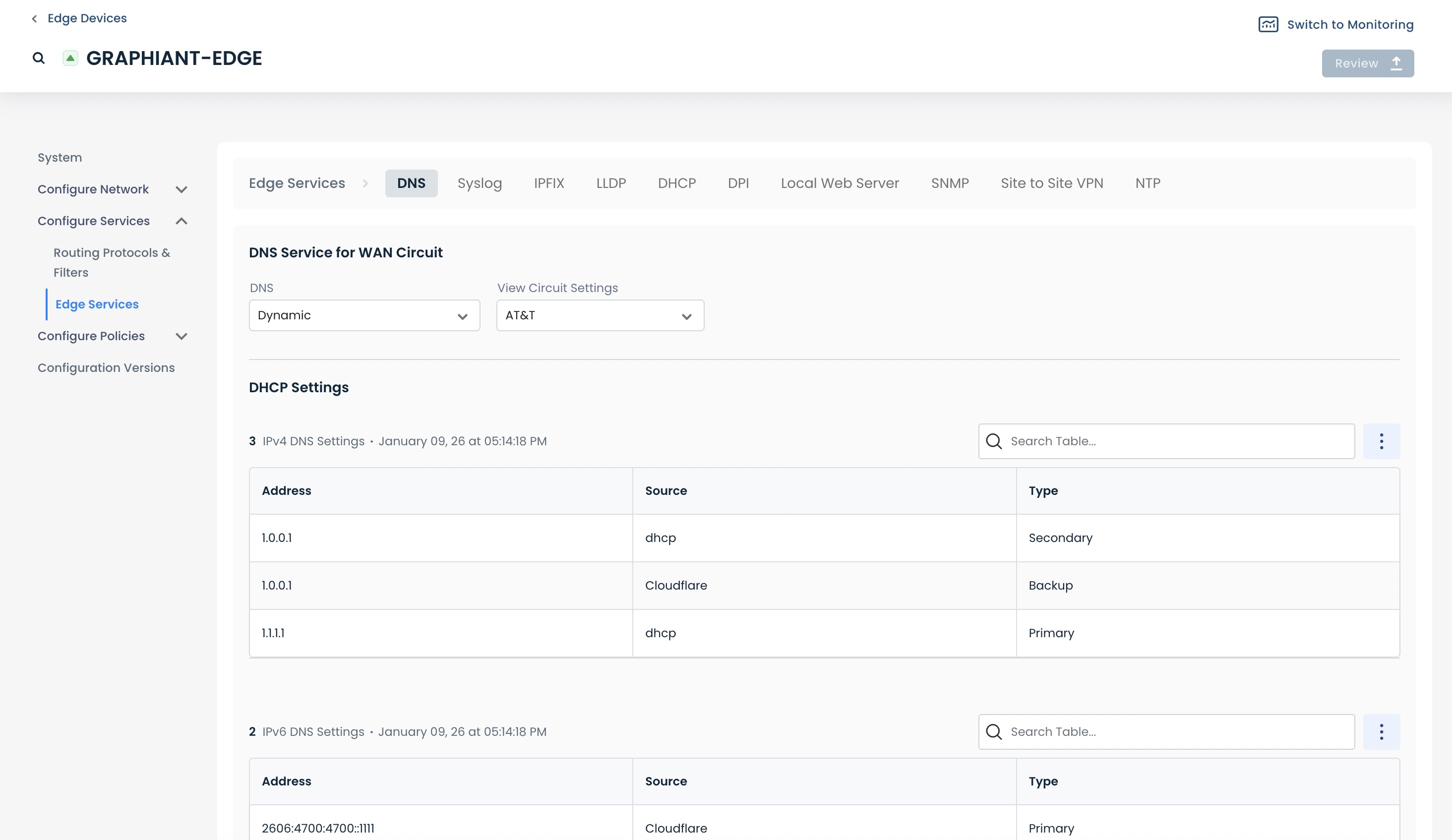
On the Edge Services page, select ‘NTP’.
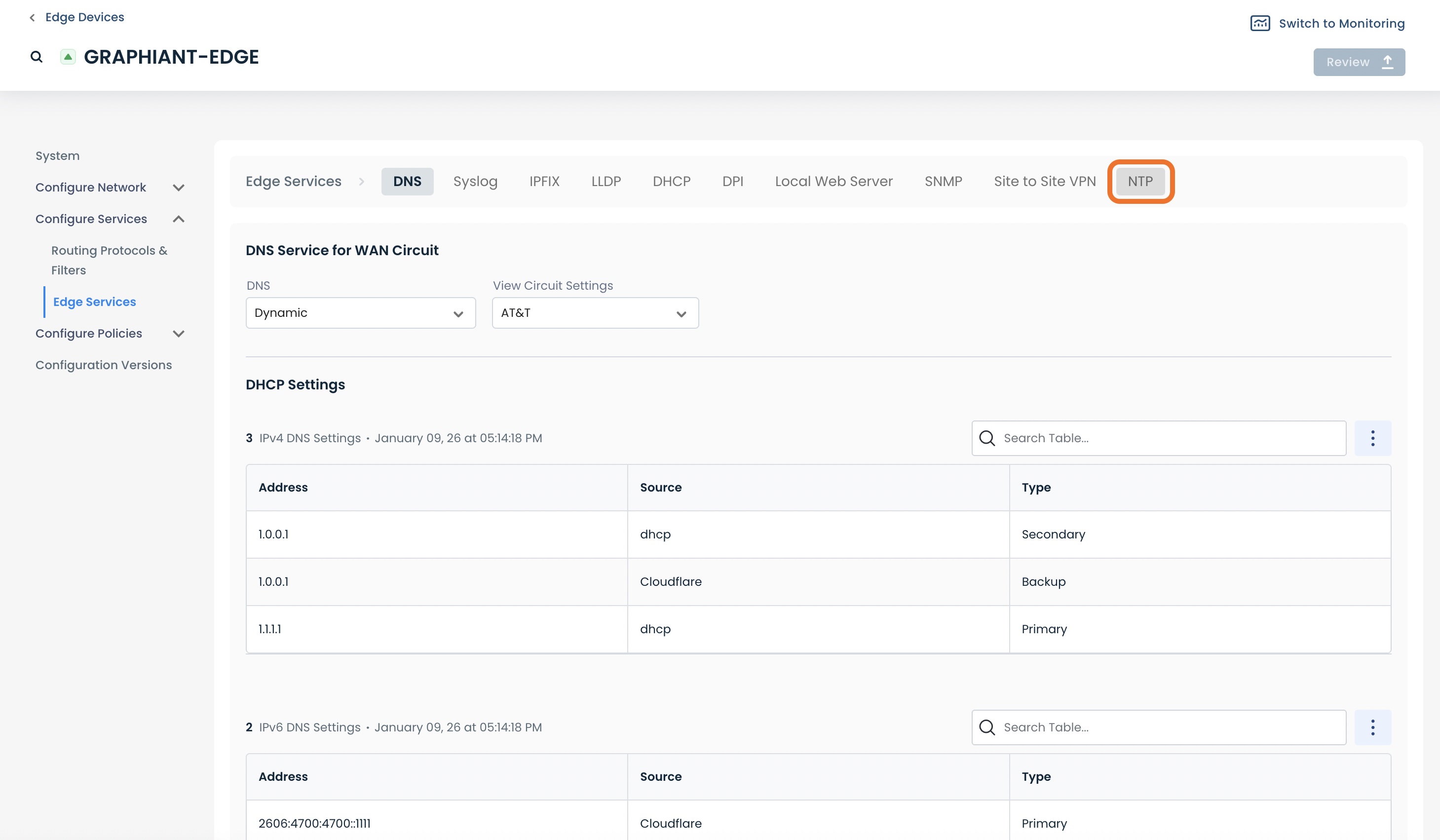
This will take you to the NTP Configuration landing page, where you can configure your NTP server.
.jpg)
Configuring Your NTP Server
When on the NTP configuration page, complete the following fields:
Name: Of your choosing for the NTP Server for future reference
IP Address or Domain Name: Enter the IP address(es) or domain name(s) of the NTP Server(s) which your device will contact for the exact time.
Note:
Using multiple NTP servers will provide a higher level of accuracy and reliability v/s using a single NTP server.
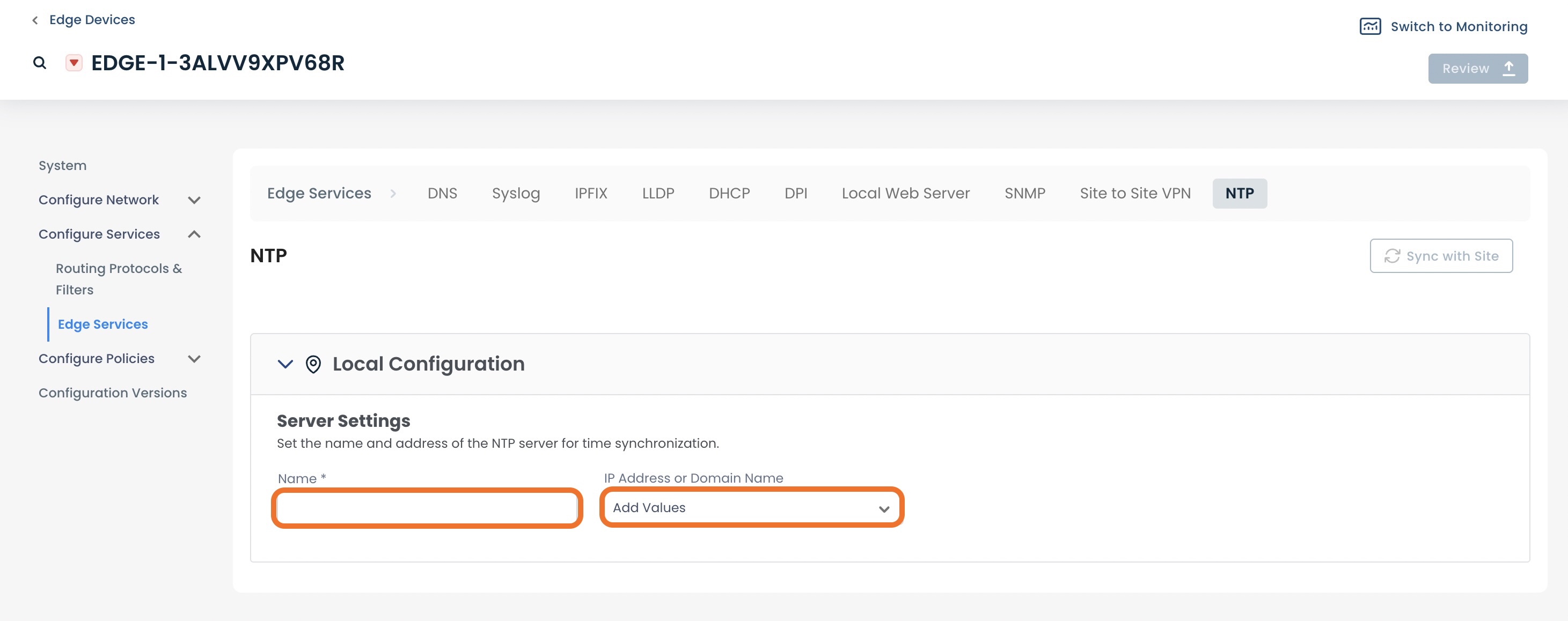
The changes you have made will be highlighted in yellow.
After all information is entered, click ‘Review’.
.jpg)
If desired, expand the window to verify that your information is correct.
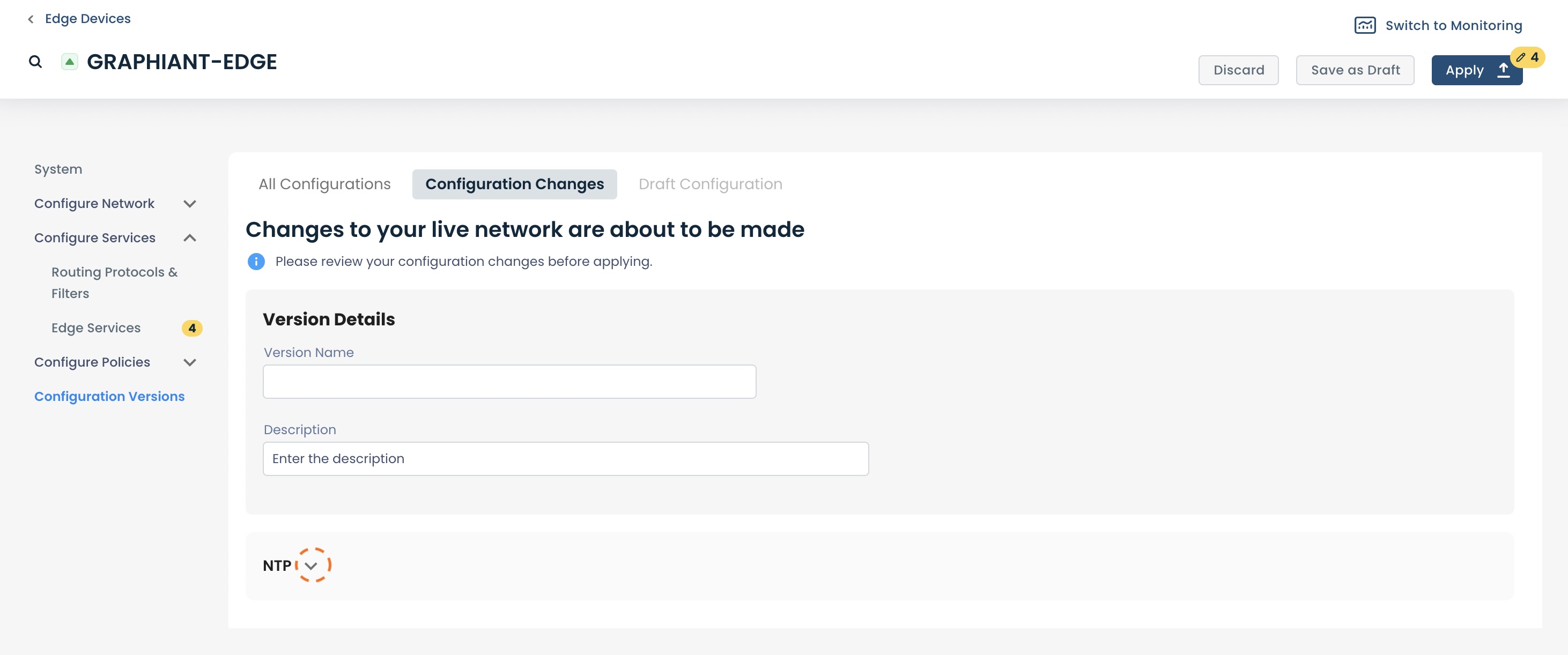
After verifying that all information is correct, click ‘Apply’ to save the configuration and apply it to your network.
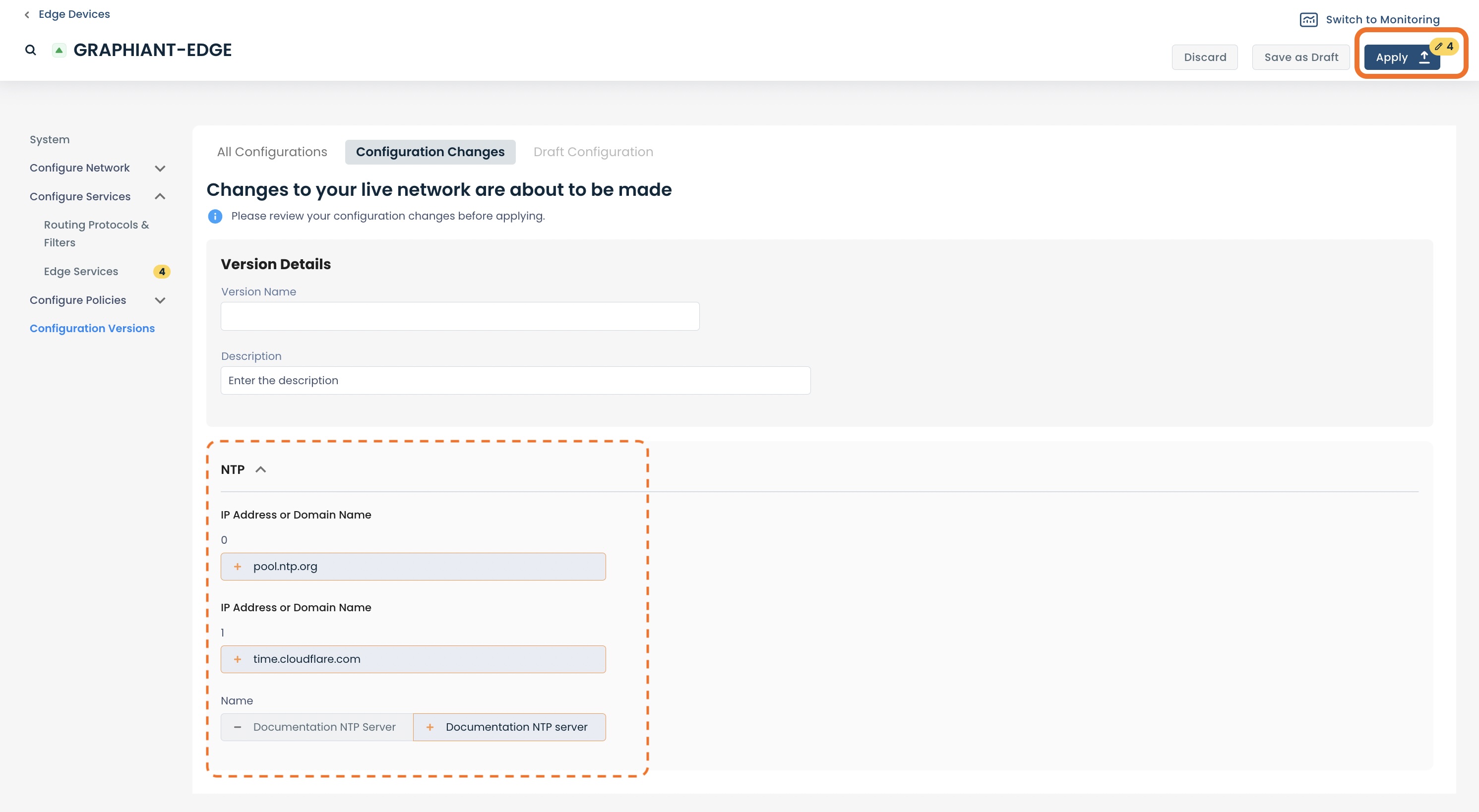
Your NTP server configuration is now complete!
.jpg)
Note:
An NTP Server cannot be deleted; only edited.
Should your Edge be pulling it’s configuration down from your site, you will need to override the System Object NTP Server and then make the changes; follow these instructions.