What is a System Objects NTP (Network Time Protocol) Server?
NTP servers act as the "timekeepers" for your Edges to keep all of the processes and data synchronized.
This ensures that authentication, data synchronization, and troubleshooting function smoothly, as well as providing accurate and consistent timestamps on files, logs, and security events across your entire system.
As a System Object, NTP servers are created just once, .
The NTP server can then be pulled down into as many Sites as you like.
Your Graphiant Edges in turn will receive the NTP server information through their Site's configuration.
System Object NTP servers will now have a centralized place to be created and managed.
System Objects NTP in the Graphiant Portal
From within the Graphiant Portal, you will be able to set the location of which NTP server will retrieve the exact time.
Step 1: Locating System Objects DHCP in the Graphiant Portal
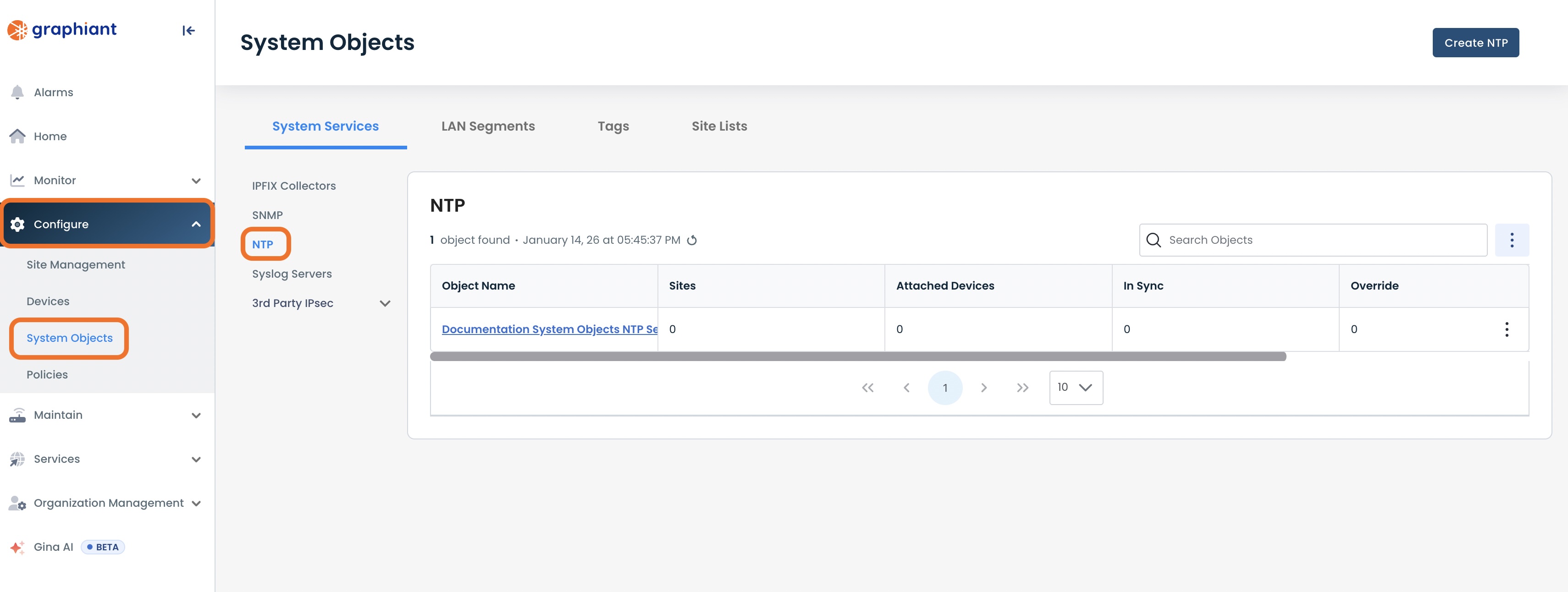
From the Home screen, navigate to the System Objects screen by one of the following:
Locate the "Configurations" section within the top left of the screen; select 'Create System Object'.
or
Click 'Configure' in the sidebar; select 'System Objects'.
.jpg)
Under “System Services”, click 'NTP'.
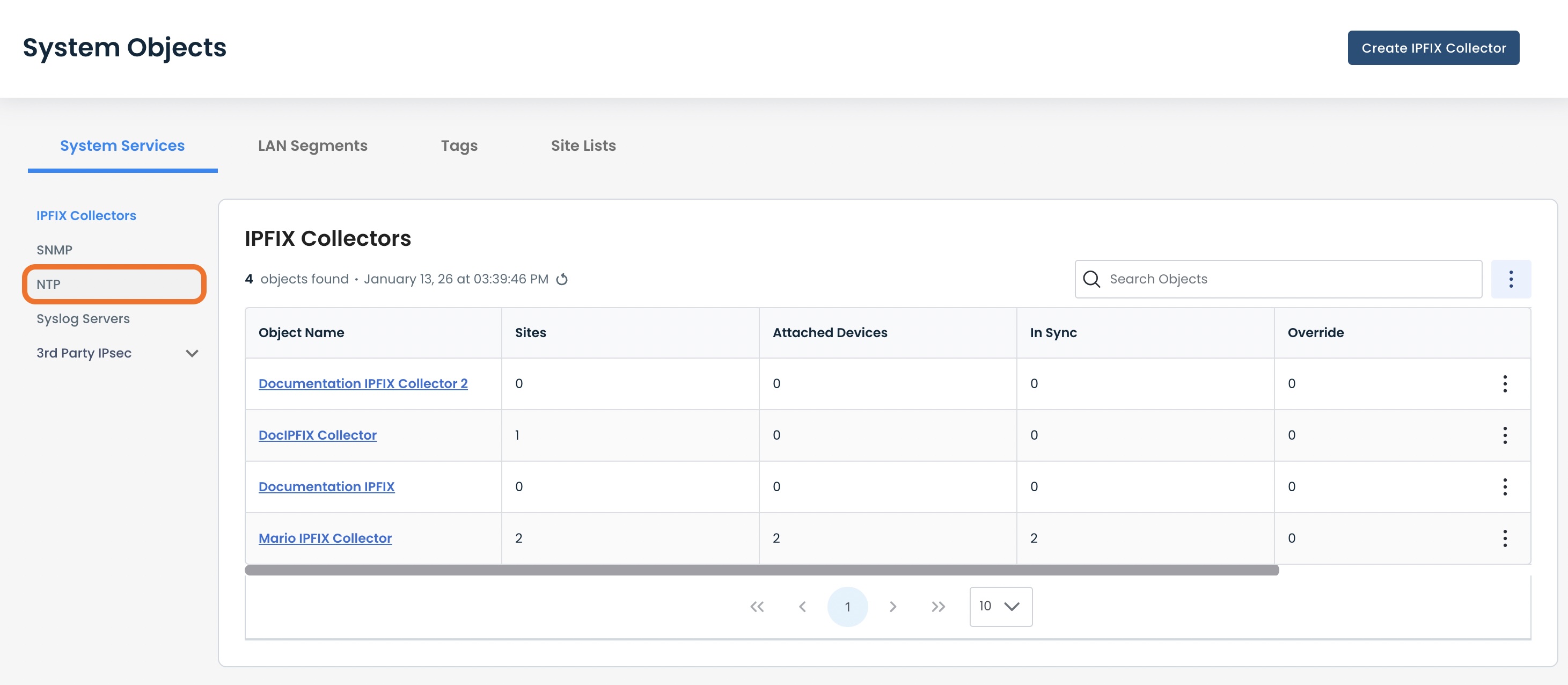
This will bring up the NTP table, with the following fields:
Object Name: The assigned name of the NTP Server
Sites: Number of Sites to which the NTP Server is attached
Attached Devices: Number of Edges to which the NTP Server is attached
In Sync: Number of Edges which are successfully pulling down their NTP Server configuration from the Site.
Override: Number of Edges in Override Status (see here for details on Override status)
Failures: Number of Edges in Failure Status (see here for details on Failure status)
From here you can configure and view your NTP servers.
.jpg)
Configuring Your NTP Server
From the System Objects NTP page, click ‘Create NTP’.
.jpg)
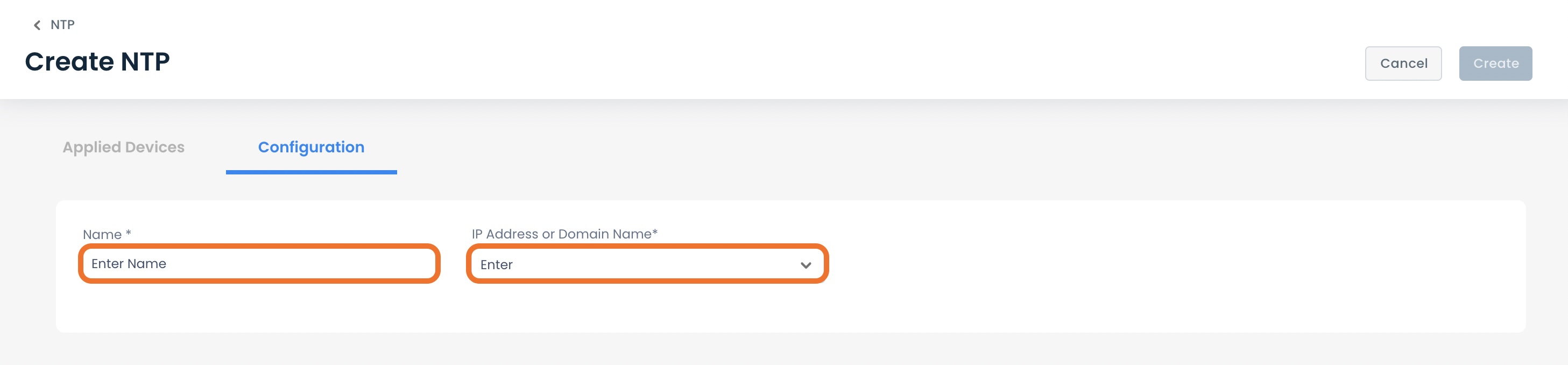
When on the NTP configuration page, complete the following fields:
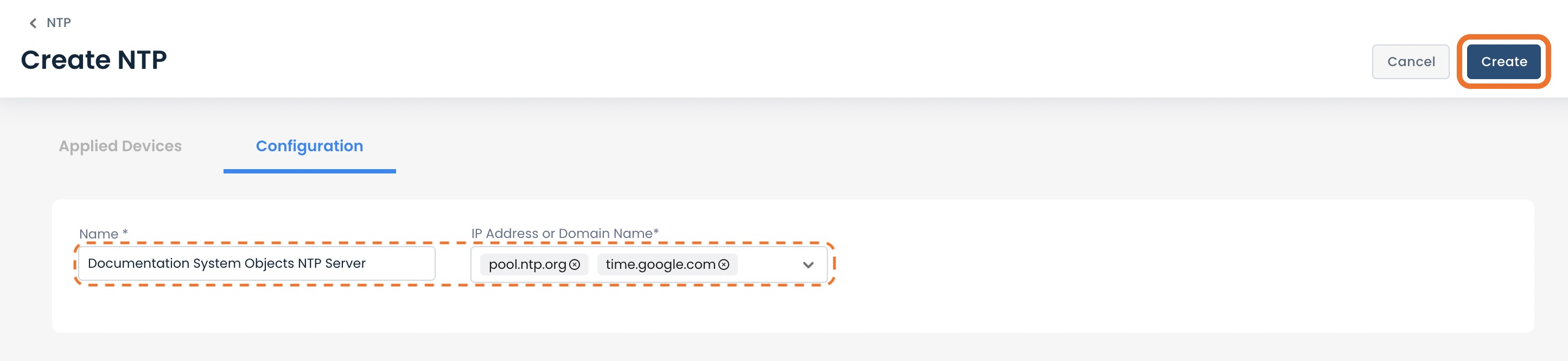
Name: Of your choosing for the NTP Server for future reference
IP Address or Domain Name: Enter the IP address(es) or domain name(s) of the NTP Server(s) which your device will contact for the exact time.
Note:
Using multiple NTP servers will provide a higher level of accuracy and reliability v/s using a single NTP server.
After all information is entered, click ‘Create’.
A green banner will appear stating that your NTP server has been successfully created!
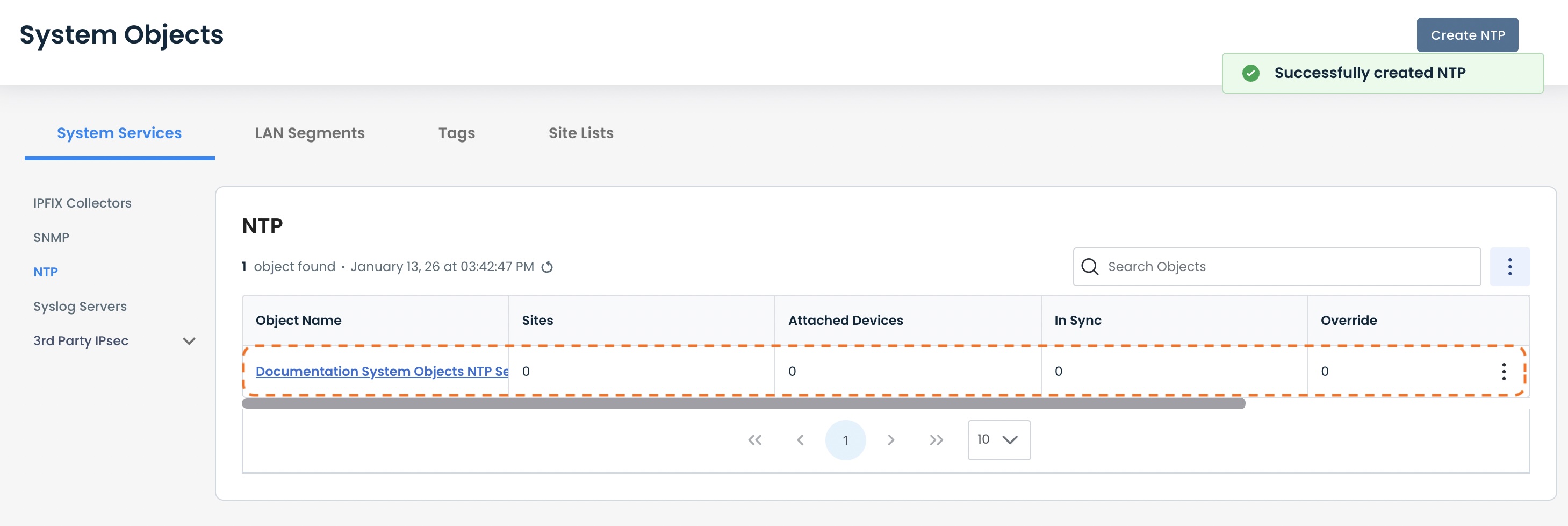
Note:
Your System Objects NTP server will not be able to be utilized until it is attached to a Site (see here for instructions).
Attaching an NTP Server to a Site
For a System Object NTP server to be utilized by any Edges, it must be attached to a Site.
To attach an NTP server to a Site, click 'Configure' from the left sidebar from anywhere in the Portal; select 'Site Management'.
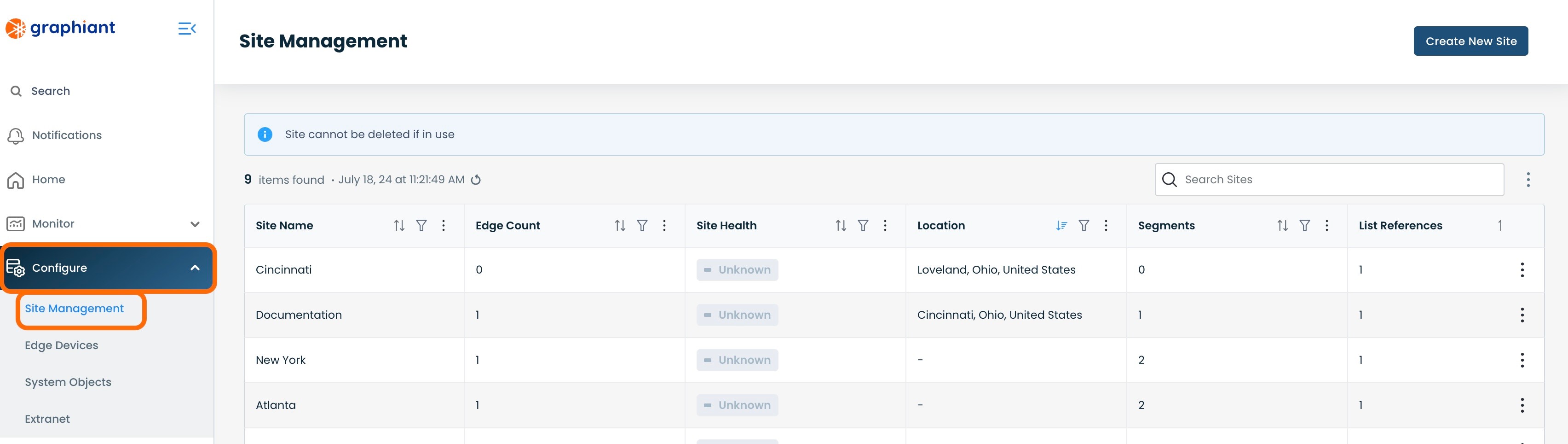
Click the name of the site to which the NTP server will be attached.
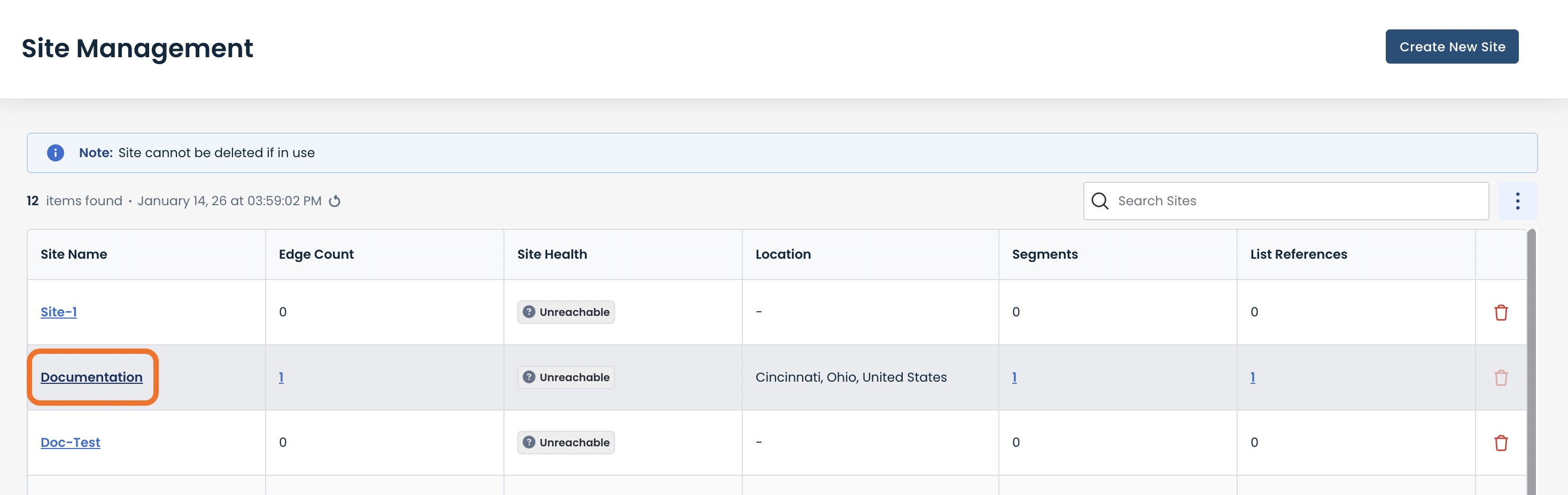
Click 'Site Services' under 'Summary'; select 'System Services'.
Click the 'NTP' tab at the top.
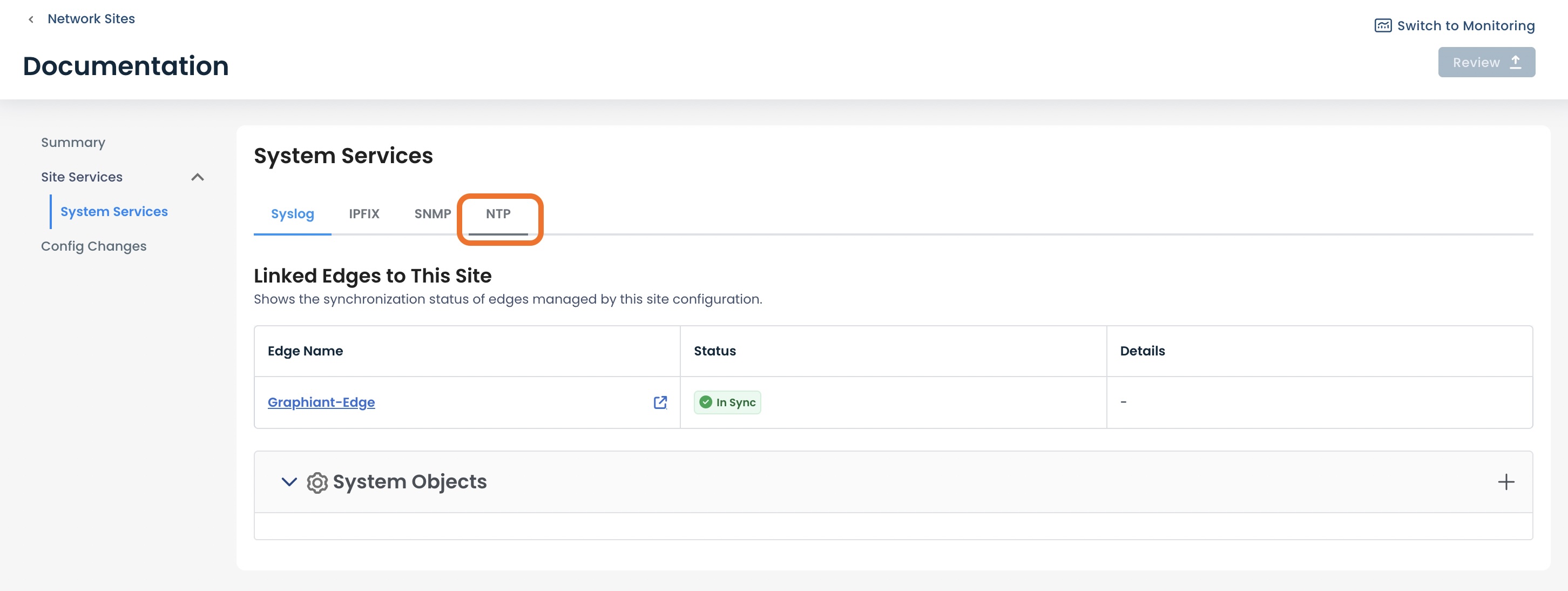
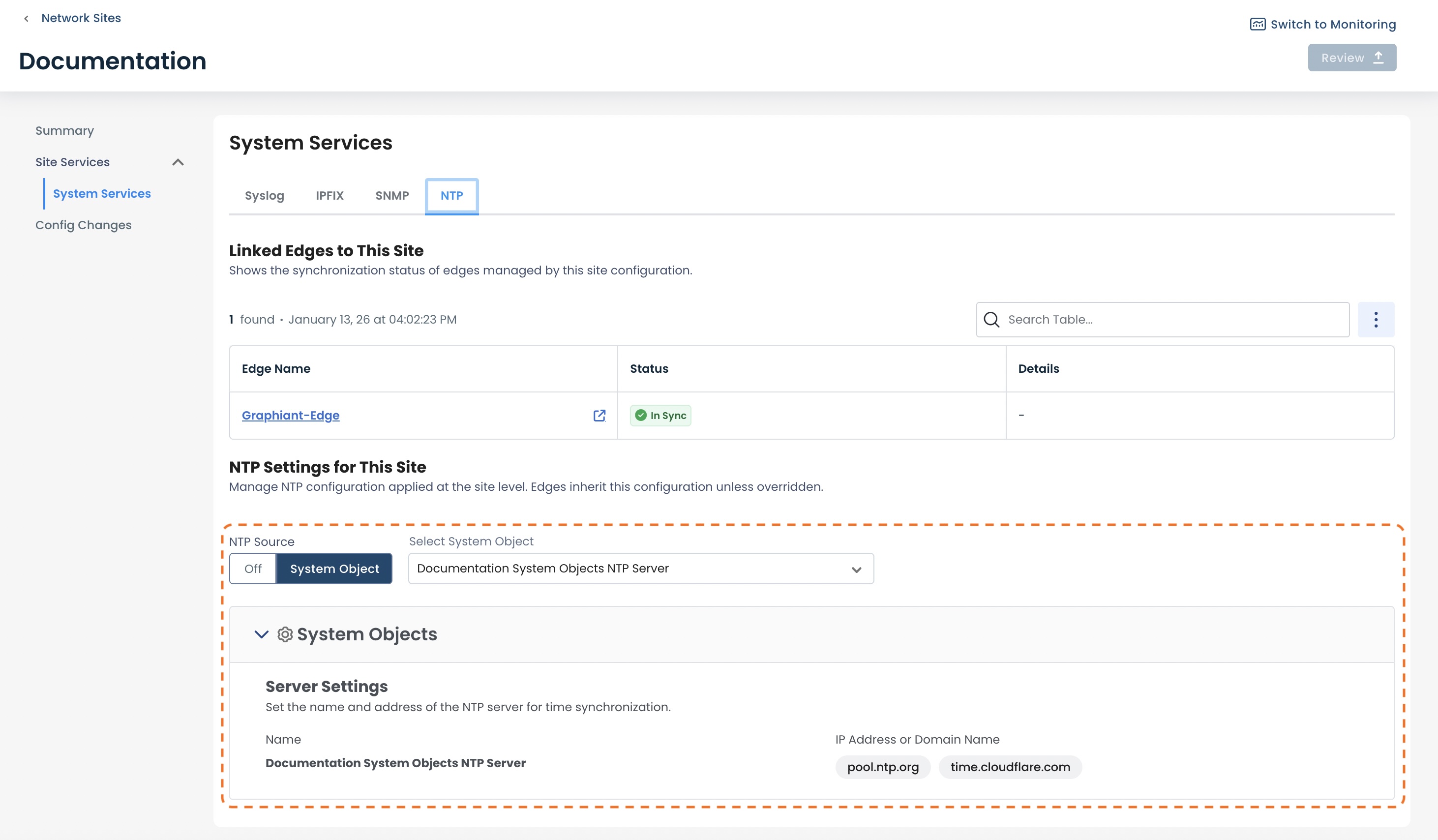
You will see the Edges linked to the site at the top, along with their Status and Details.
At the bottom are the NTP Settings for this site.
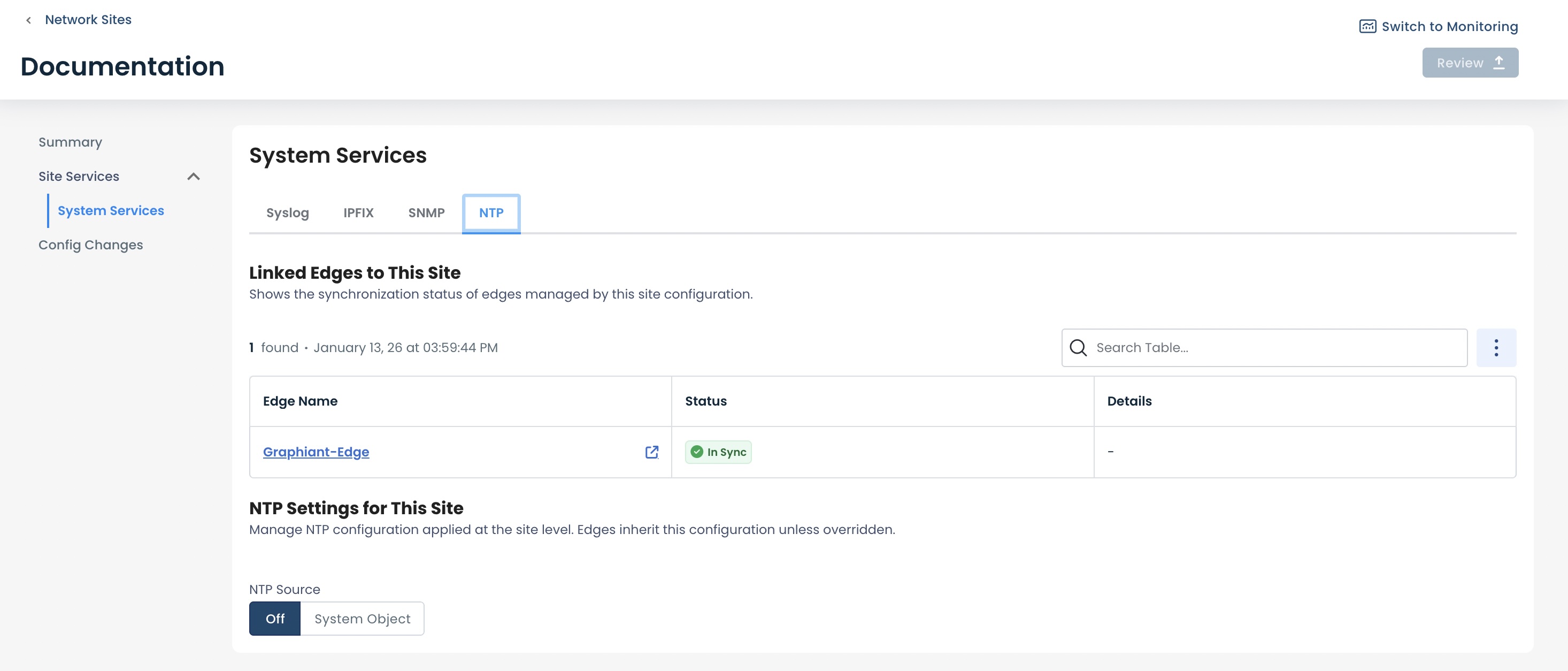
NTP Source
By default, the NTP source is “Off”.
To enable the Site to utilize a prior configured System Object NTP server, click ‘System Object’.
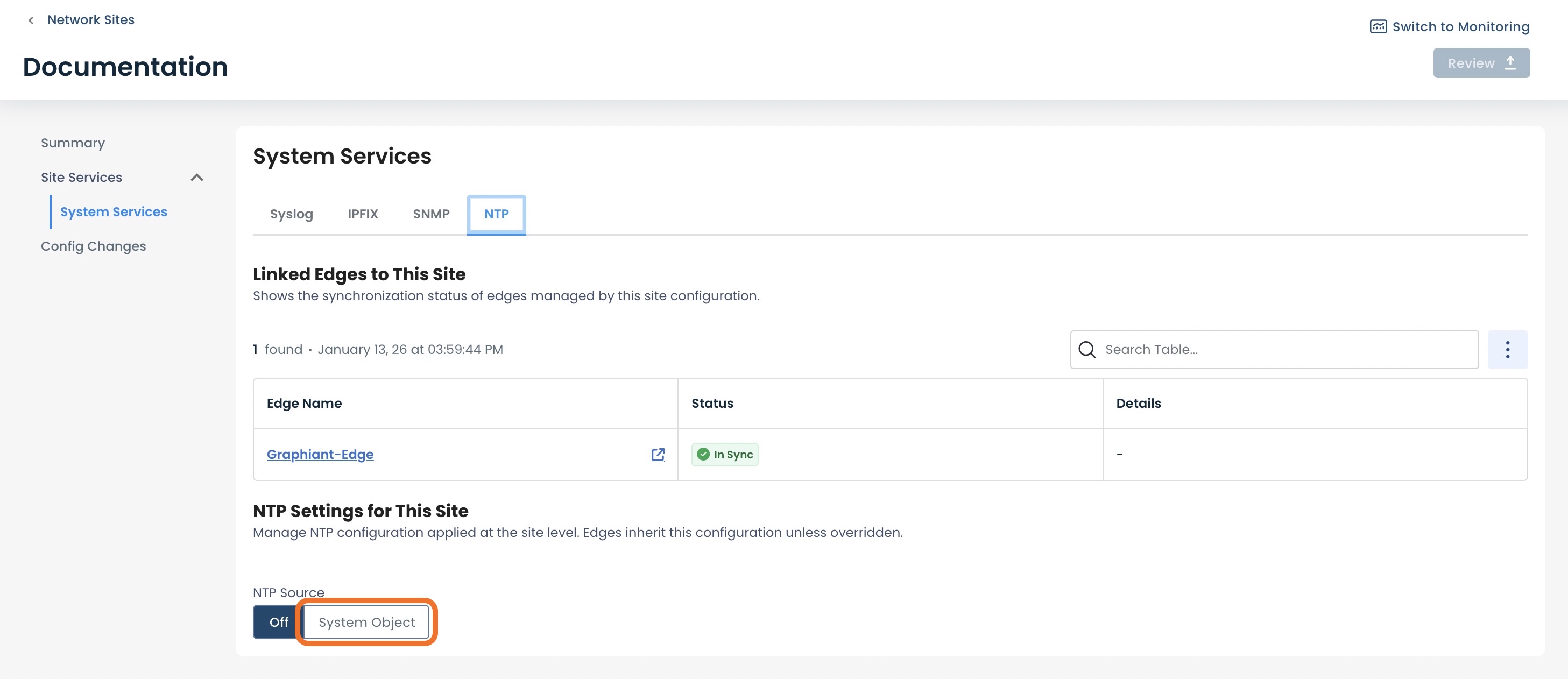
Select the desired NTP server from the drop-down.
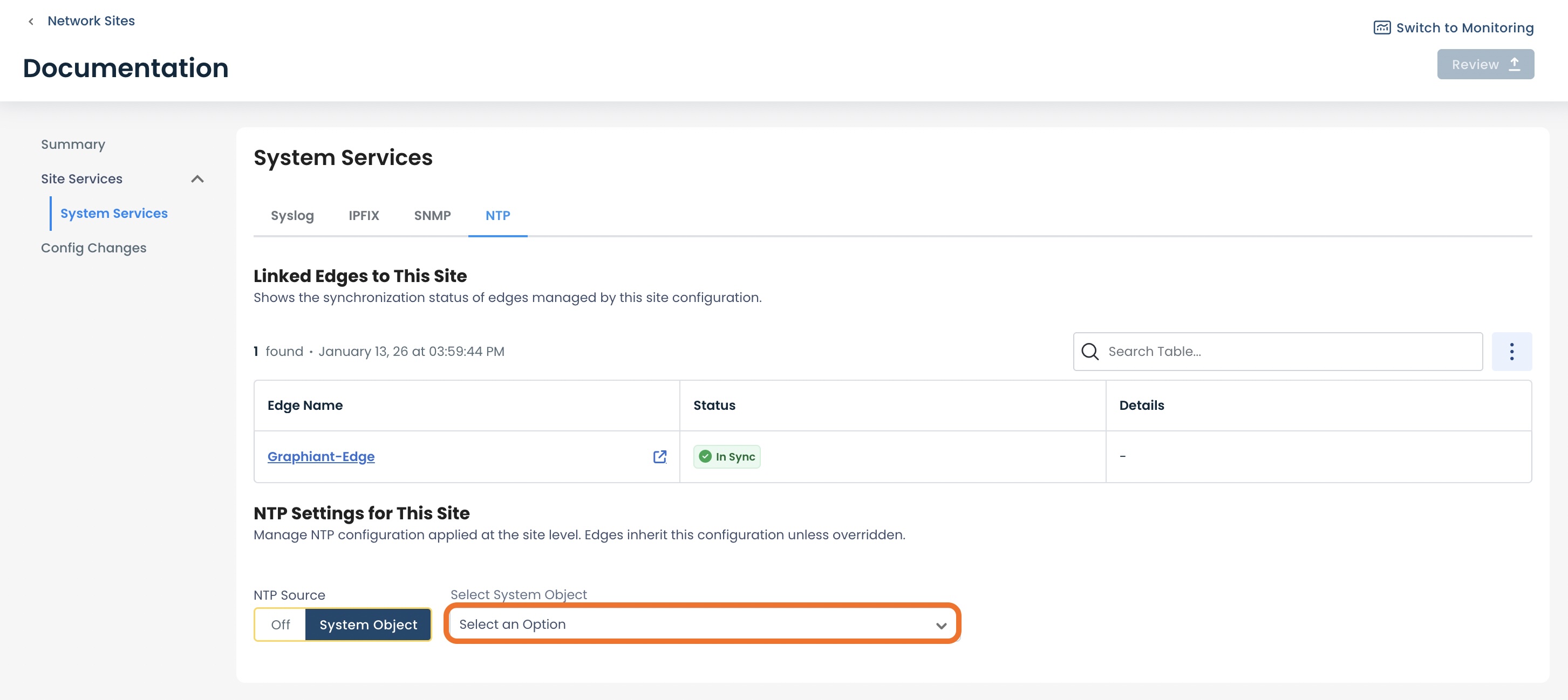
The configuration of the NTP server will be displayed.
Click ‘Review’.
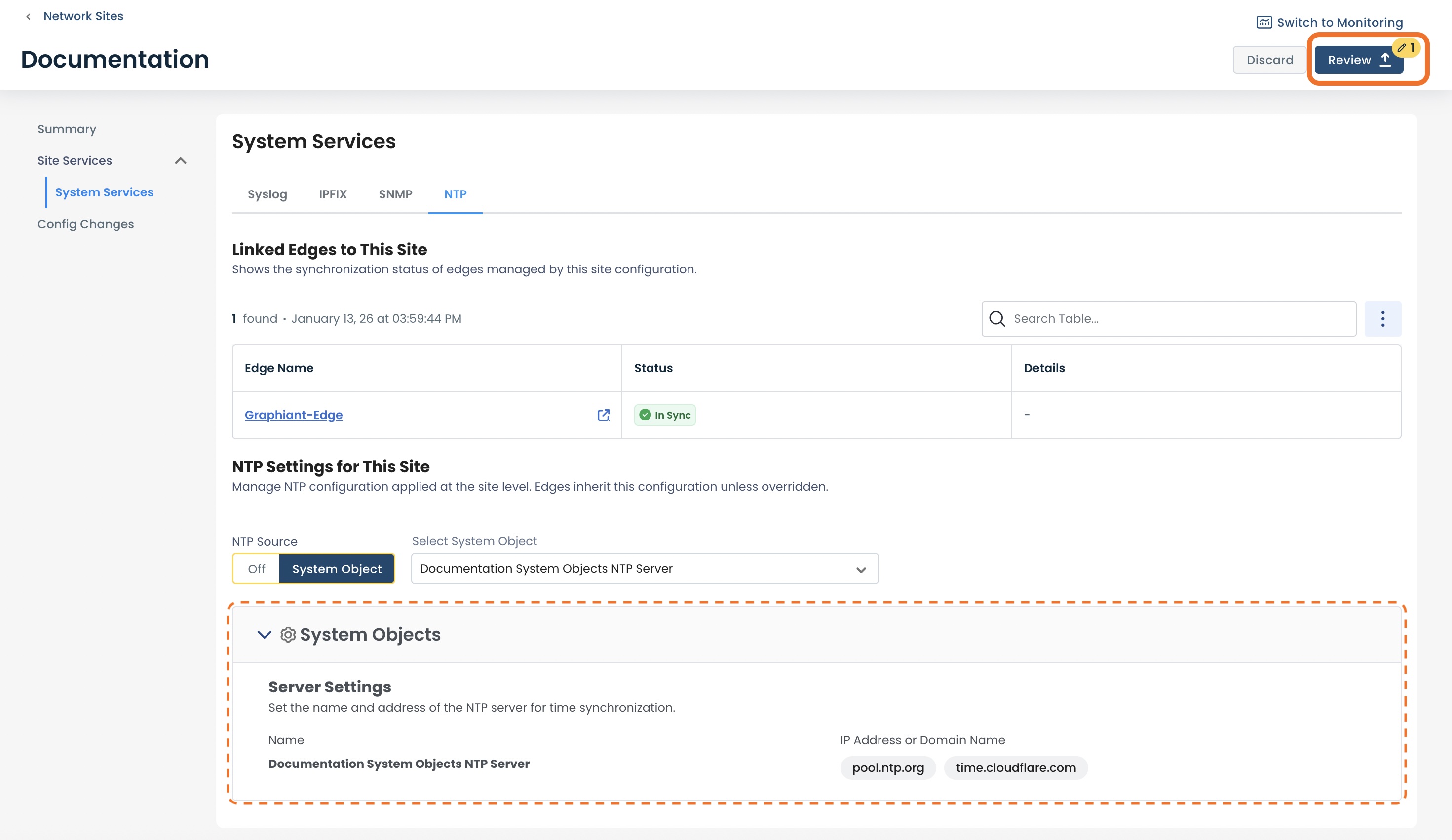
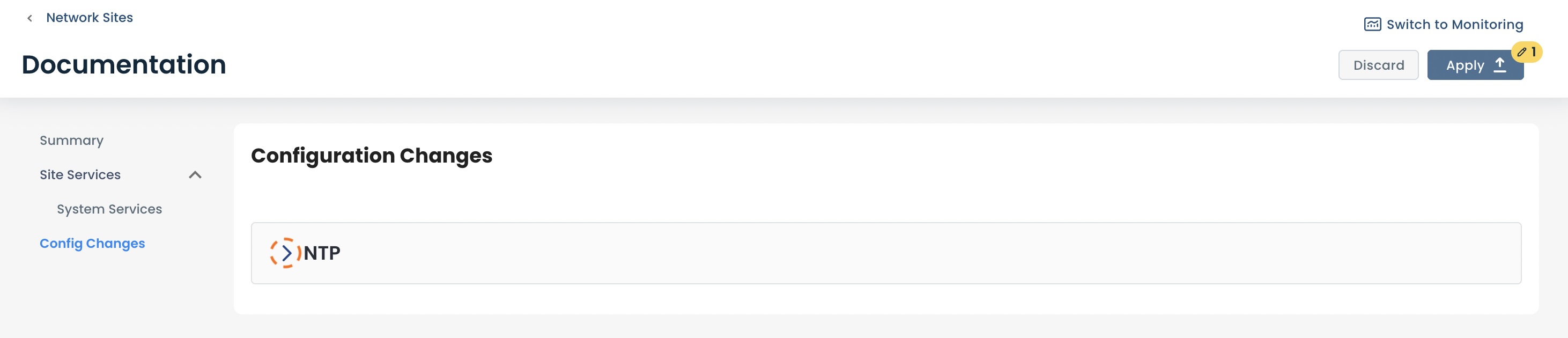
This will bring up the "Configuration Changes" screen for the site.
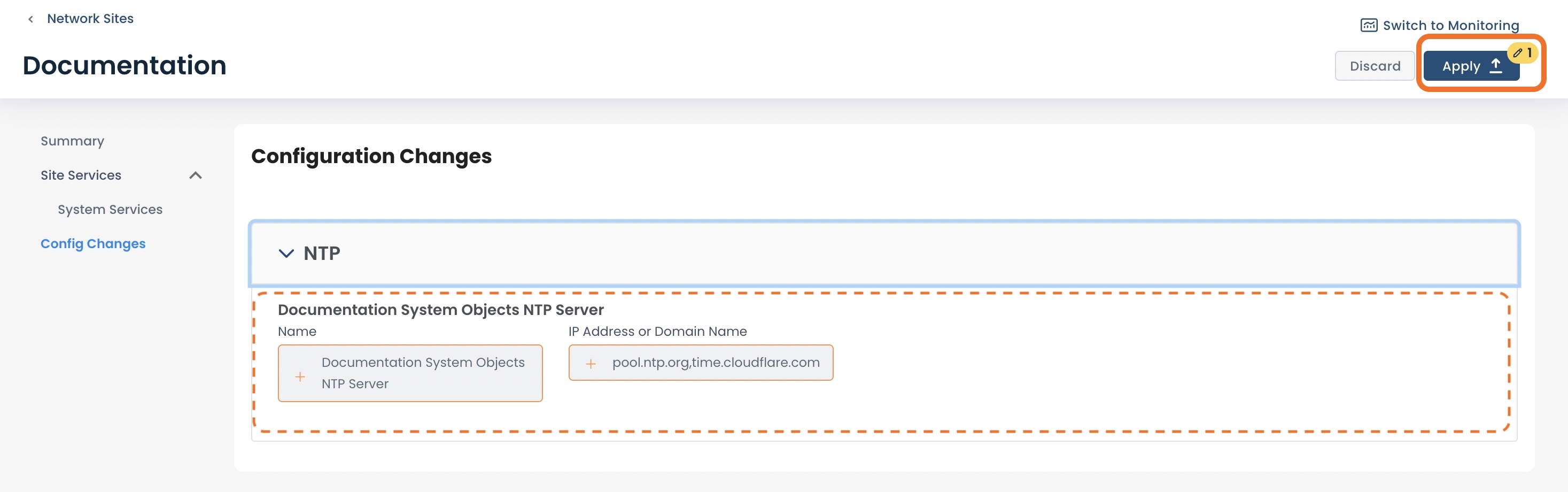
To see the exact changes that will be made in the configuration, click the 'NTP' carat.
After verifying that all information is correct, click ‘Apply’ to save the configuration and apply it to your network
You will get a message that the site has been successfully updated.
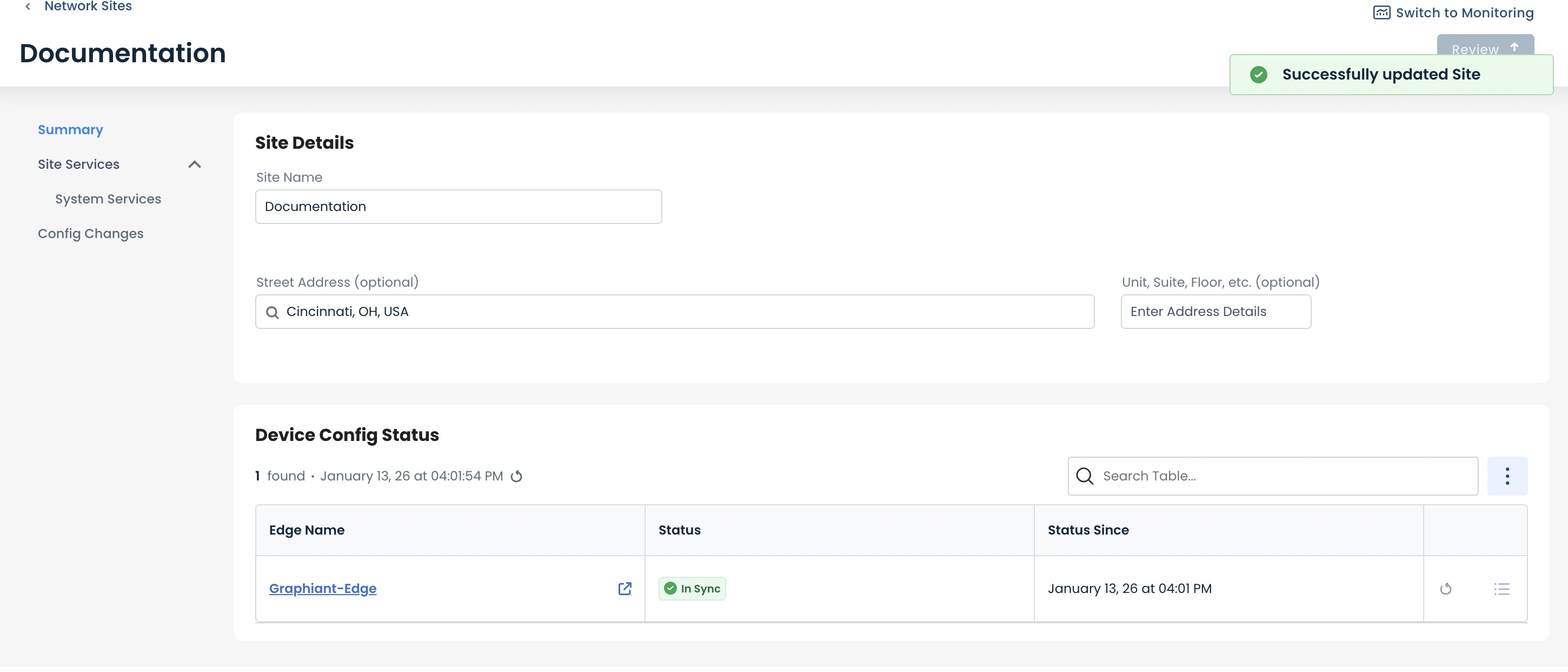
From the 'Site Services'; 'System Services' menu under the Summary on the left, then navigating to the 'NTP' tab, the NTP server will now appear in the Site and its configuration will be visible.
All Edges in this Site will use this NTP server.
Changing the System Objects NTP Server for a Site
To change which NTP server is attached to a Site, click 'Configure' from the left sidebar from anywhere in the Portal; select 'Site Management'.
Click the name of the site to which the NTP server will be attached.
Click 'Site Services' under 'Summary'; select 'System Services'.
Click the 'NTP' tab at the top.
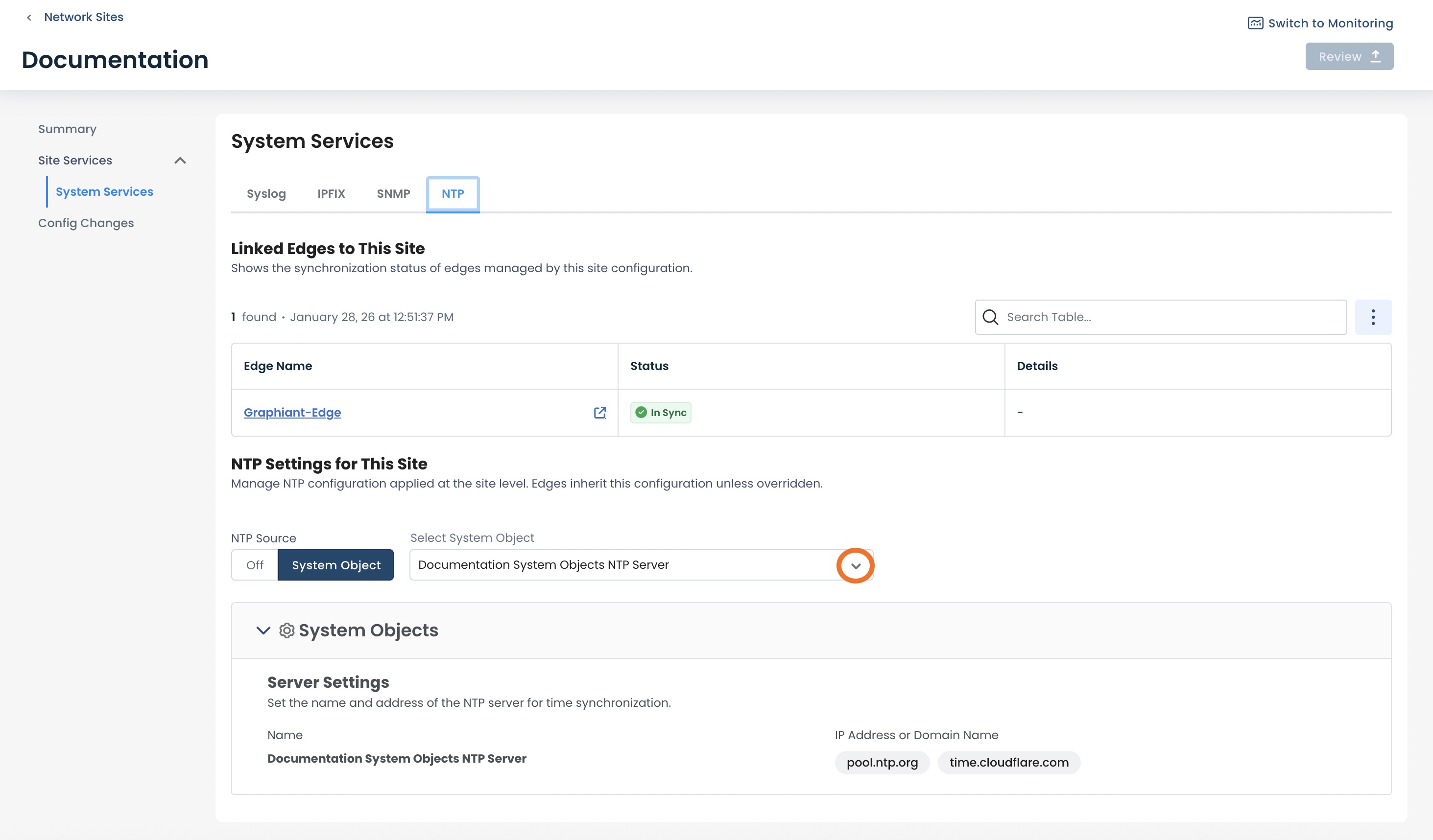
Click the carat within the ‘Select System Object’ field.
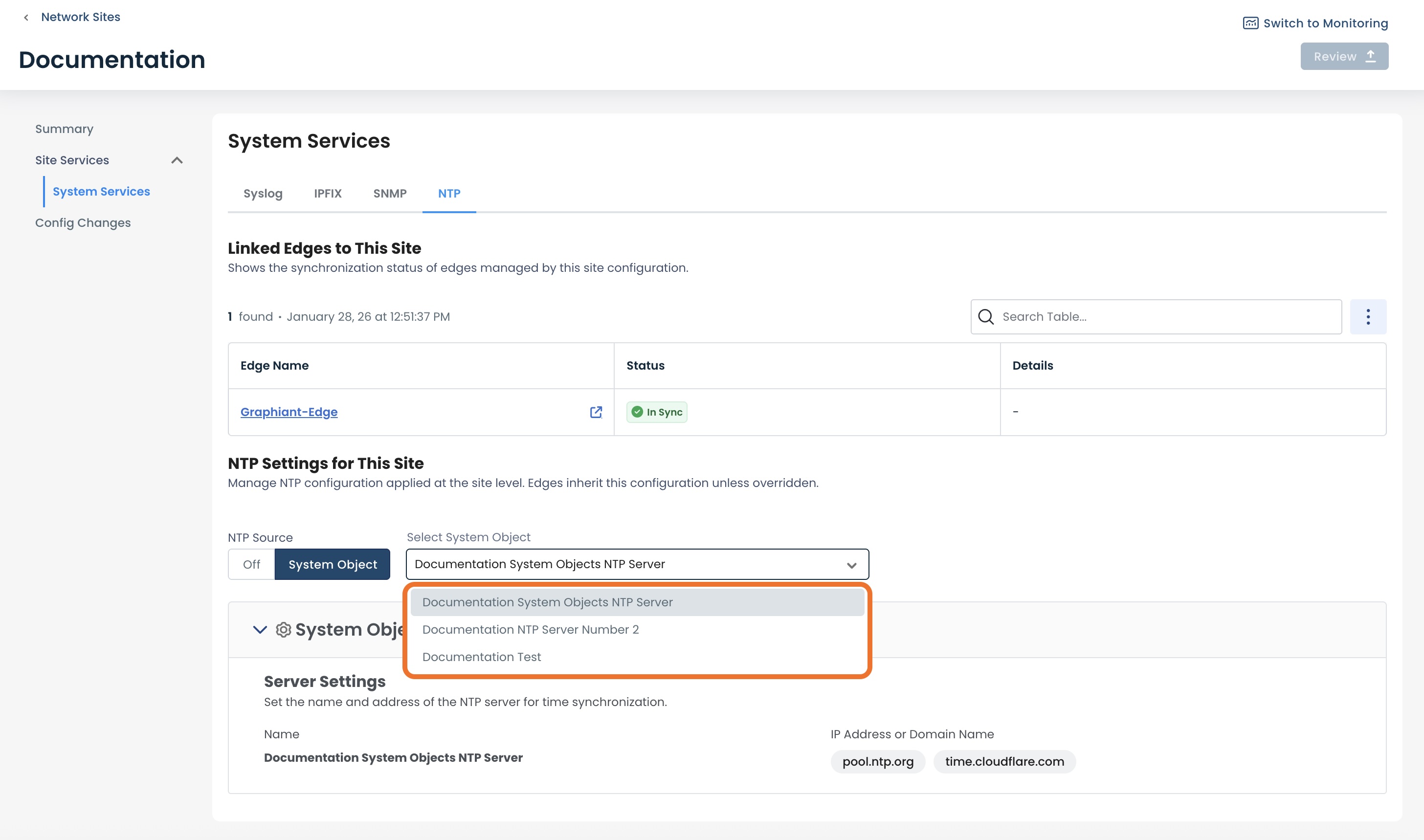
Select the new NTP Server you would like the site to use.
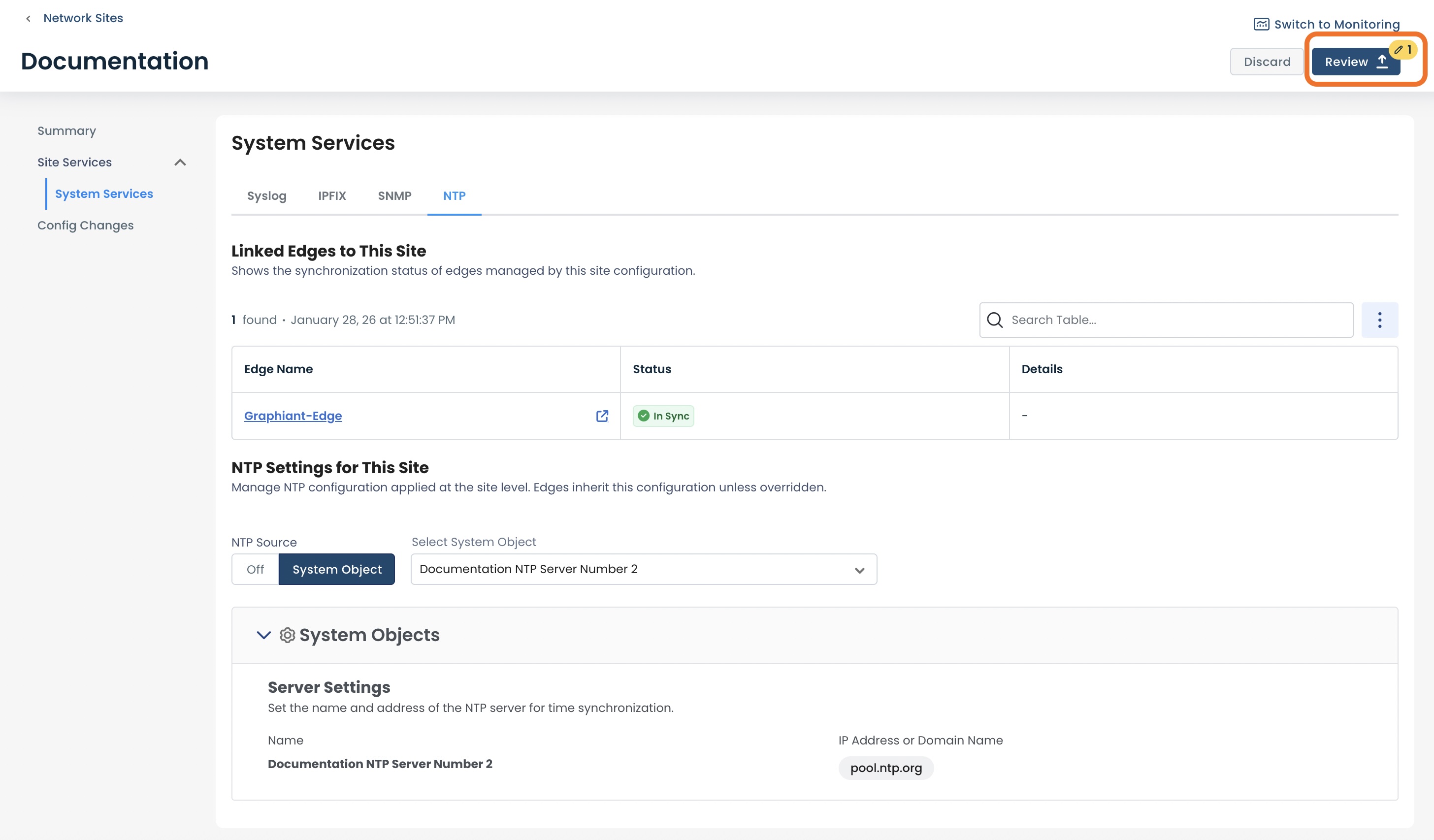
Click ‘Review’.
This will bring up the "Configuration Changes" screen for the site.
To see the exact changes that will be made in the configuration, click the 'NTP' carat.
After verifying that all information is correct, click ‘Apply’ to save the configuration and apply it to your network
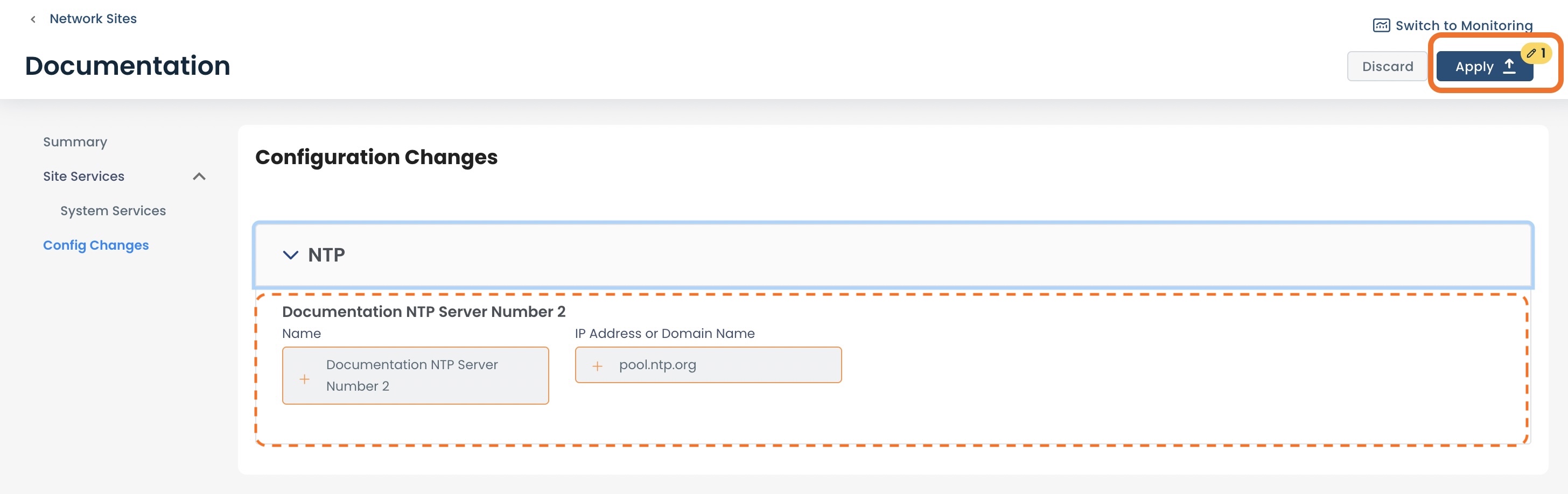
You will get a message that the site has been successfully updated.
The site will now use the new NTP server!
Configuration Status from the Site to the Graphiant Edge
The 'Status' field of each Edge in a Site can be reported in the following terms:
"In Sync": The Edge configuration is synced with the Site configuration; the Edge is doing exactly what the Site is telling it to do.
"Override": The Edge configuration is not synced with the Site configuration; this will be the status if you are overriding the Site to perform necessary changes directly on the Edge.
"Failure": The Site configuration failed when it attempted to push its configuration to the Edge.
Overriding the Site NTP Configuration for an Edge
If there is a need to change the NTP configuration directly on an Edge (i.e. for troubleshooting purposes), the subscription to the Site's configuration must be paused. This effectively breaks the connection between the Edge and the NTP server, as all System Objects flow through the Site configuration to the Edge.
In Override status, the Edge is out of "read-only" mode for System Objects, and all fields are then able to be edited. Any desired changes are now able to be made to the Edge locally.
Locating the Override Switch
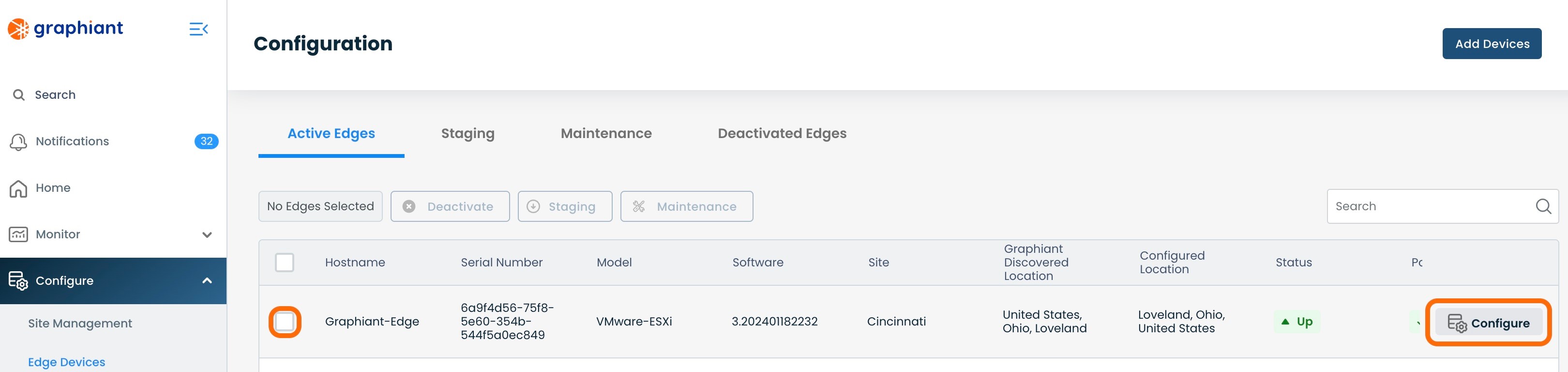
To override the configuration, go to 'Configuring Edges' either by clicking the button in the center under ‘Configuration’, or by clicking 'Configure' in the left side menu, then selecting 'Edge Devices'.
.jpg)
Select the checkbox for the Edge to configure; click the 'Configure' button to the right of that Edge.
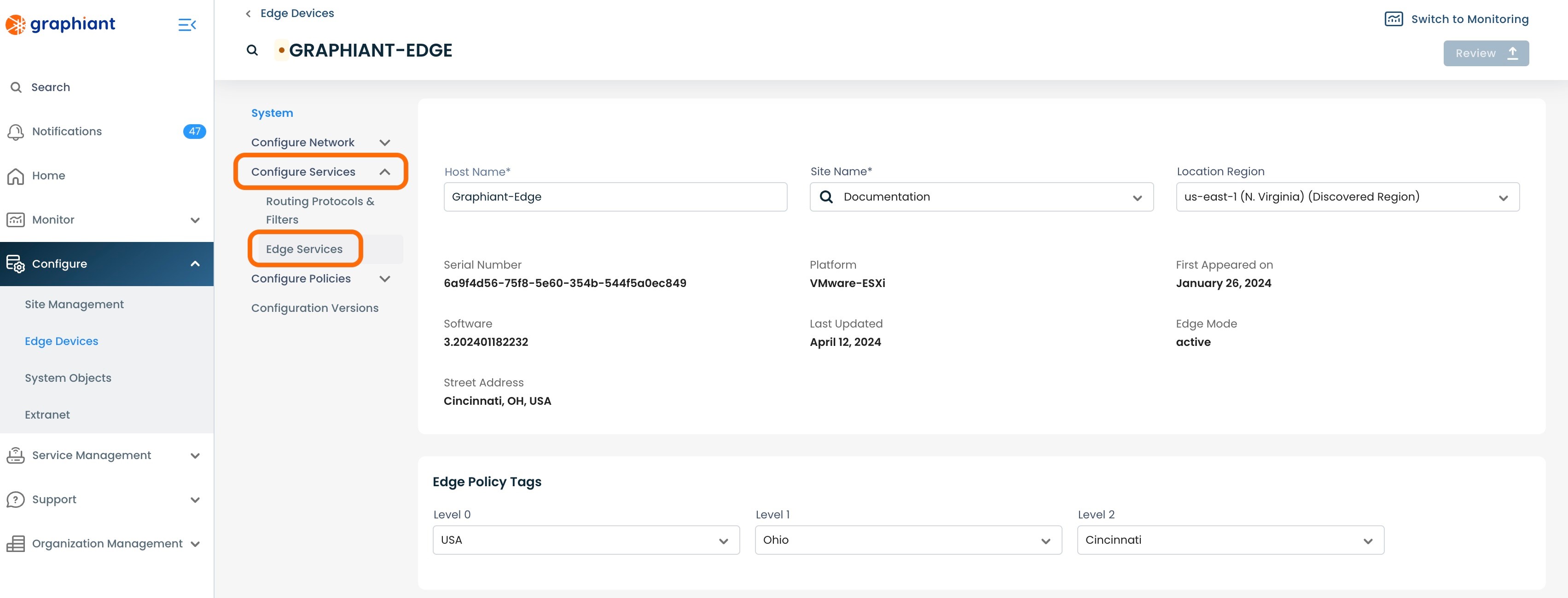
Click 'Configure Services' on the left; select 'Edge Services'.
Select the 'NTP' tab from across the top.
.jpg)
The NTP server will be shown here under "System Object".
The Override Switch will be at the top right of the System Object section.
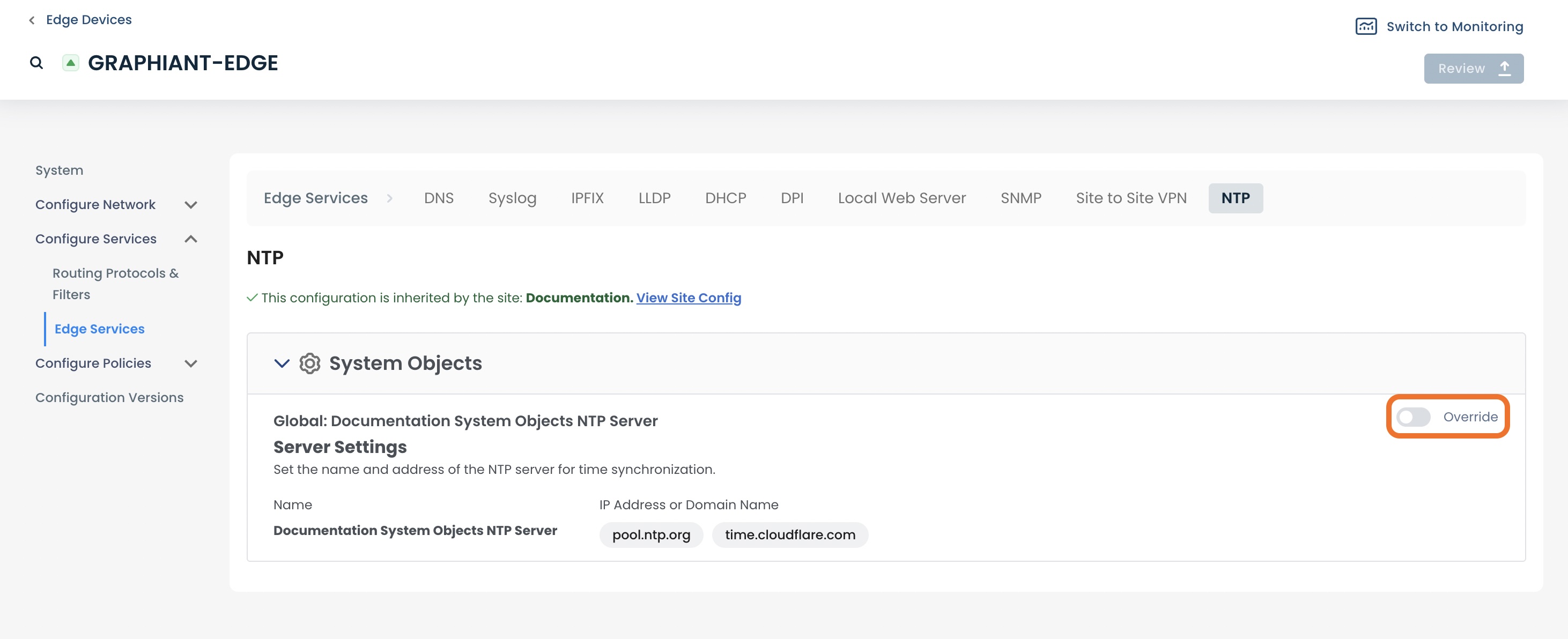
Overriding the Site NTP Configuration for an Edge
To override the Edge NTP Configuration, from the Edge Services screen, click the 'Override' switch located at the top right of the System Object.
The 'Override' switch will show activated, and the configuration is no longer inherited by the site.
The IP Address(es) / Domain Name(s) are now able to be edited.
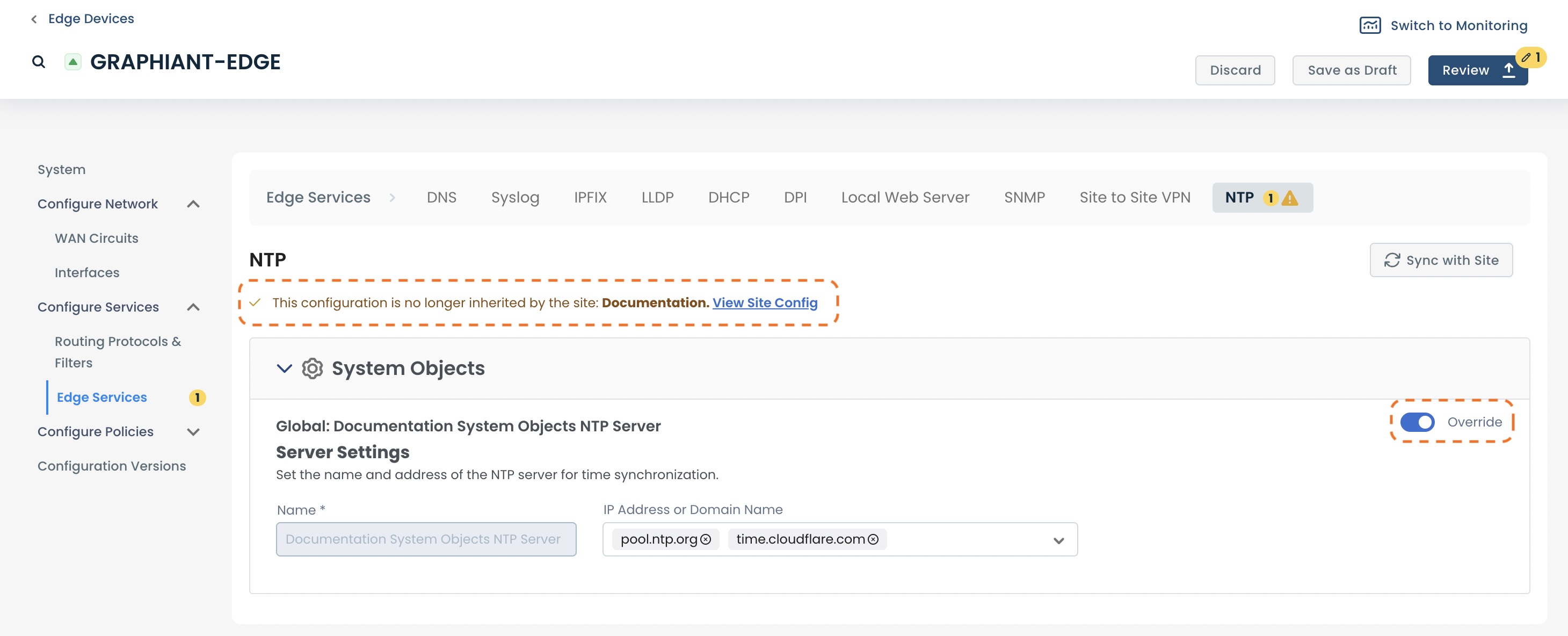
Make any desired configuration changes; they will be shown in yellow.
Next to the “NTP” tab at the top will be alerts. One will indicate that the NTP server has been selected for Override, and any others will reflect the number of changes (if any) made within the configuration.
Click 'Review'.
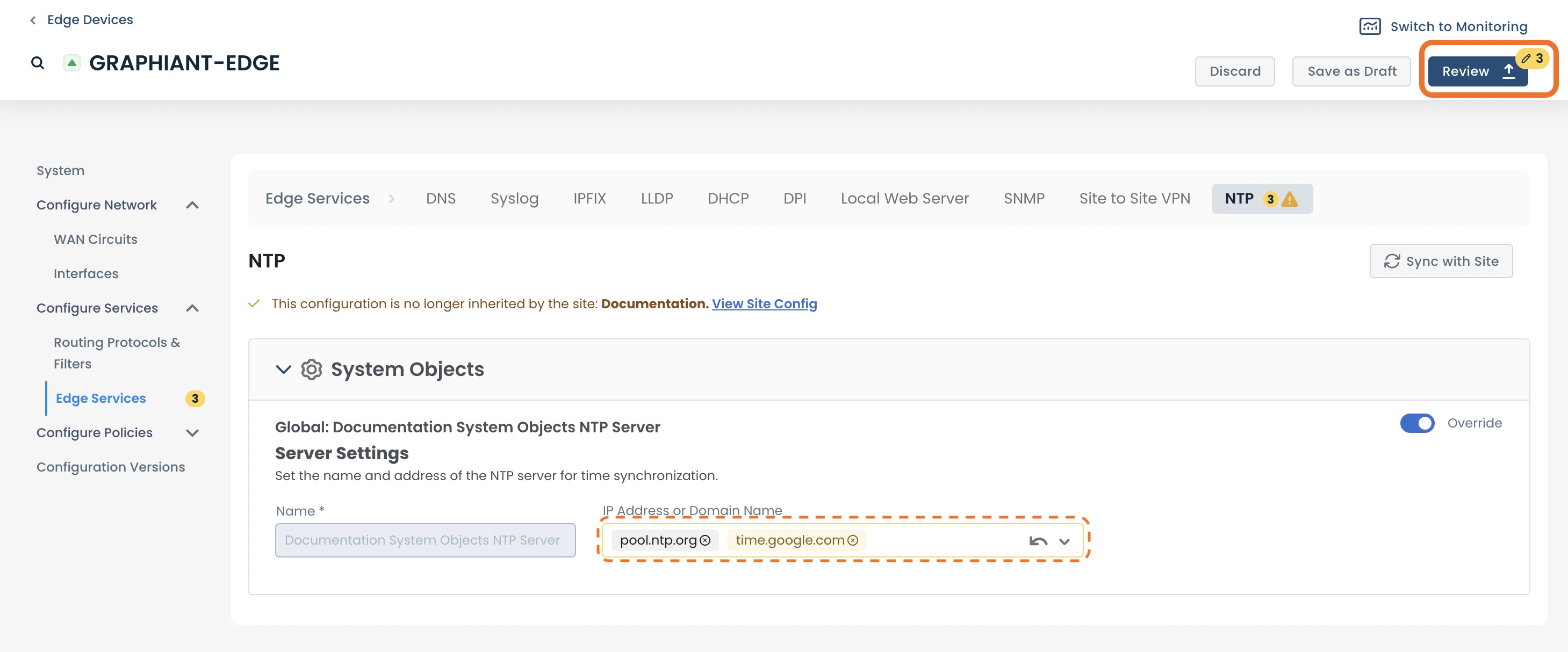
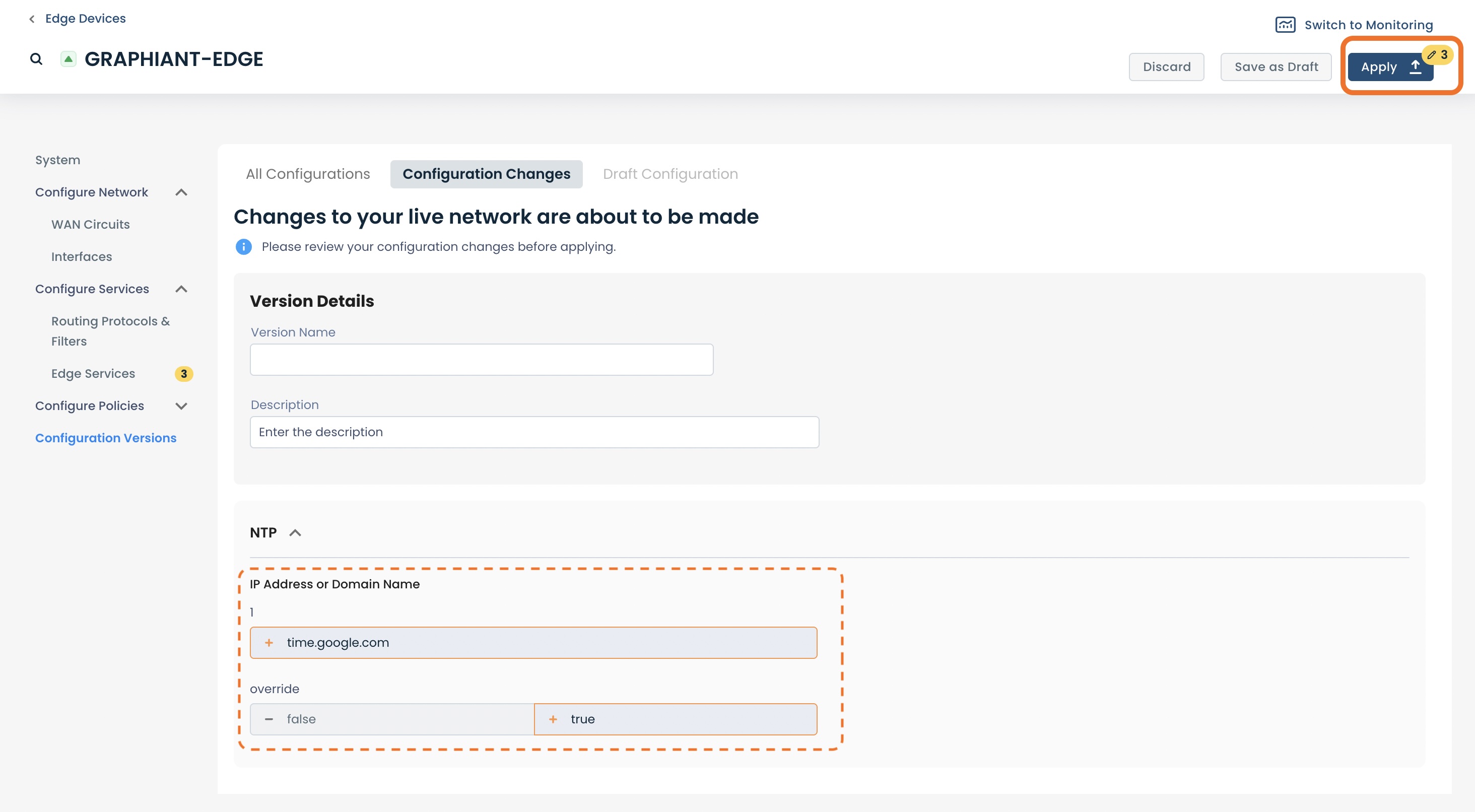
This will bring up the "Configuration Versions" screen for the Edge.
The number of changes are represented by the numbers in yellow
To see the exact changes that will be made in the configuration, click the carat next to “NTP”.

The configuration changes to be made once applied are shown here.
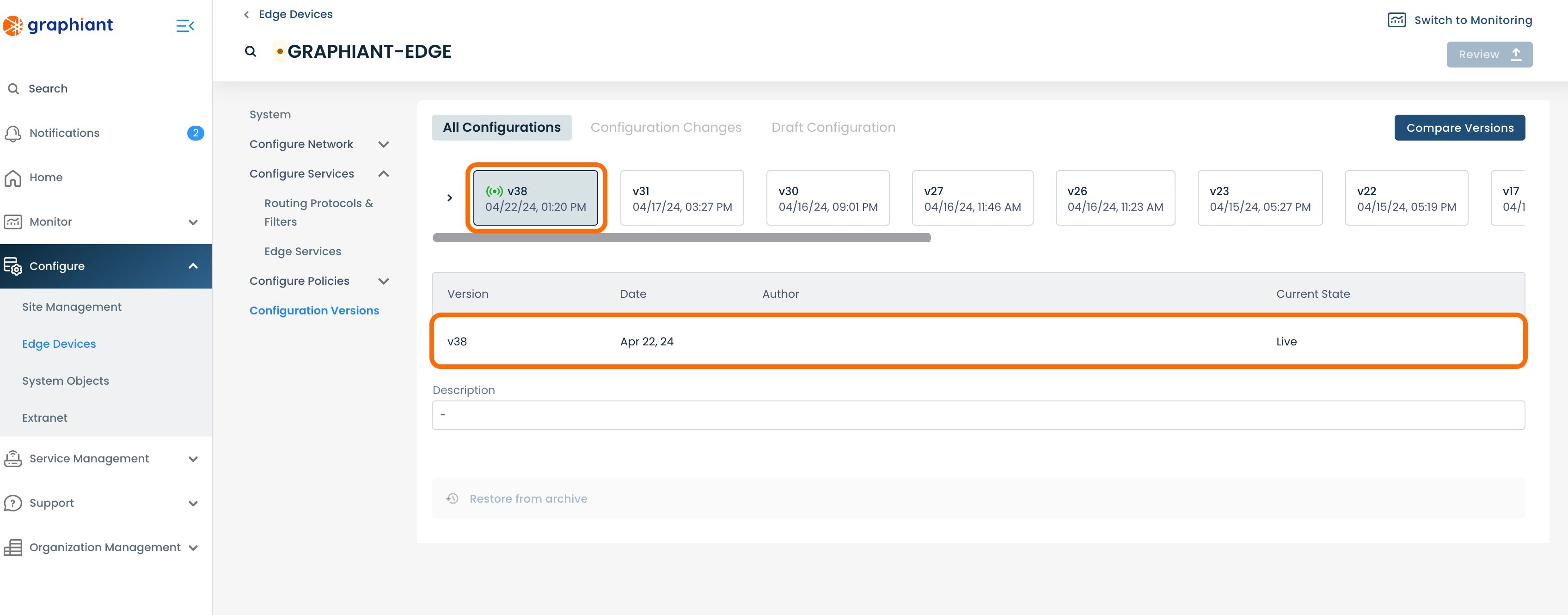
Click 'Apply'.
The new configuration will be highlighted in gray, and listed below as live.
On returning to the NTP server table, it will now show an alert under the 'Override' column, with the quantity of Edges that are in Override status for NTP.
The Site is no longer tracking whether the Edge configuration is "In Sync" with the Site's configuration.
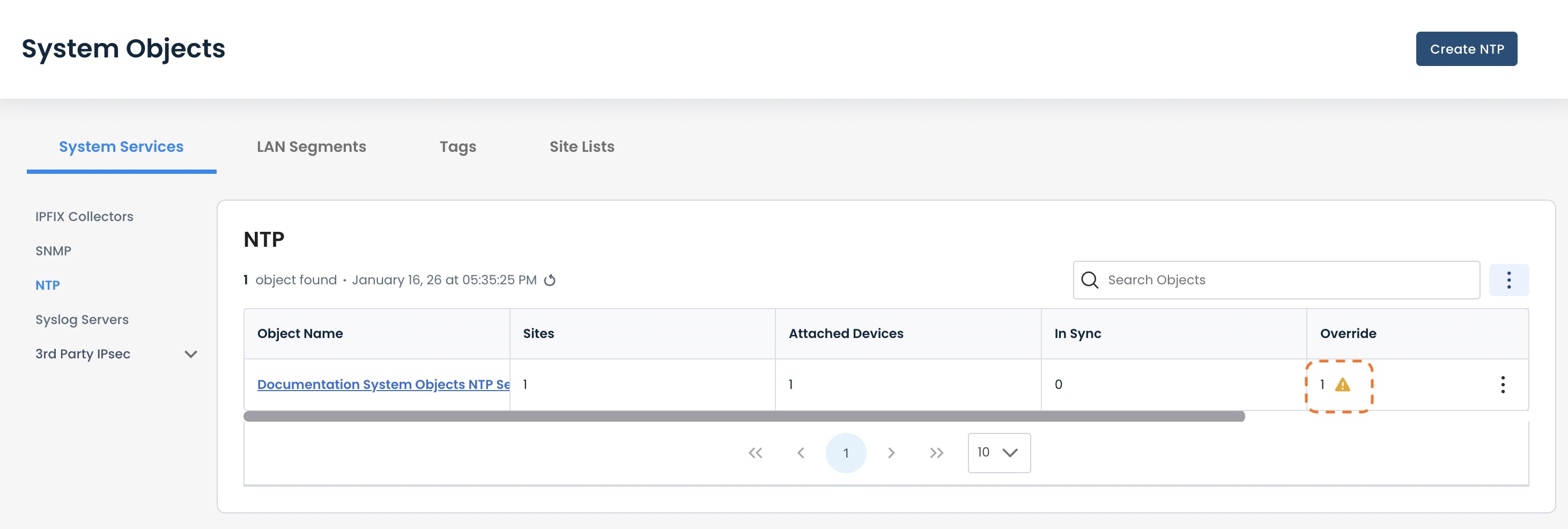
Restoring an Edge from Override Configuration to Site Configuration
When the Edge is ready to go back under the Site configuration and out of Override Status, return to the NTP Configure Screen for the Edge, where the Override switch is located. (For help finding this screen, click here).
Toggle the 'Override' switch; hit 'Review'.
Note:
When Override is deselected, all fields edited in the Override are cleared, and automatically put back to Site configuration selections.
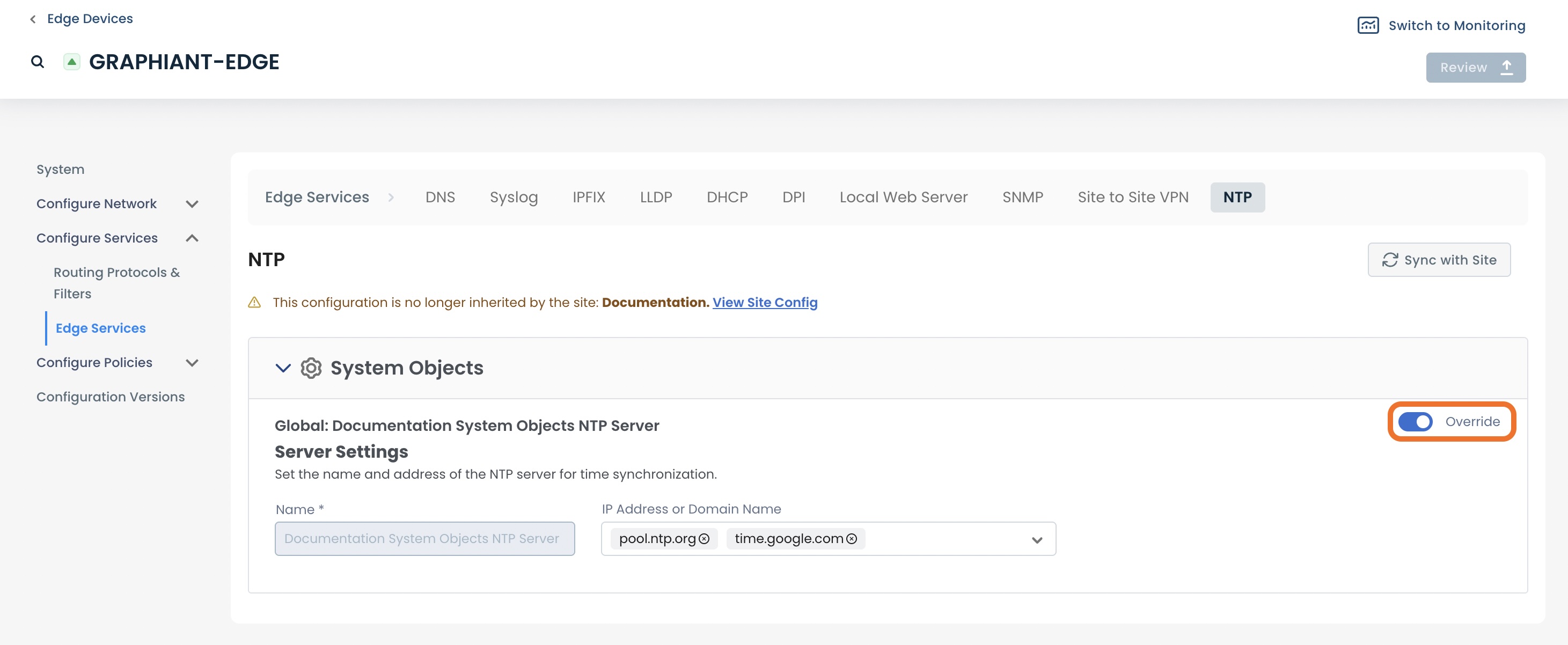
This will bring up the "Configuration Versions" screen for the Edge.
Next to the “NTP” tab at the top will be alerts. One will indicate that the NTP server has been selected for Override, and any others will reflect the number of changes that will be automatically reverted within the configuration when it again pulls down from the Site configuration.
The 'Override' switch will show deactivated, and the configuration is no longer inherited by the site.
Click ‘Review’.
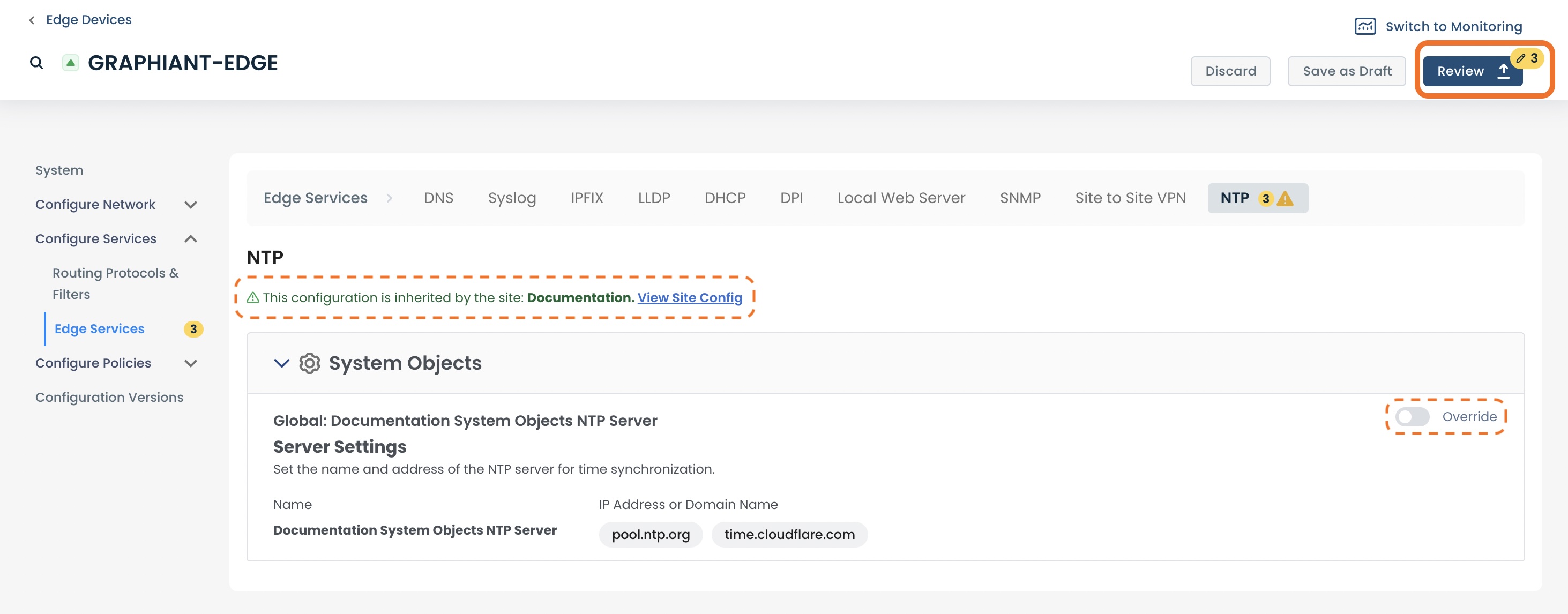
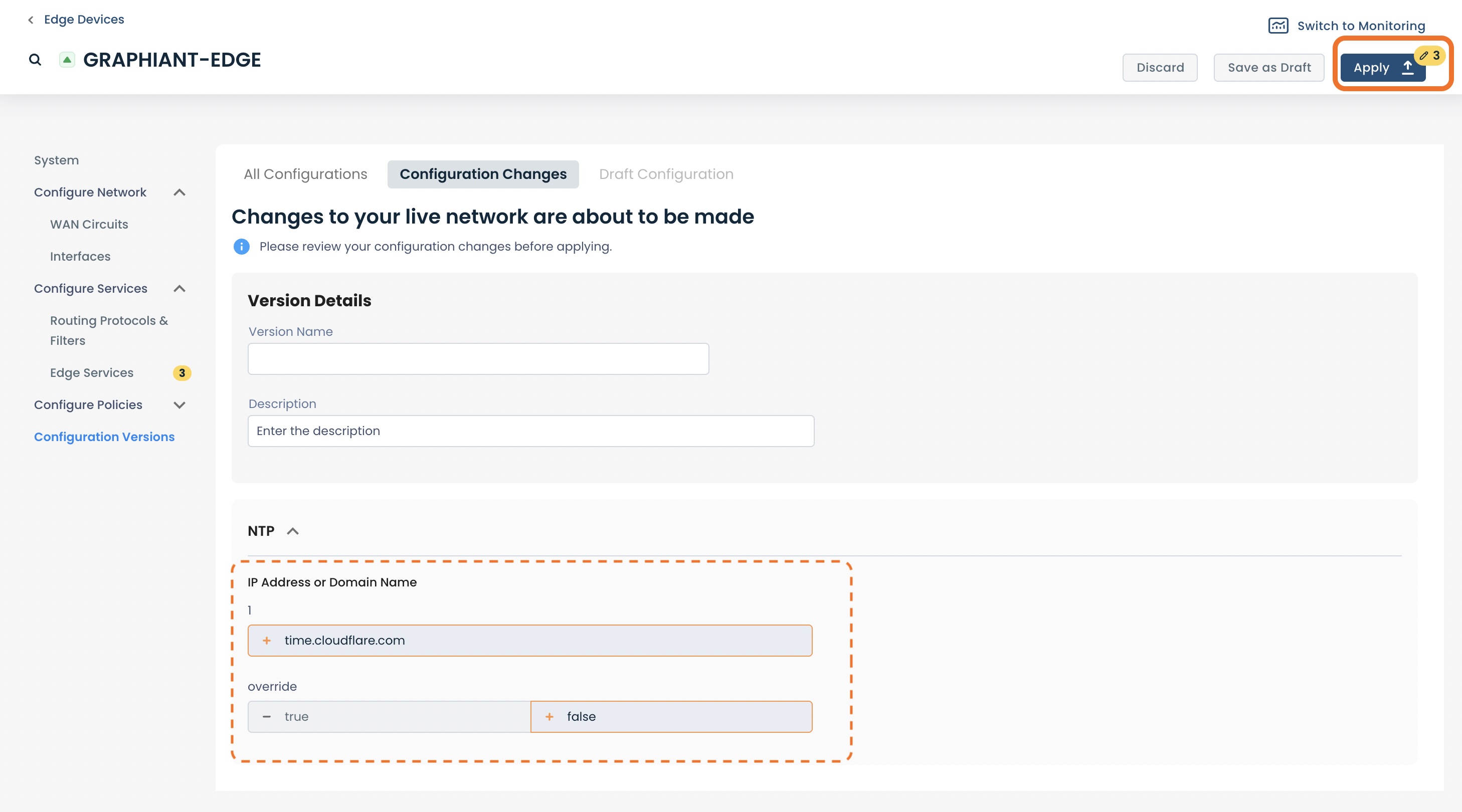
This will bring up the "Configuration Changes" screen.
The number of changes are represented by the numbers in yellow
To see the exact changes that will be made in the configuration, click the carat next to “NTP”.
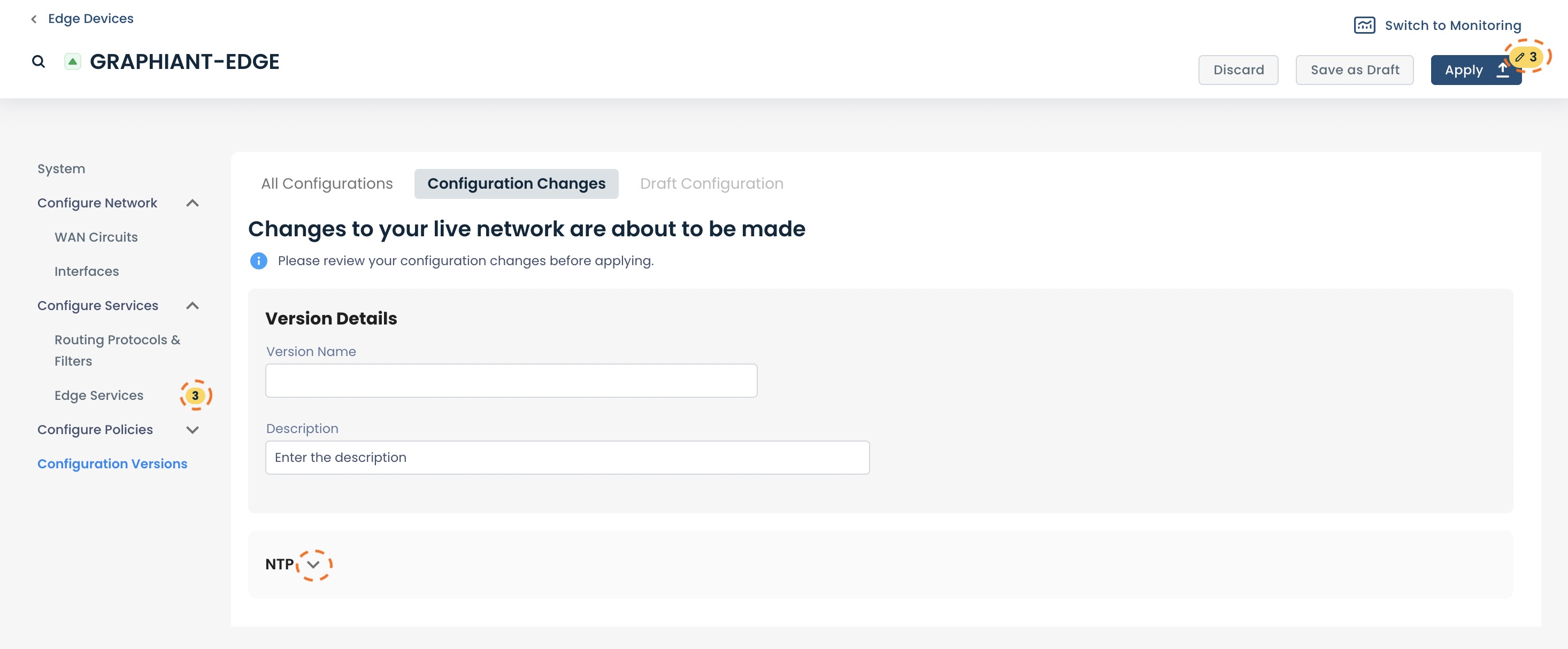
The configuration changes to be made once applied are shown here.
Click 'Apply'.
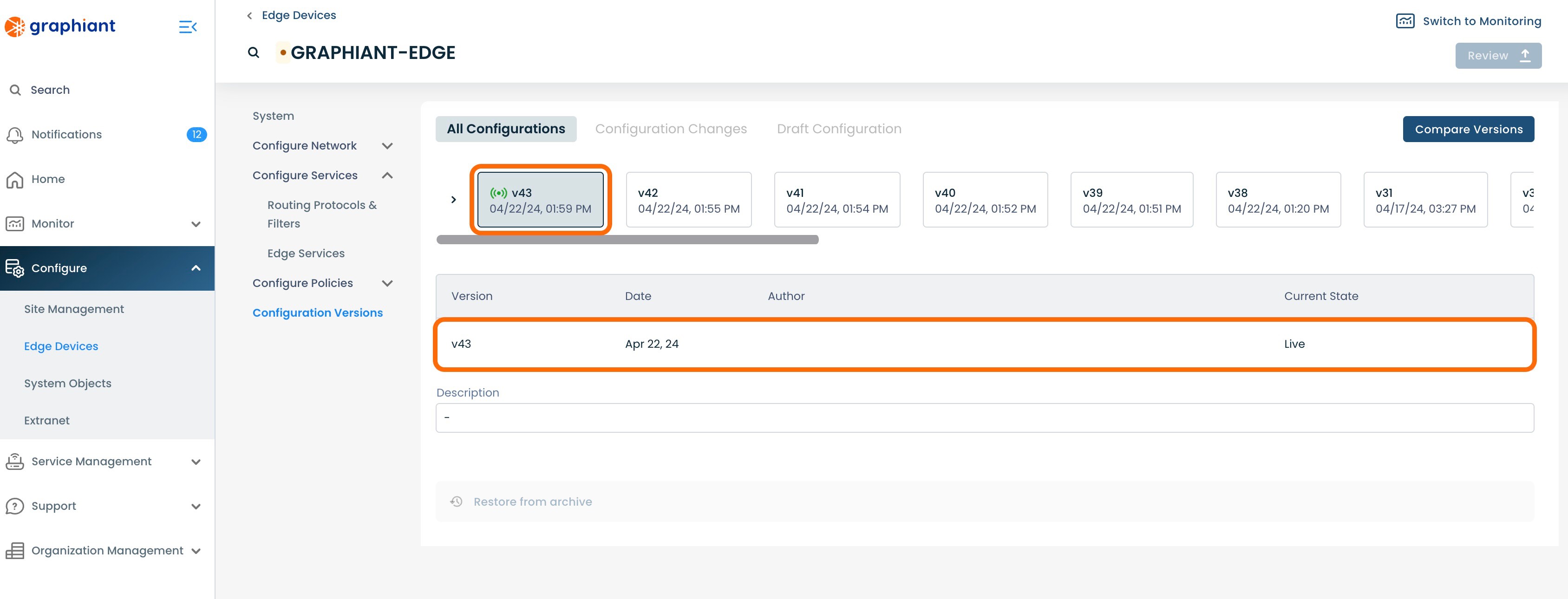
The new configuration will be highlighted in gray, and show listed below as live.
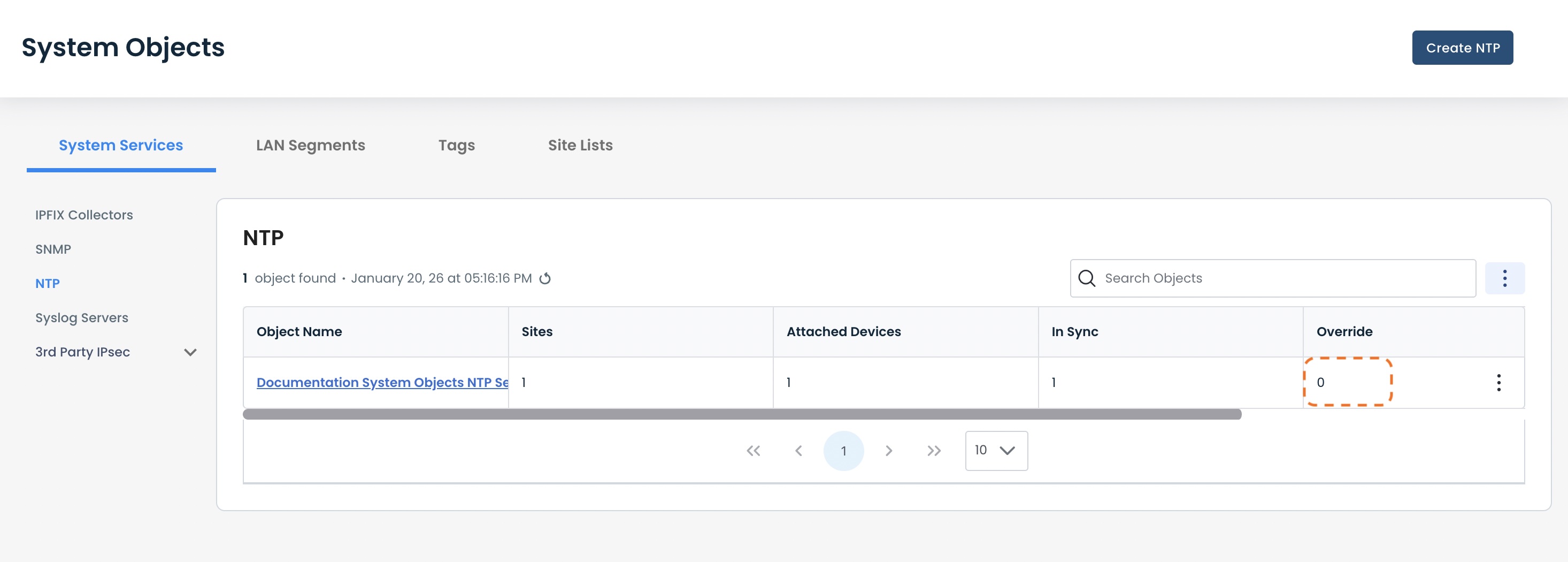
On returning to the NTP server table, it will now show that the Edge is no longer included in "Override".
Note:
Any other Edges in that NTP server that are in Override will still be included in this column.
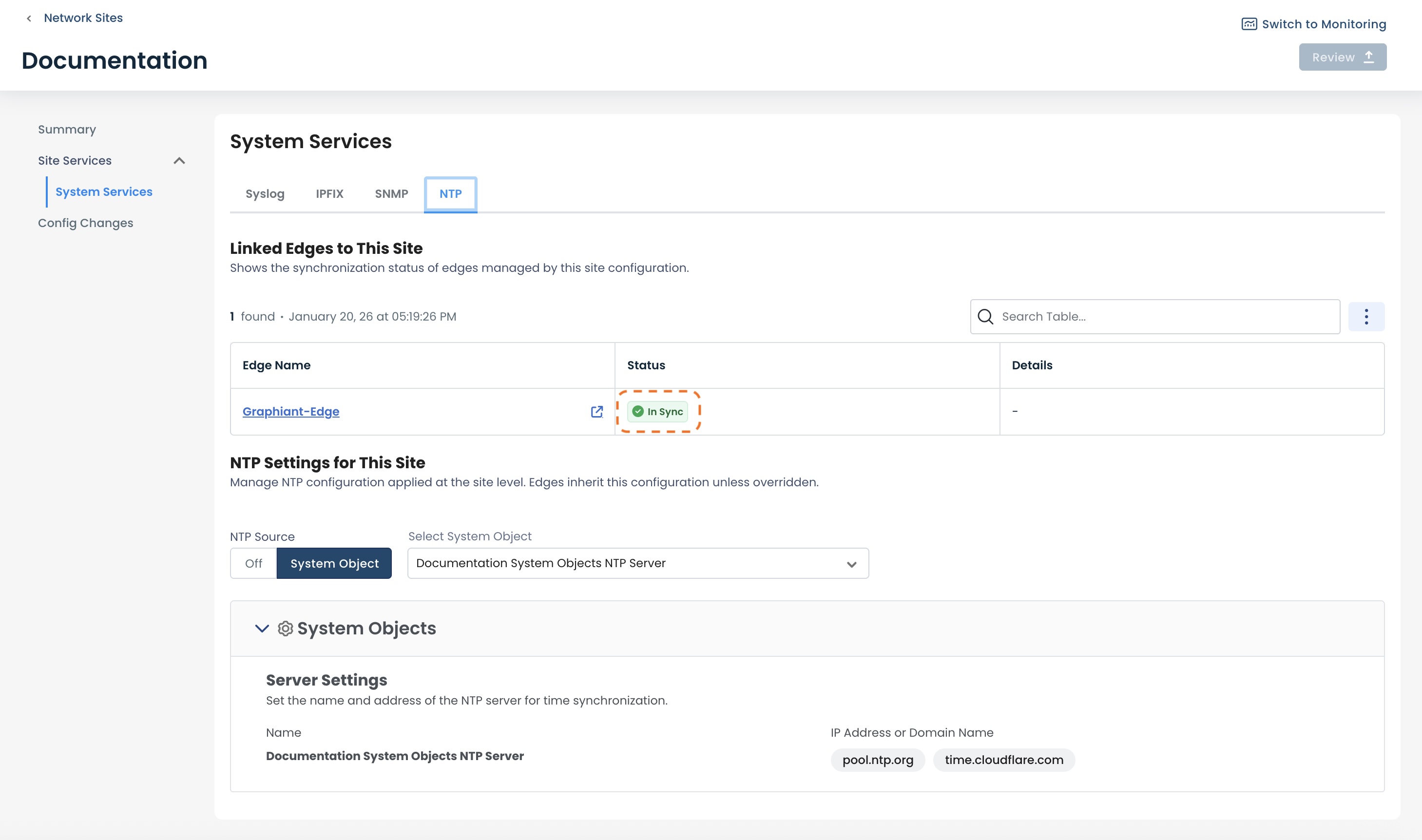
The NTP table will now show that Edge as "In Sync", as it is again getting it's configuration from the Site.
Editing a System Objects NTP Server
Should you need to edit the NTP server(s) from which your site pulls it’s time, you can easily edit the System Objects NTP server.
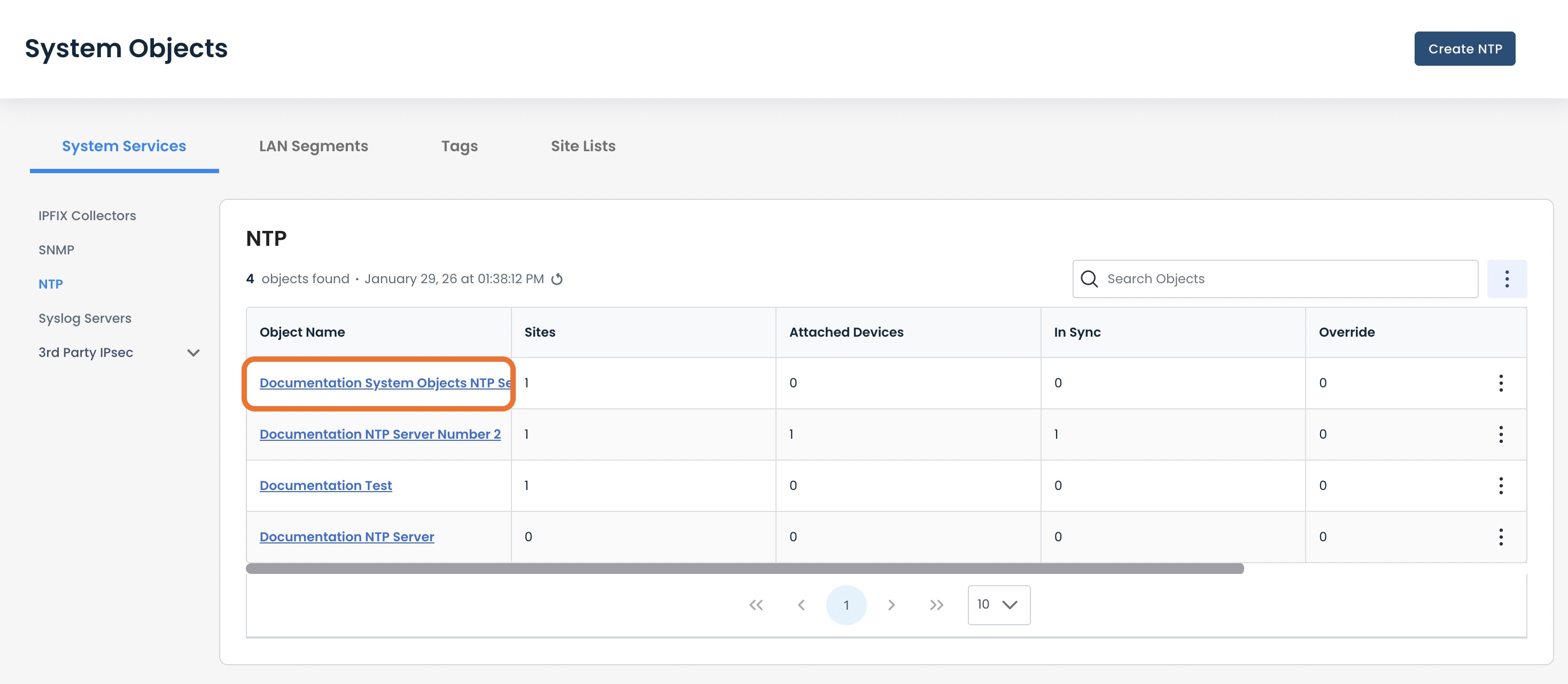
To edit an NTP server, navigate to the NTP server table.
Click the name of the NTP server to be edited.
Make the desired changes; these will be shown in yellow.
Click ‘Create’.
.jpg)
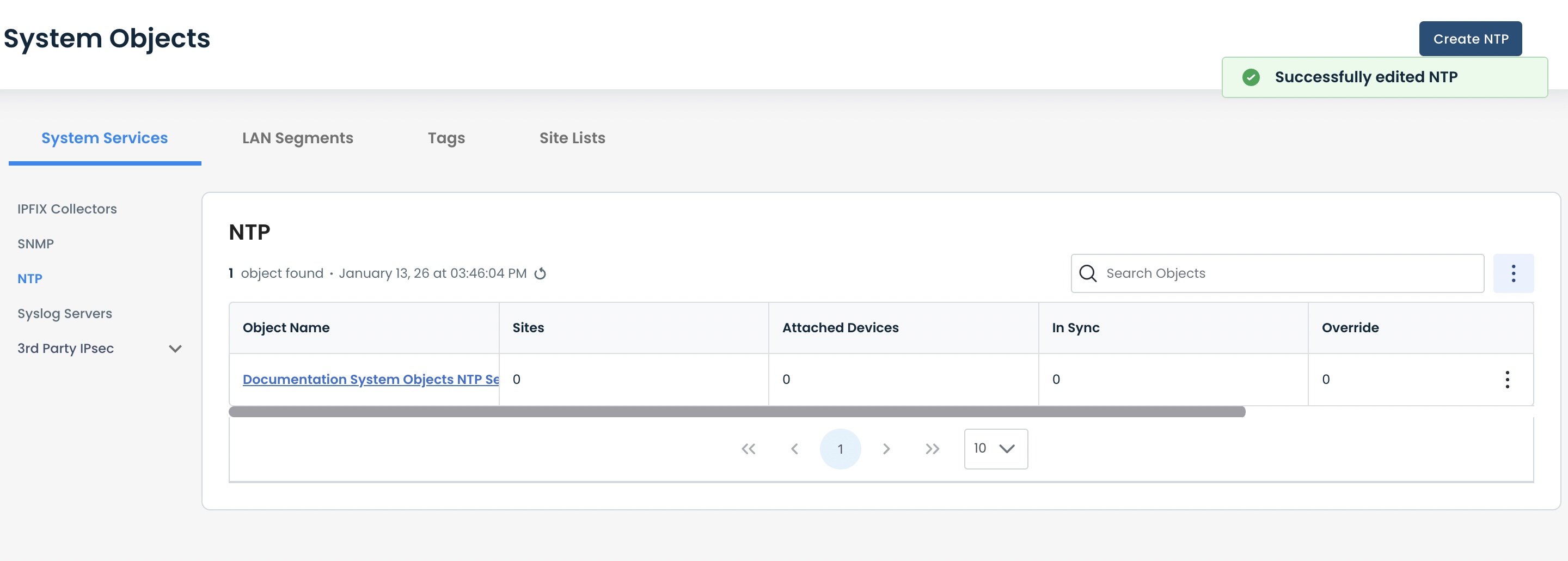
You will receive a green banner stating that your NTP server was successfully edited.
Cloning a System Objects NTP Server
An NTP server can be cloned, for ease of creating a new NTP server that is mostly identical to a previously created NTP server, with just a few changes.
To clone an NTP server, navigate to the NTP server table.
Click the ellipses to the right of the NTP server to be cloned; select 'Clone'.
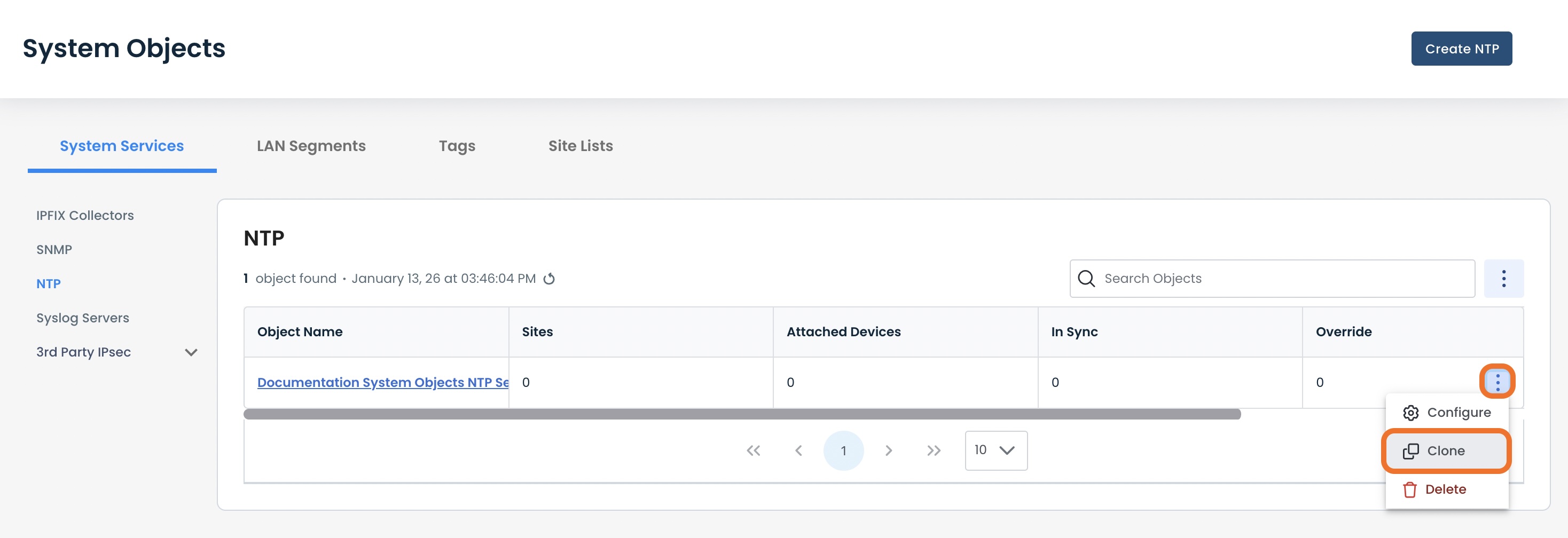
This will open a Configure screen for a copy of the NTP server that was cloned.
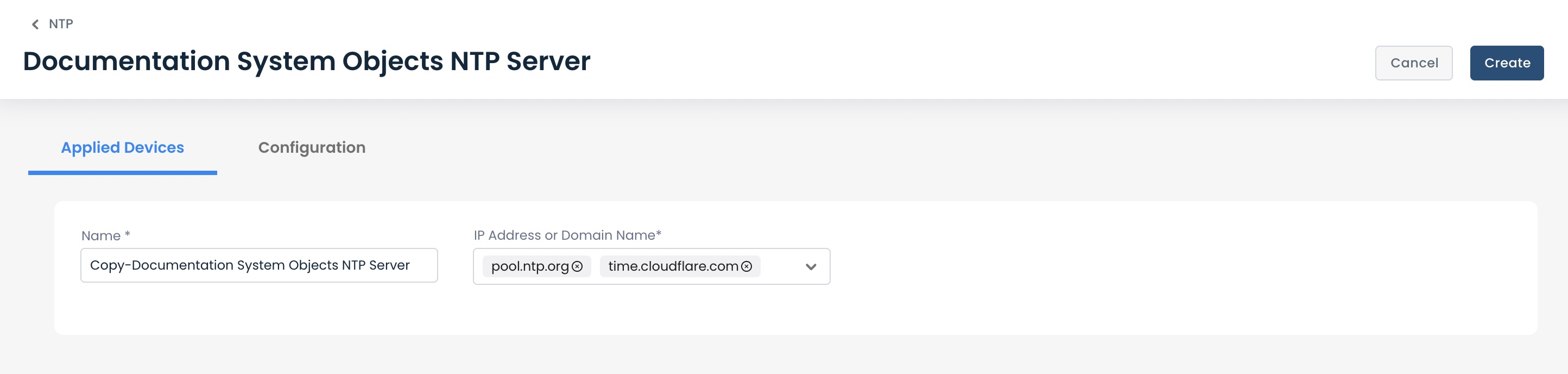
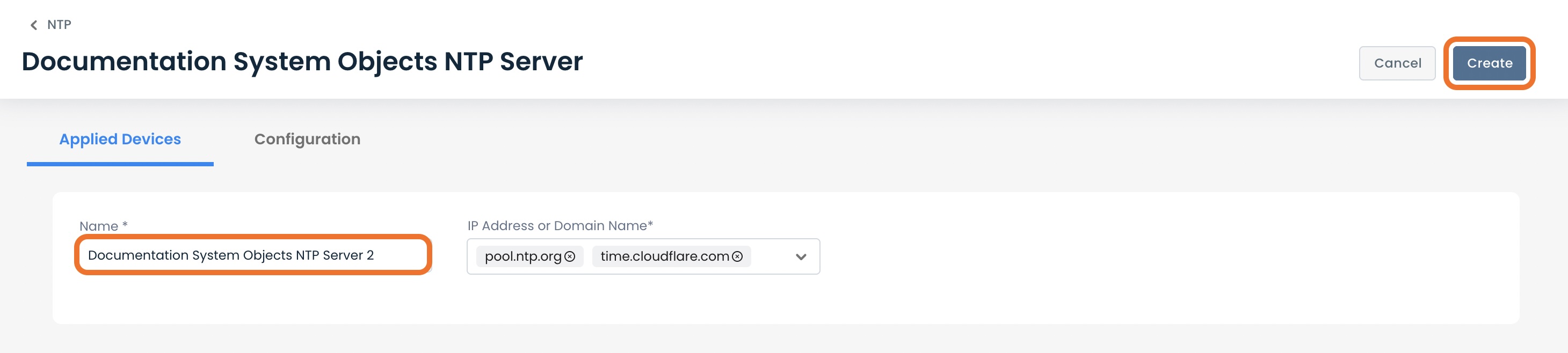
'Name: Edit this field so as to have distinction from the original NTP server.
Edit any desired fields that will differ from the original.
Click 'Create'.
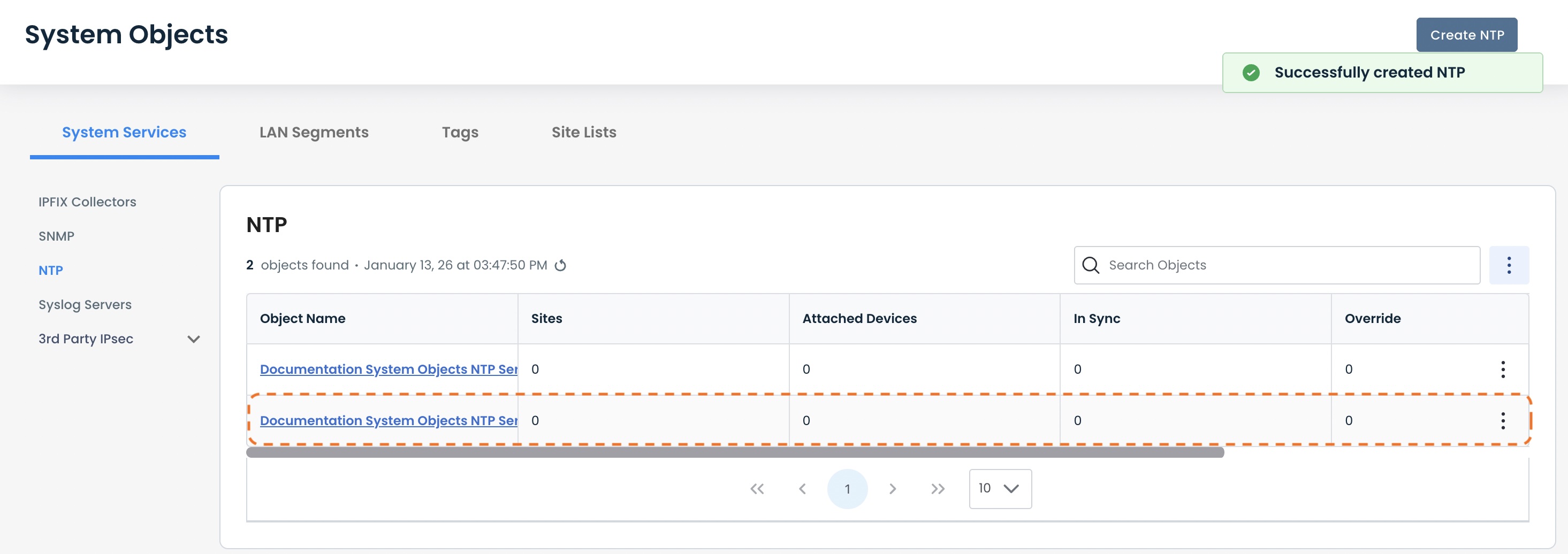
The cloned NTP server will now appear in the NTP server table.
Detaching an NTP Server from a Site
To detach an NTP server from a Site so that the Edges attached to that Site will no longer receive that NTP server configuration, navigate to the Site Management Summary screen for NTP.
Click 'Configure' from the left sidebar from anywhere in the Portal; select 'Site Management'.
Click the name of the site from which the NTP server will be detached.
Click 'Site Services' under 'Summary'; select 'System Services'.
Click the 'NTP' tab at the top.
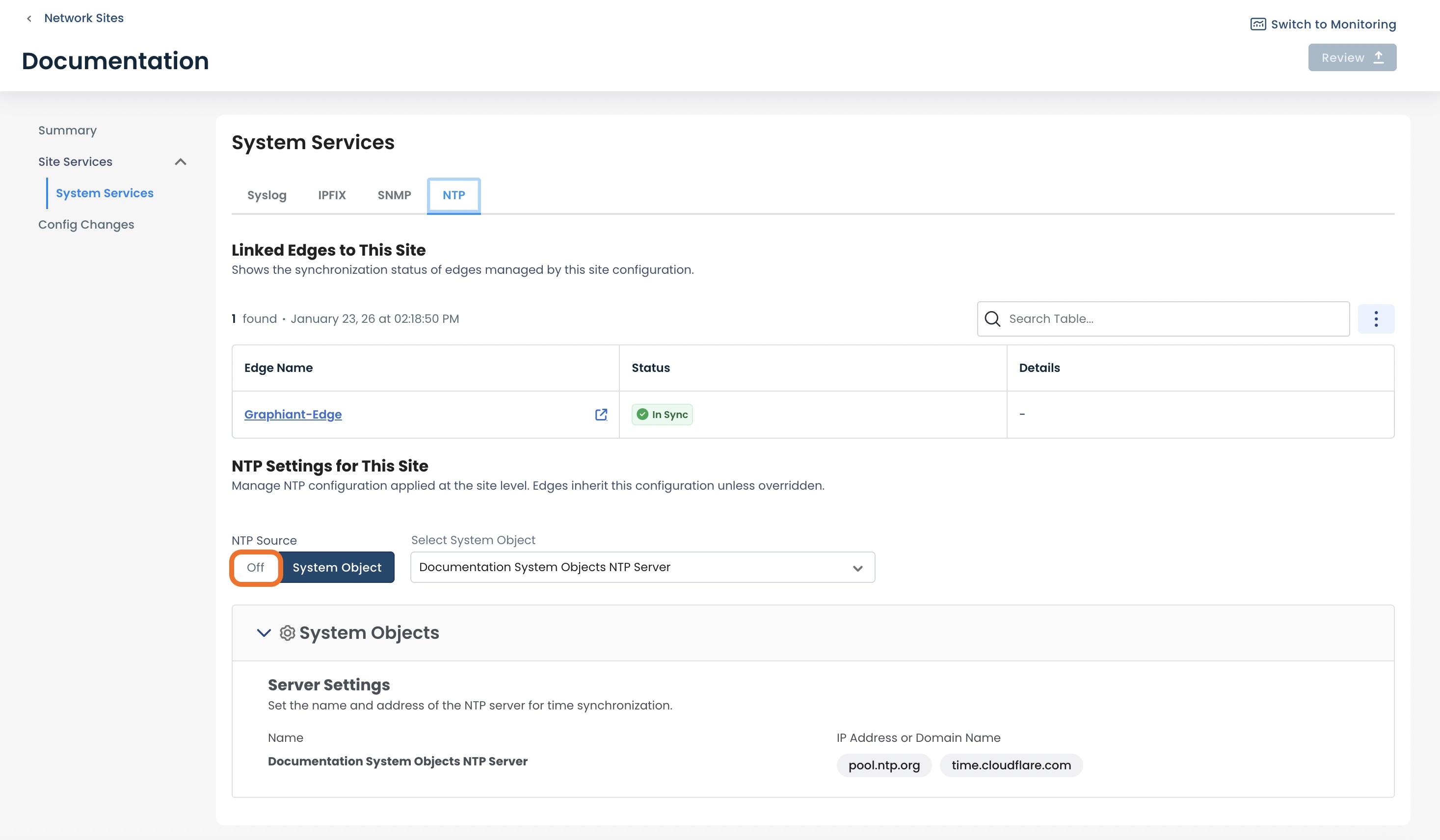
The source of the NTP server will be shown under “NTP Settings for This Site”, and be either:
System Object: The site is using the System Object NTP server
Off: The System Object NTP server has been deactivated and the site is no longer pulling it down
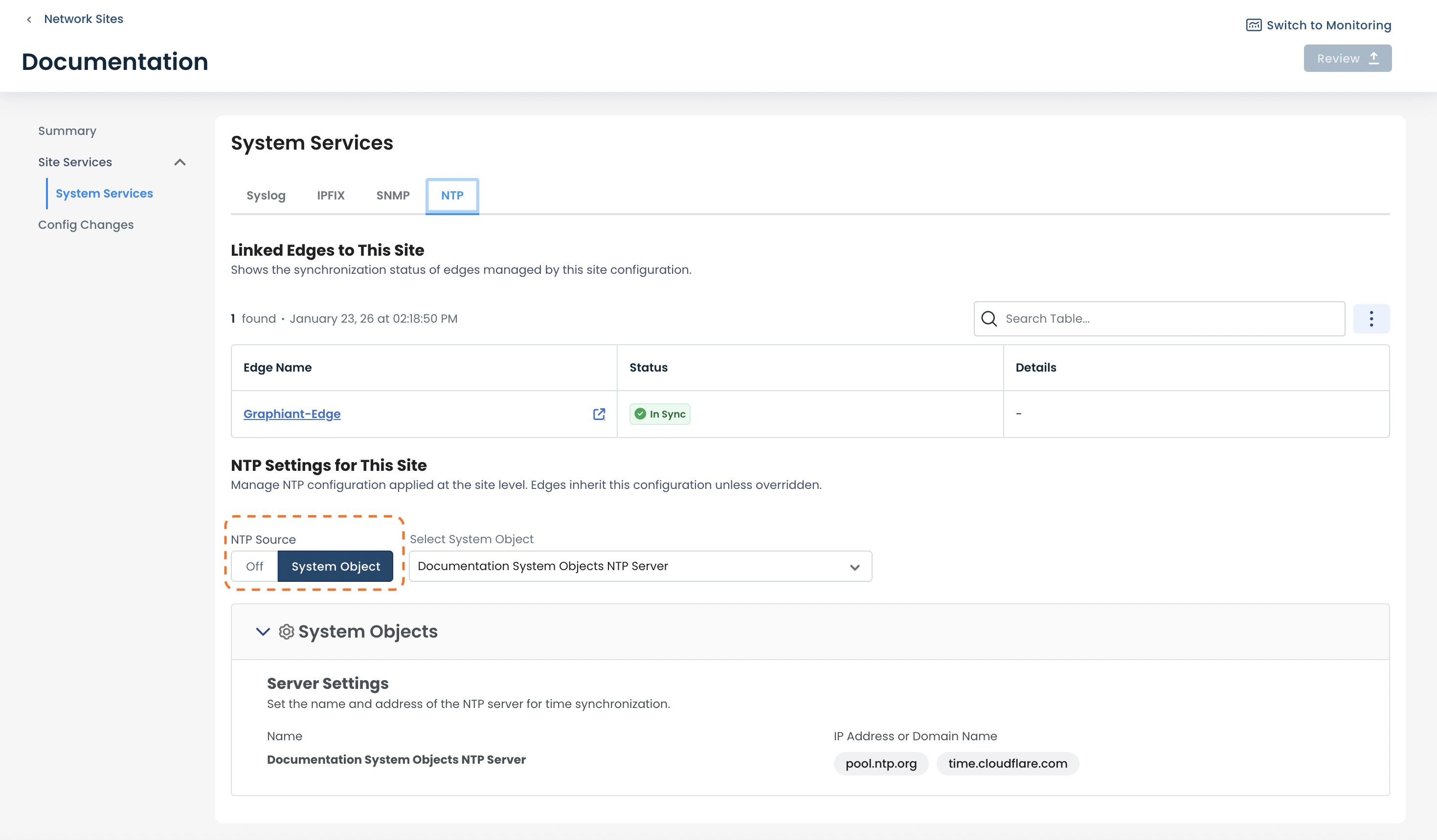
Click the NTP Source ‘Off’.
Click ‘Review’.
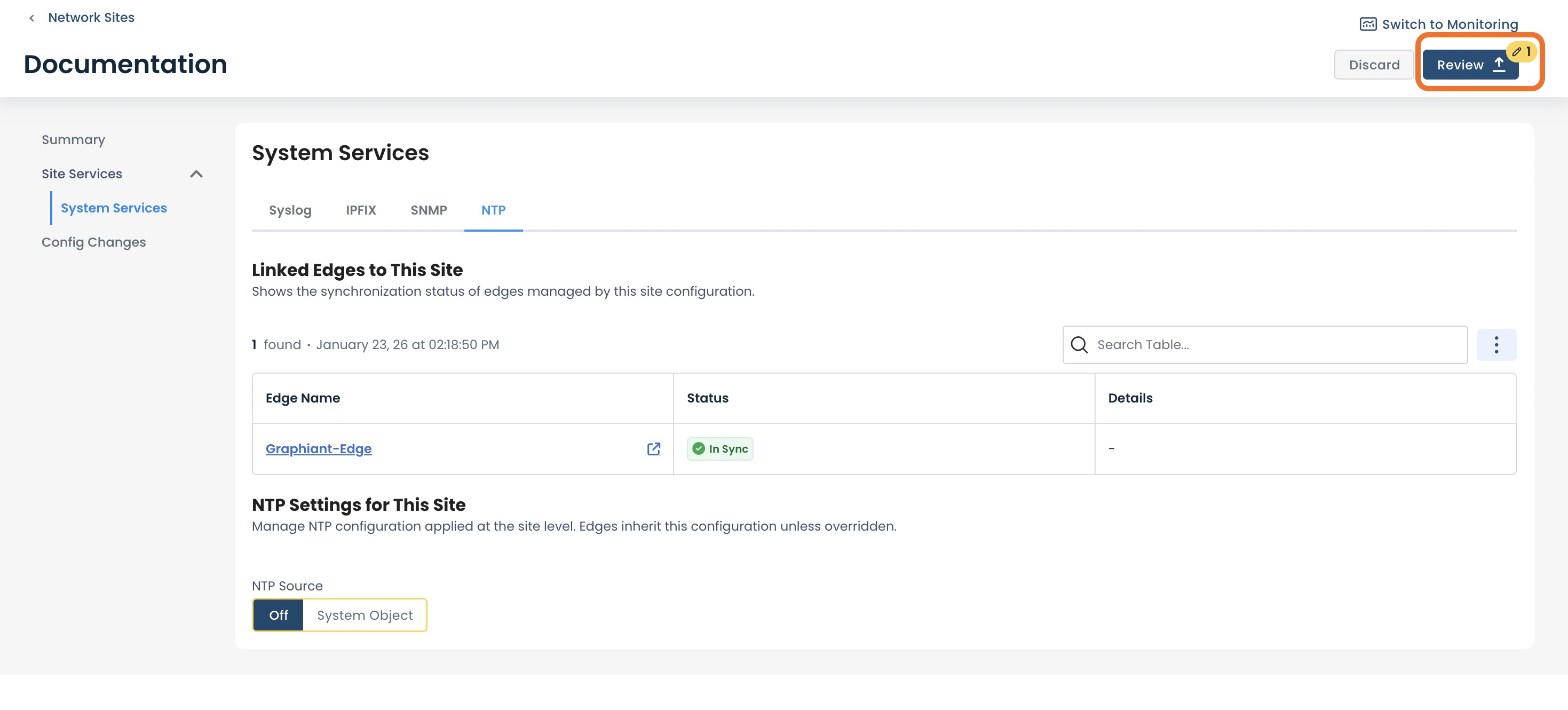
This will bring up the "Configuration Changes" screen for the site.
To see the exact changes that will be made in the configuration, click the 'NTP' carat.
After verifying that all information is correct, click ‘Apply’ to save the configuration and apply it to your network
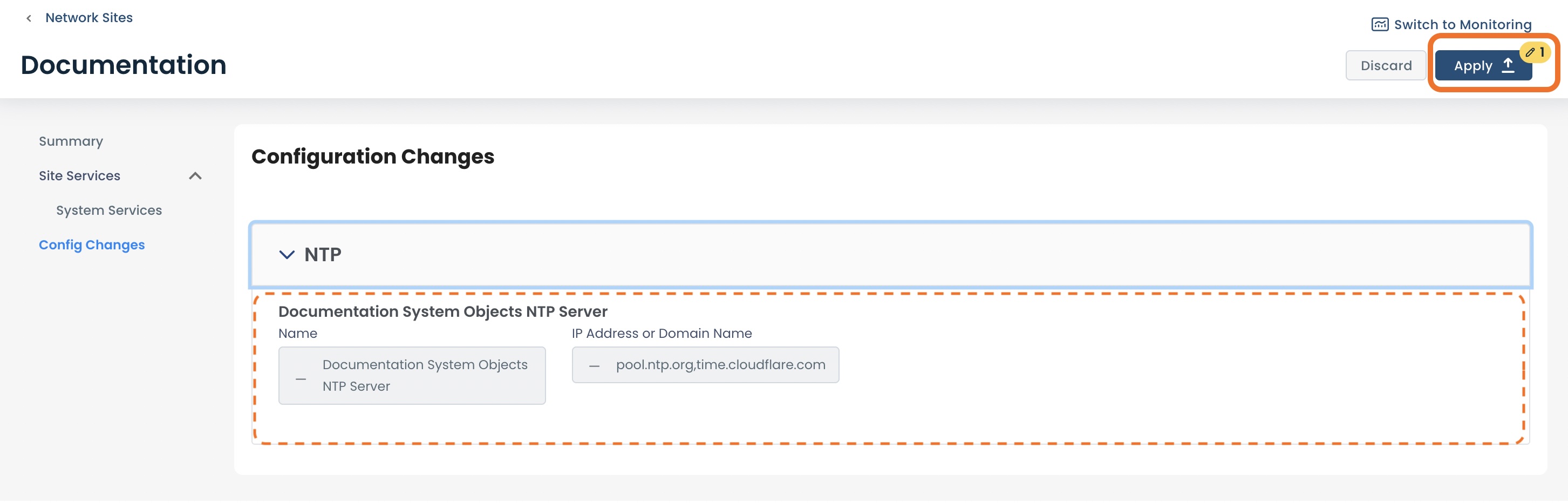
You will get a message that the site has been successfully updated.
.jpg)
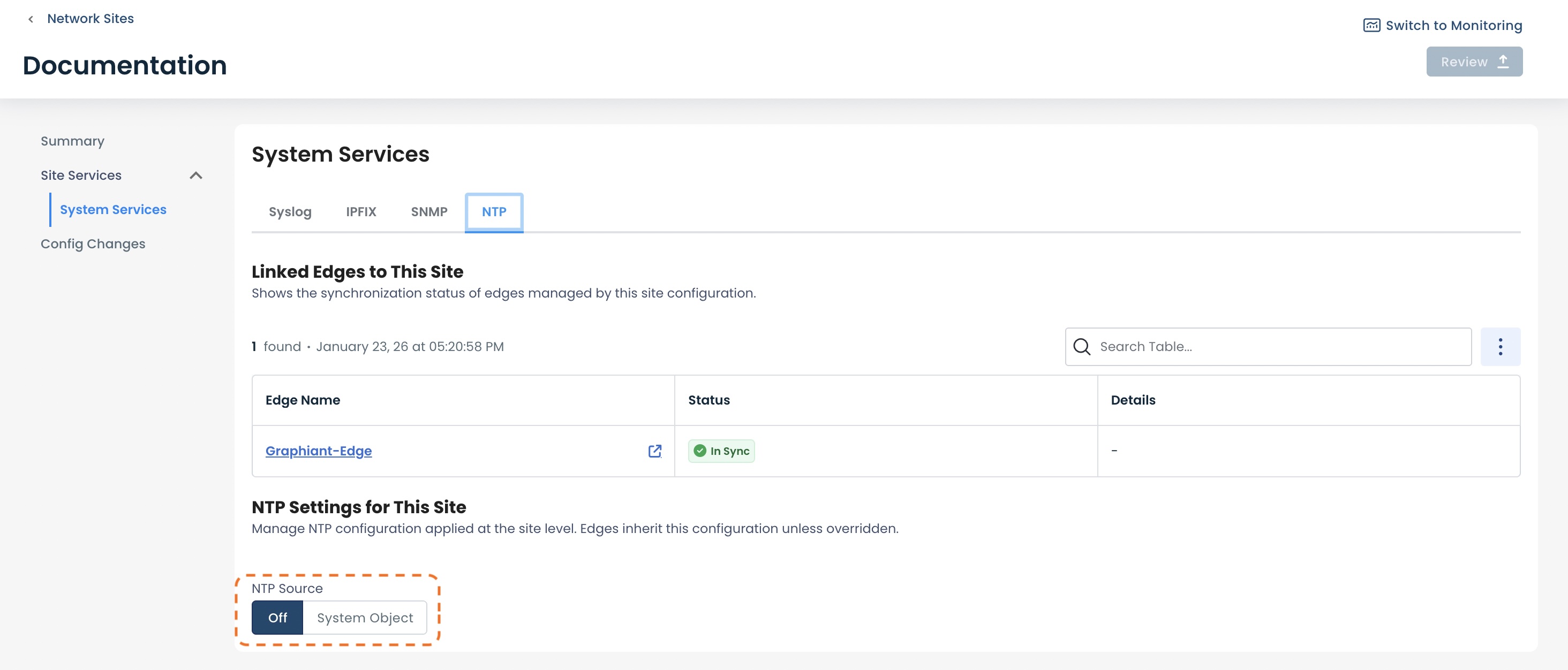
From the 'Site Services'; 'System Services' menu under the Summary on the left, then navigating to the 'NTP' tab, the NTP Source will now show as “Off” for the System Object server.
Deleting a System Objects NTP server
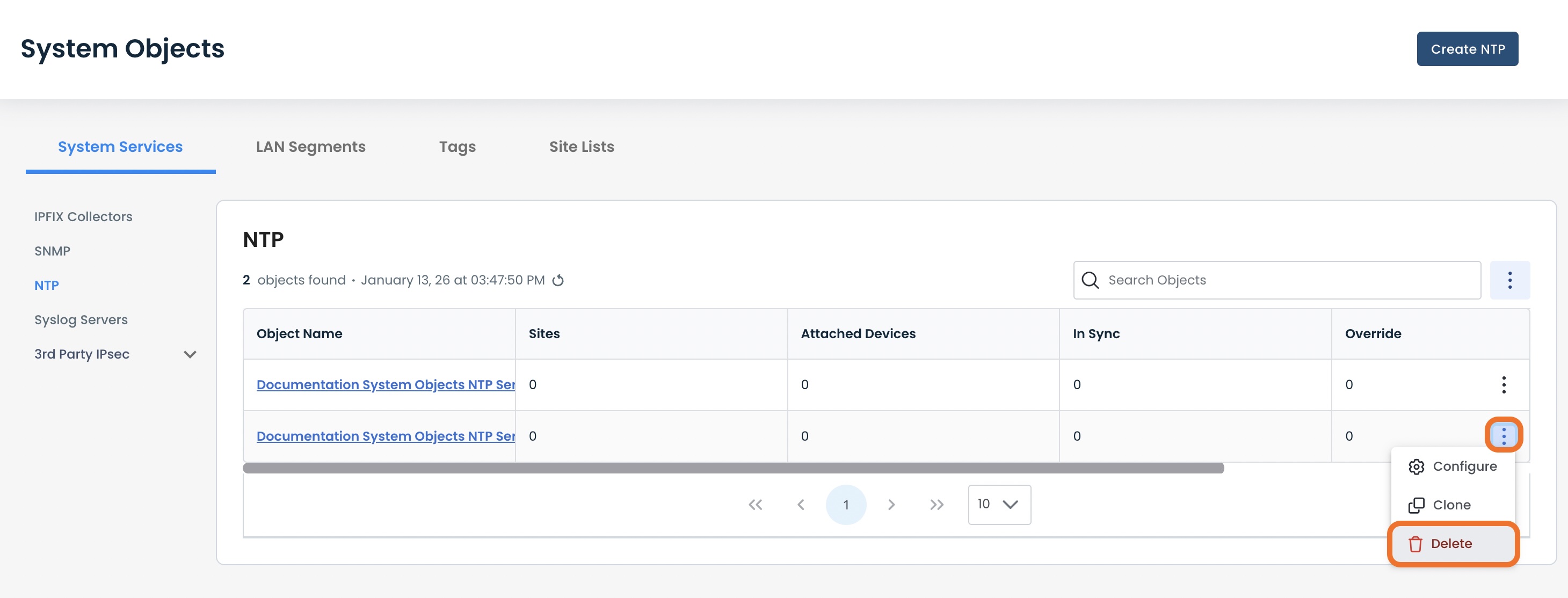
To delete an NTP server, navigate to the NTP server table.
Note:
An NTP server can only be deleted if it is has no mappings; it cannot be attached to any Sites, Edges, or have any other references to it within the network.
Click the ellipses to the right of the NTP server to be deleted; select 'Delete'.
An NTP server with no Sites or Edges attached and not referenced anywhere in the network will have a successful 'Delete' action permitted.
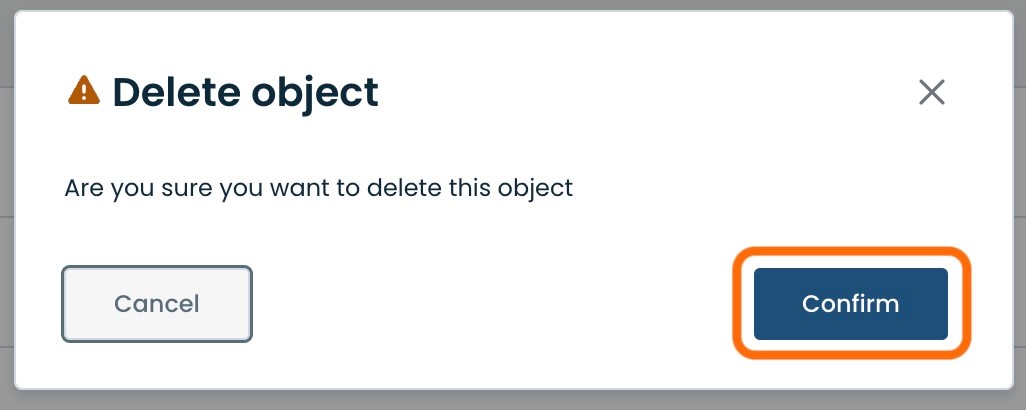
A modal will appear with a confirmation to proceed with the NTP server deletion.
If the NTP server is confirmed to be deleted, click 'Confirm'.
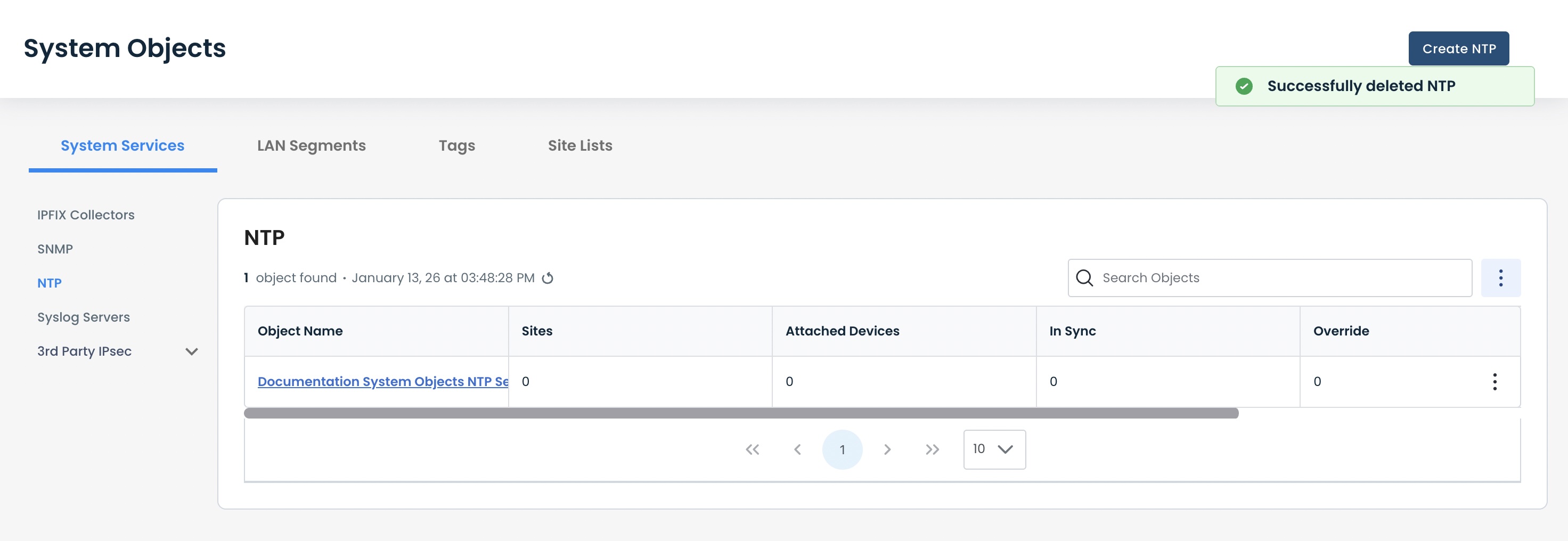
The NTP server will be removed and no longer present in the NTP server Table.