As organizations embrace even more hybrid work, securing the remote workforce has become one of the most critical—and complex—challenges in modern IT. Users now access applications from anywhere, primarily through the browser, while traditional security models built around VPNs, proxies, and centralized inspection points struggle to keep pace.
Graphiant extends its SASE stack to address this challenge by integrating browser-based security, identity, and data loss prevention directly into its platform. This approach enables secure, direct user-to-application access without exposing the network or introducing unnecessary complexity.
By combining Graphiant’s private connectivity fabric with integrated browser-native protection and Zero Trust access controls, organizations can protect users wherever they work while maintaining high performance and a seamless user experience.
Graphiant partners with Conceal to provide browser-based security for your remote users.
Accessing Browser Security Data Through the Graphiant Portal
Browser-based security, identity, and data protection insights are accessed through the Graphiant portal, which provides a direct link to the integrated security environment.
Browser security data is accessible from multiple areas within the Graphiant portal, making it easy to locate regardless of where you are working:
Conceal integration has to be turned on for your organization. Graphiant handles setup for you.
To get started, contact your Graphiant Customer Support to get Conceal enabled
Conceal Company ID and Site ID will be populated when Conceal is integrated to your enterprise
From Device Lifecycle:
From the Device Lifecycle page, click ‘Remote Endpoints’. (Click here on how to reach Device Lifecycle.)
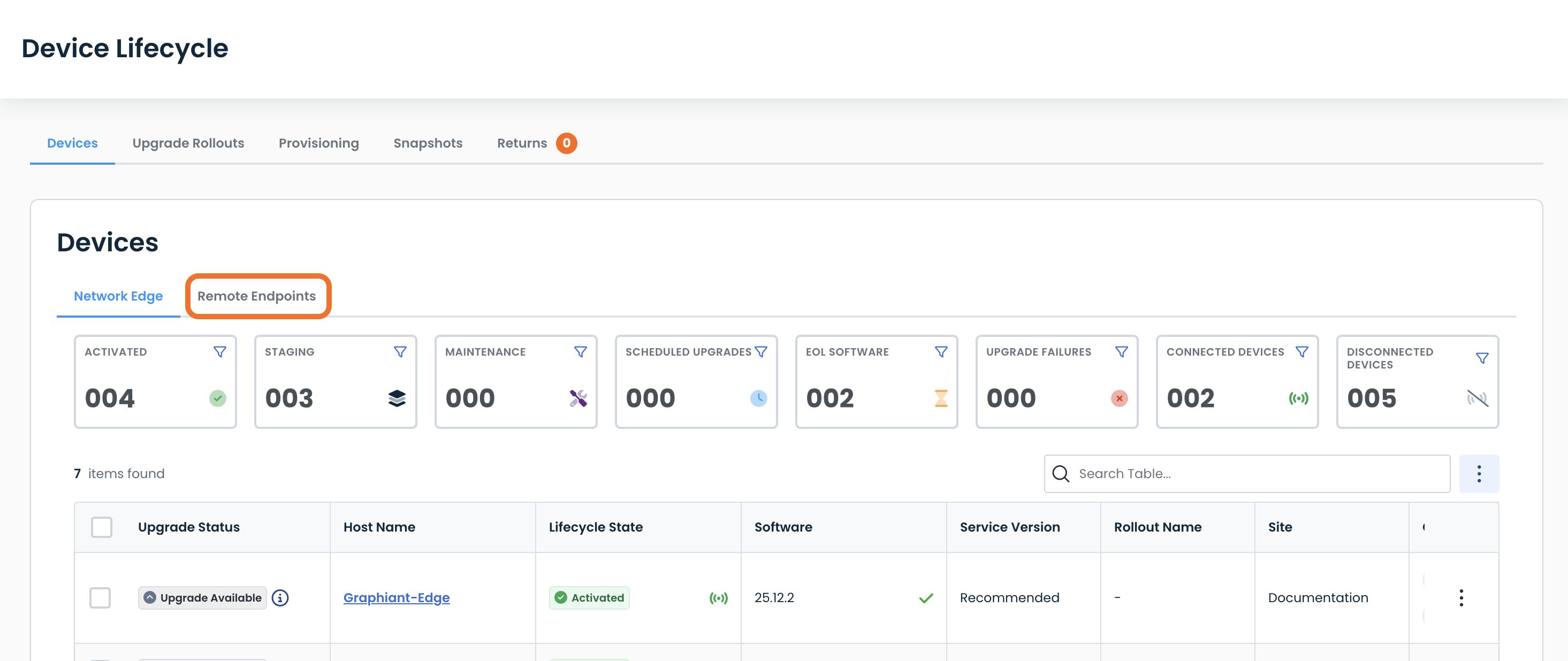
Click ‘Open Conceal Portal’.
Note:
If you have not first downloaded either the ConcealBrowse extension or desktop installer from the Conceal portal, the link will open a page that allows you to do that now.
.png)
From Configure Devices:
From the Configure Devices page, click ‘Remote Users’. (You can reach this by the sidebar menu under ‘Configure’ => ‘Devices’.)
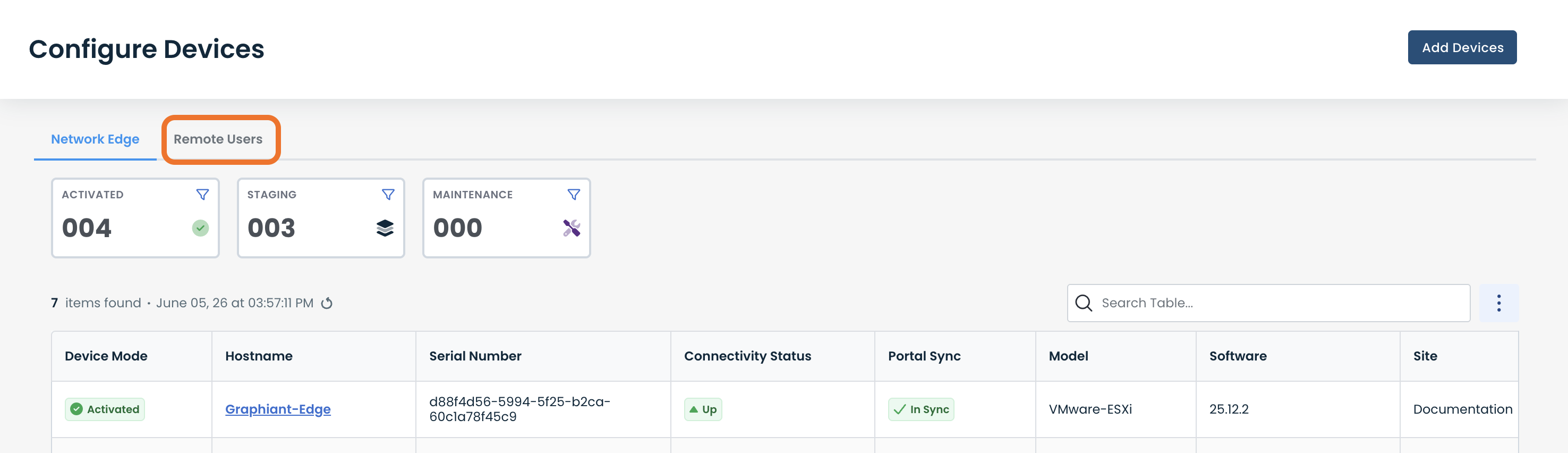
Click ‘Open Conceal Portal’ to add and manage users in Conceal portal
.png)
From the Site Health Dashboard:
At the bottom of the Site Health Dashboard, click ‘Remote Endpoints’. (Click here on how to reach the Site Health Dashboard.)
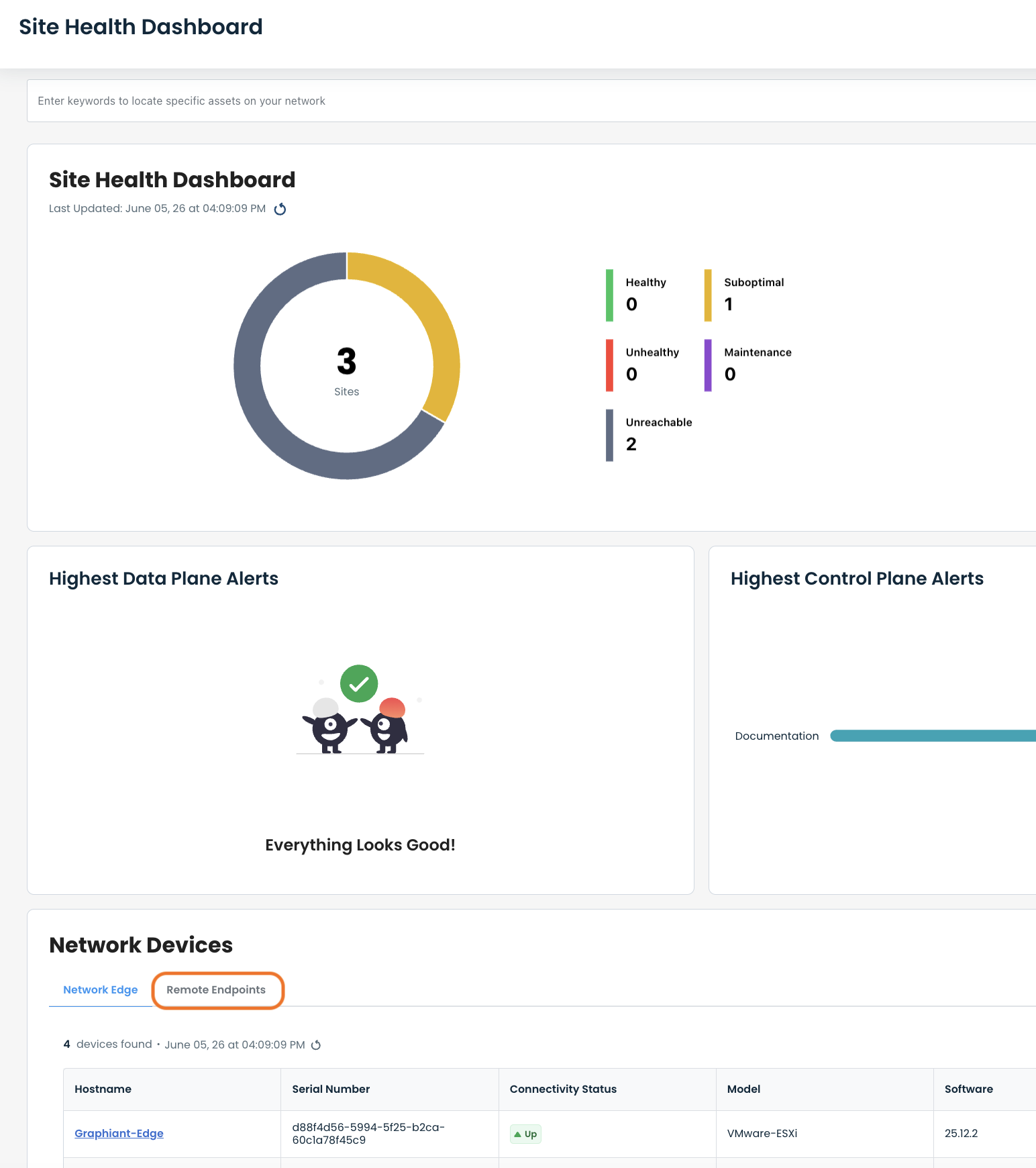
Click ‘Open Conceal Portal’ to view Conceal dashboard endpoint status and activity from all users
.png)
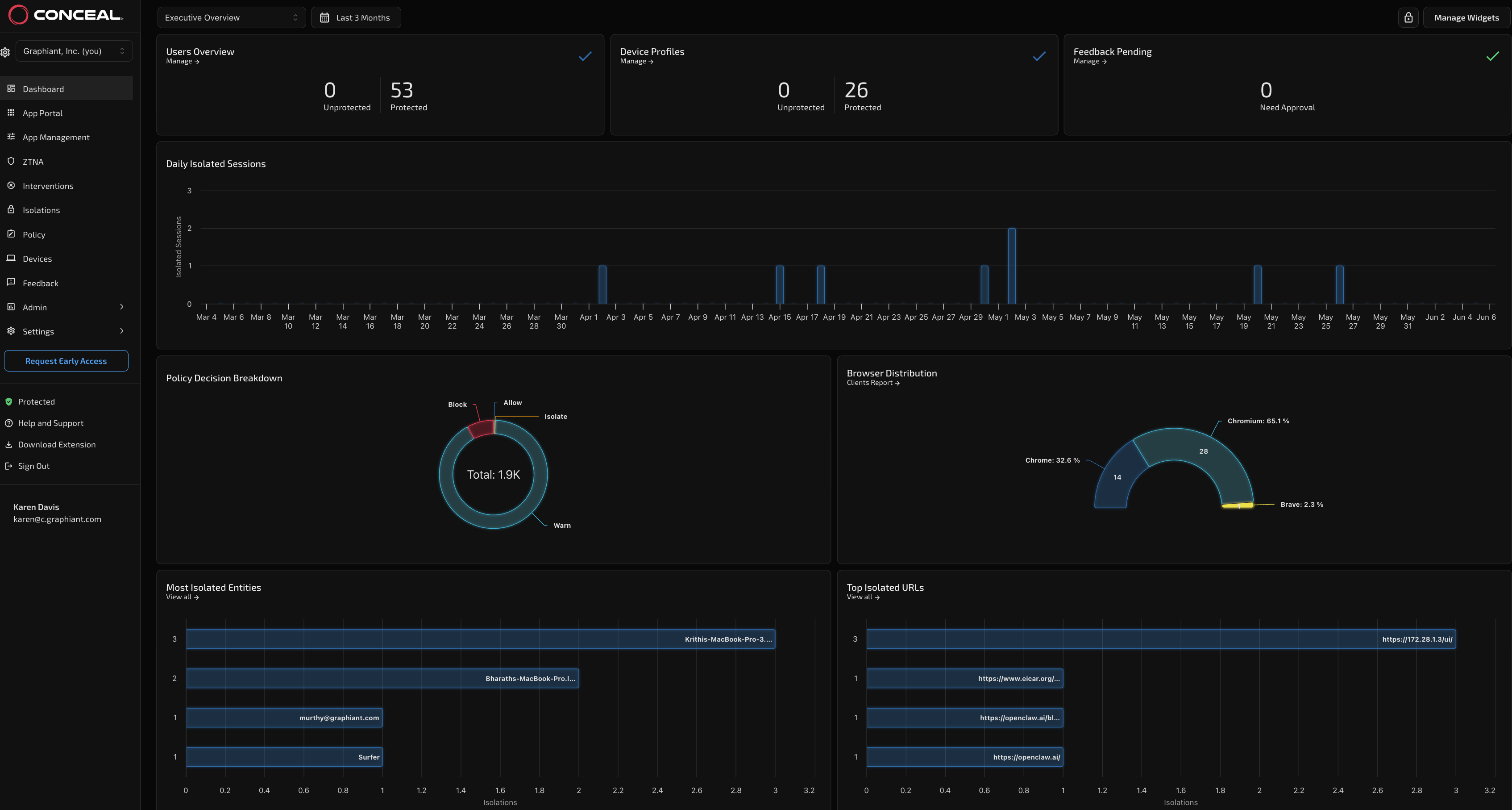
Conceal Dashboard
Here you will see a screen similar to this, with visibility into user and device protection status, browser-based threat activity, policy enforcement outcomes, and high-risk users and destinations—enabling security teams to quickly identify and respond to potential threats.
For documentation on Conceal Connect and & ZTNA, click here.
Configure Conceal Applications
Set up Conceal so your remote users can securely reach applications and subnets on your network.
Step 1: Add Your Applications
In the Conceal console, go to App Management and click to add a new application.
Choose an Application Type:
Application Type | Use it for | How to set it up |
|---|---|---|
Net | Subnets and network services on your private network | Follow Step 2 below |
Private Webapp | Internal web applications | See the Conceal documentation: here |
Public Webapp | Web applications on the internet | See the Conceal documentation: here |
.png)
Step 2: Configure Subnets (Net applications)
To give remote users access to subnets on your network:
Enter an Application Name and, if you want, a Description.
Choose an Application Protocol: ALL, TCP or UDP.
Under Host / IP, enter the subnet in CIDR format (for example,
10.0.0.0/24), or a single host or IP address.(Optional) Under Application Ports, enter specific ports. Leave this blank to allow all ports.
Under App Connectors, click Add Connectors and select the app connector that Graphiant Support set up for you.
Click Save.
Step 3: Create and Attach Policies
Policies decide which users can reach which applications.
Go to Policy, Access Policies and create a new policy.
Attach the application to the users or groups who need access.
Save the policy.
Viewing Connected Endpoints
Once setup is complete, you can see which endpoints are connecting to your network. Each one is listed by Conceal user identity:
Browser extension: users show up by email address.
Conceal Desktop: users show up by desktop username.
To see traffic flows for each endpoint and user, open Data Assurance in the Graphiant portal.
In this section: How Can I Find out Details About a Device in My Network That is Consuming a Particular Application?