Introducing Gina AI: The Graphiant Intelligent Network Assistant
While AI depends on the network, the network itself can also become AI-powered.
Enter Gina.
Using AI to translate complex network data into clear, actionable insights, automated remediation, and intelligent recommendations, Gina transforms network operations from reactive to proactive.
From real-time performance optimization to automated reporting and compliance summaries, Gina streamlines the operational fabric of your network, allowing your teams to focus on innovation rather than infrastructure.
So whether it’s monitoring your sites, alerting you to threats, or helping with compliance, Gina is here to make your life easier.
Gina AI is where AI for the network… meets Network for AI; a truly symbiotic relationship between intelligence and infrastructure.
How Does Graphiant Guarantee the Safety of My Network Data When I Use Gina AI?
Safety of your network is of utmost importance in everything Graphiant does.
That’s why Gina AI includes the following built-in protections to keep your data secure:
Your data is never used to train AI models.
Gina AI operates entirely within Graphiant’s secure environment — your information remains private and is not shared or learned from in any way.
All customer data is securely isolated from the AI agent.
Gina AI cannot view, retrieve, or interact directly with your information, and no customer data ever travels to or becomes accessible by any other customer.
The agent interacts only through authorized APIs.
Gina AI has no direct access to databases or raw data, ensuring strict control over what the AI can request and process.
Access is limited by user role.
Gina AI only accesses the data permitted by a user’s assigned role — maintaining precise control and preventing unauthorized visibility across roles or customers.
How Do I Enable Gina AI?
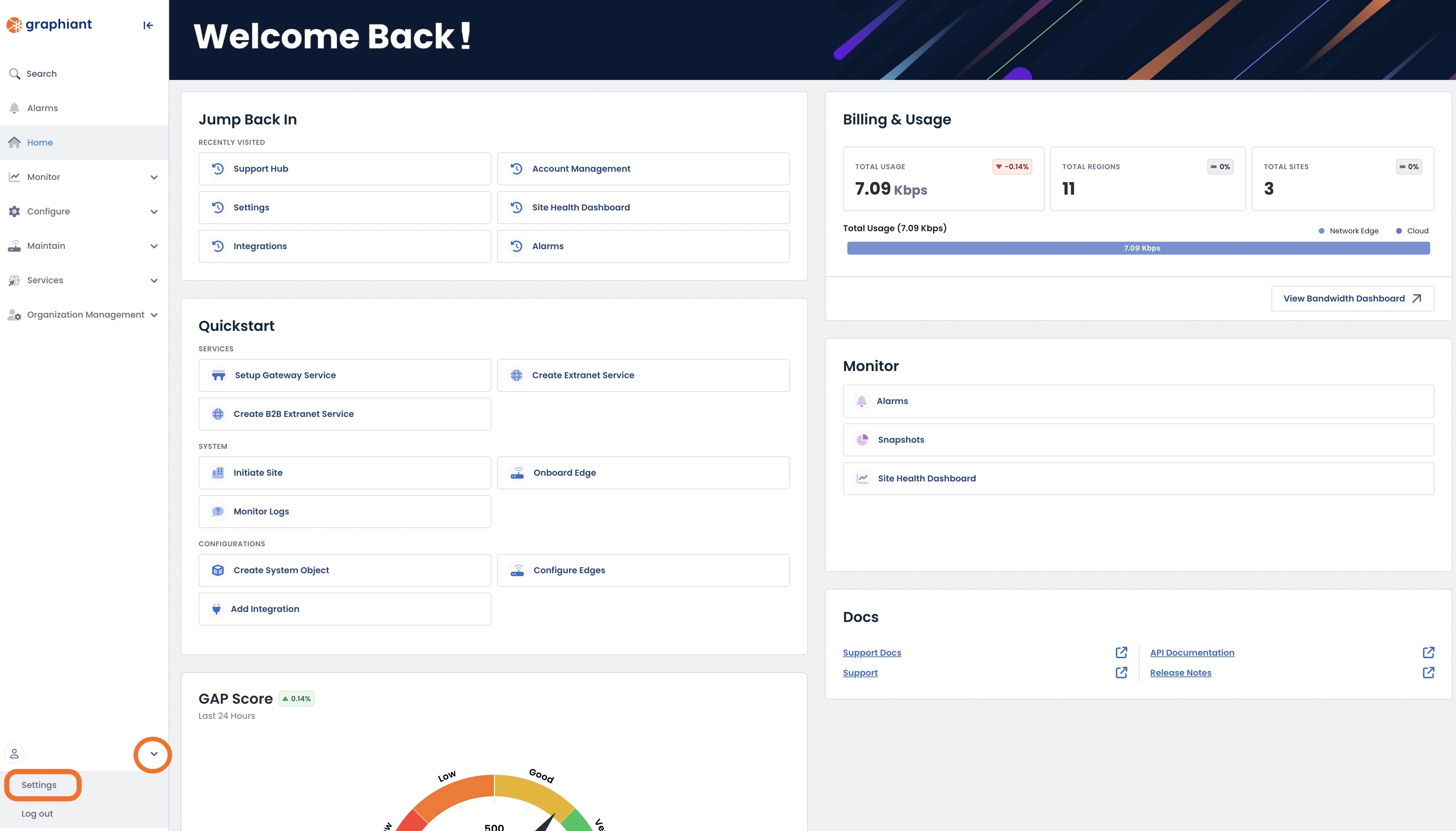
From the Graphiant Portal Home Page, click the carat at the bottom left of the screen next to your profile.
Select ‘Settings'.
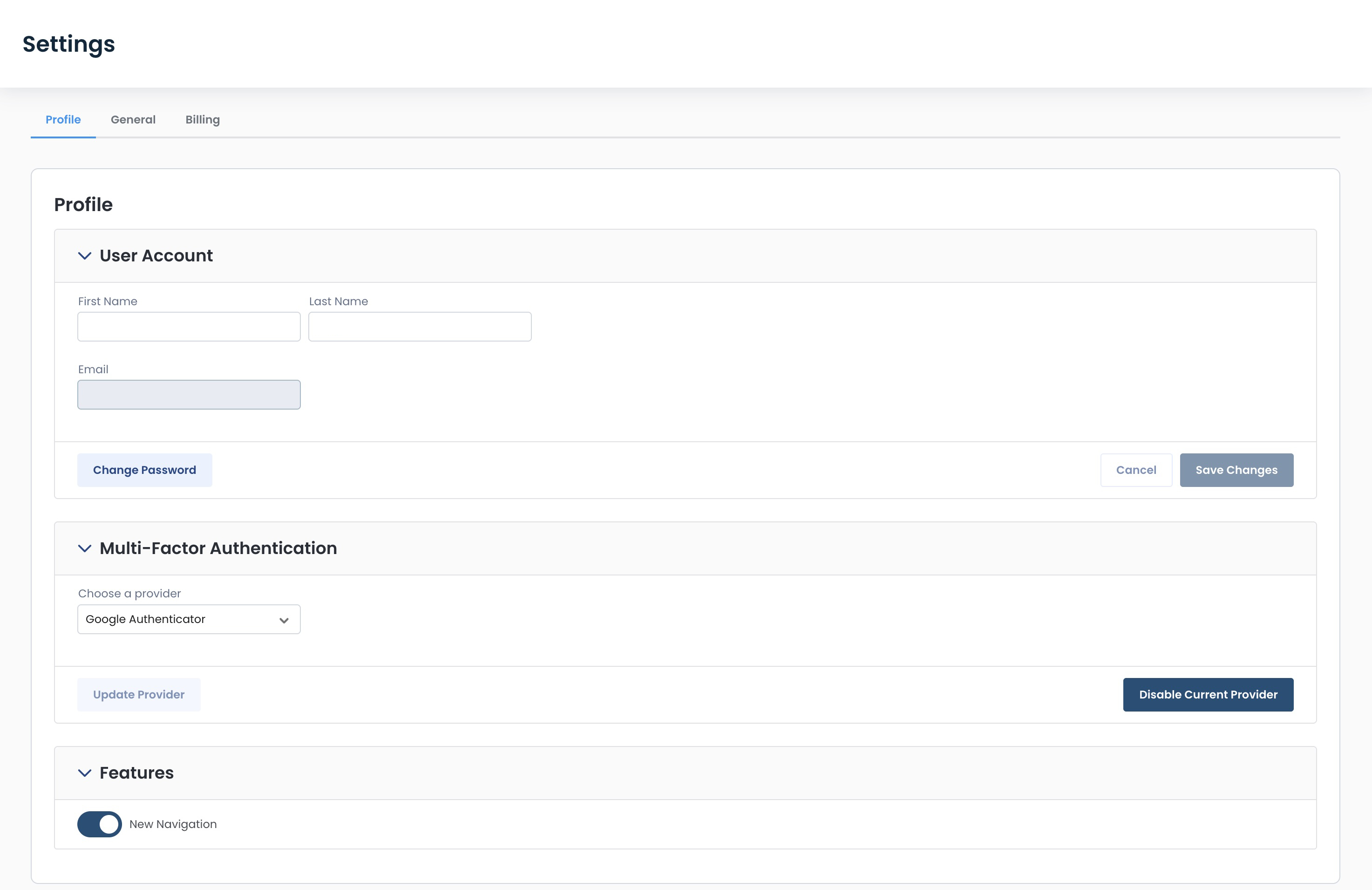
This will bring up the Settings area of the portal.
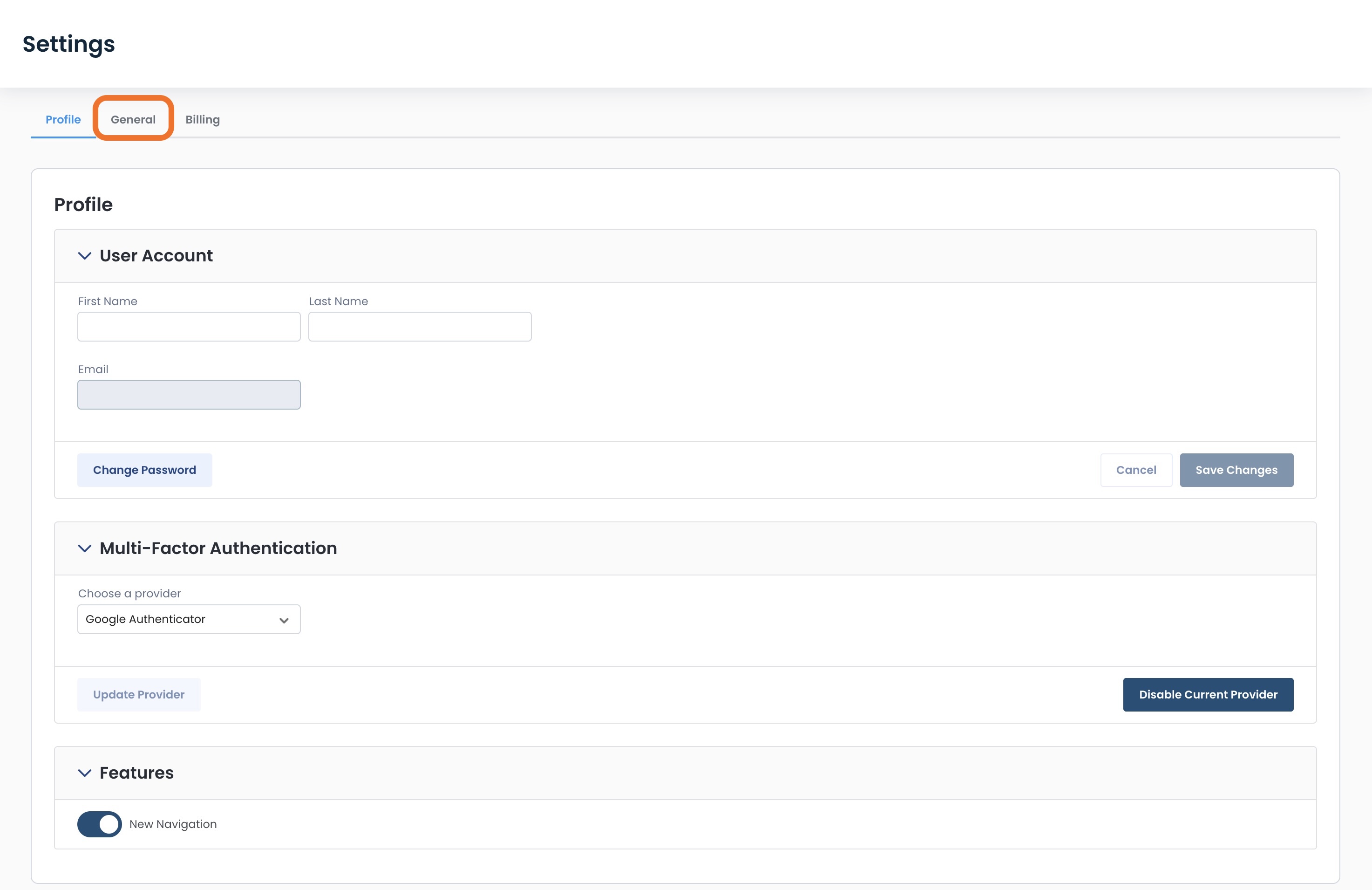
Select the ‘General’ tab.
Gina AI will be at the bottom of the page.
By default Gina is disabled.
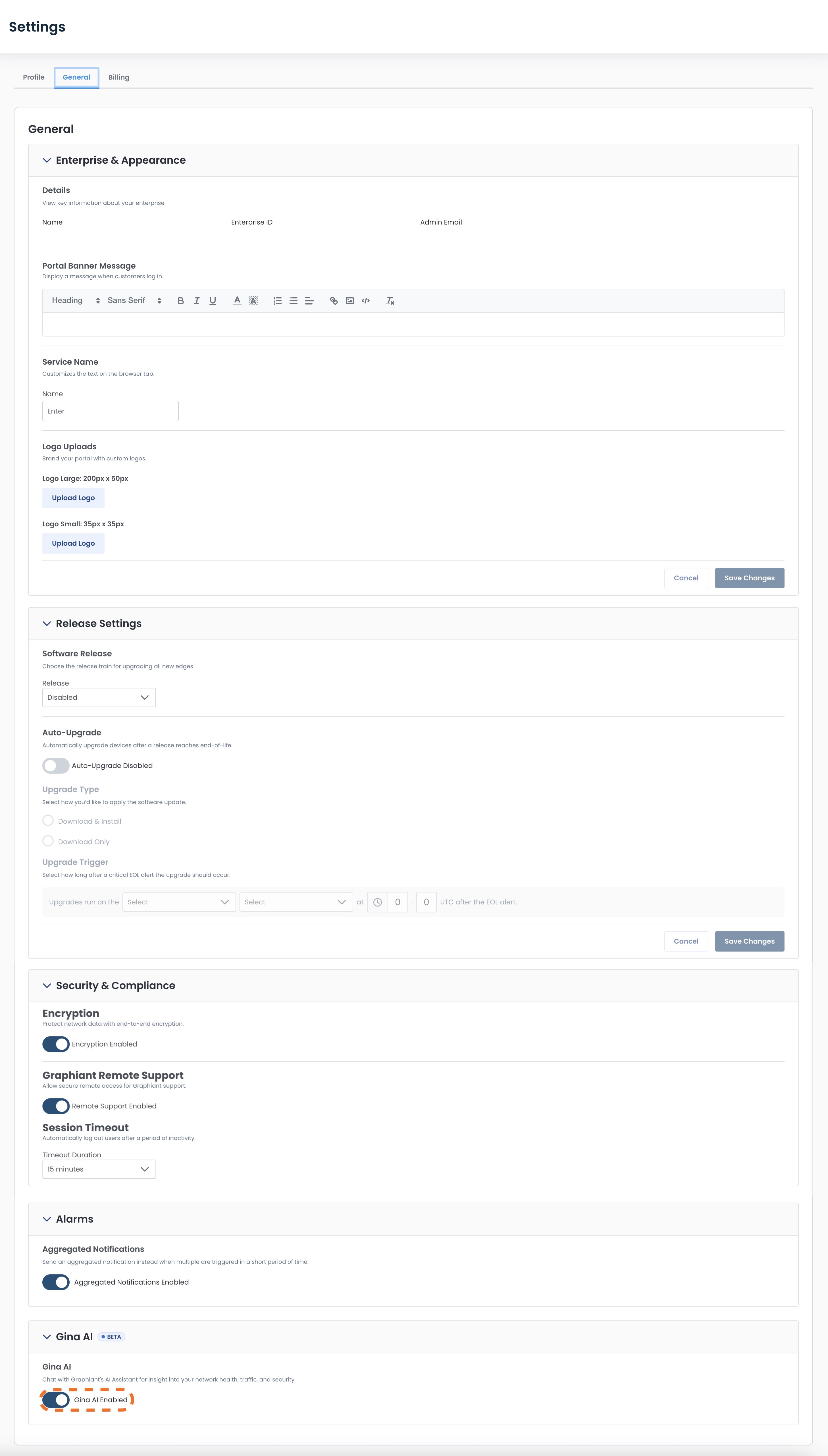
Click the toggle to enable Gina.
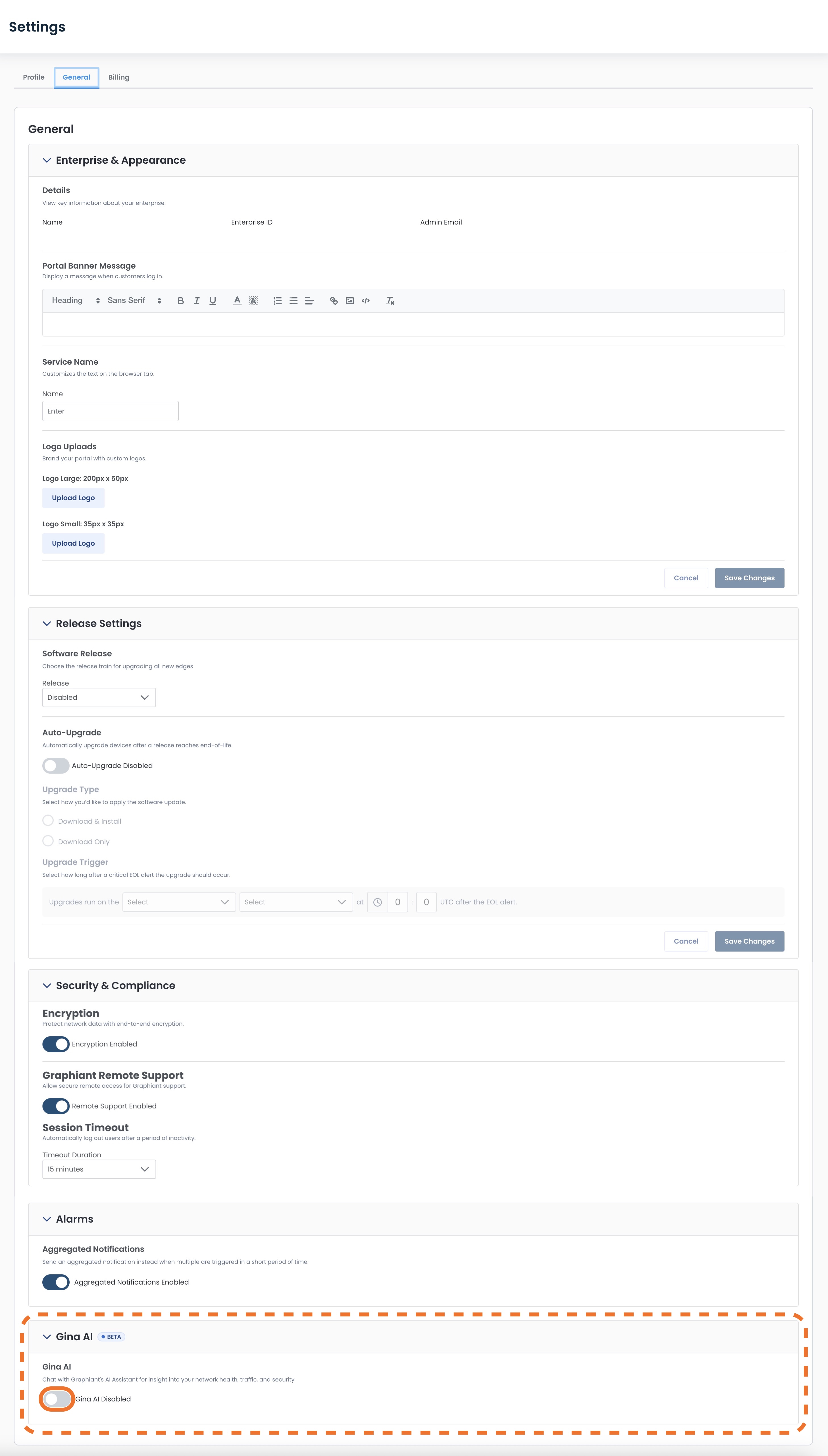
Gina AI will now be toggled on and show as “Enabled”.
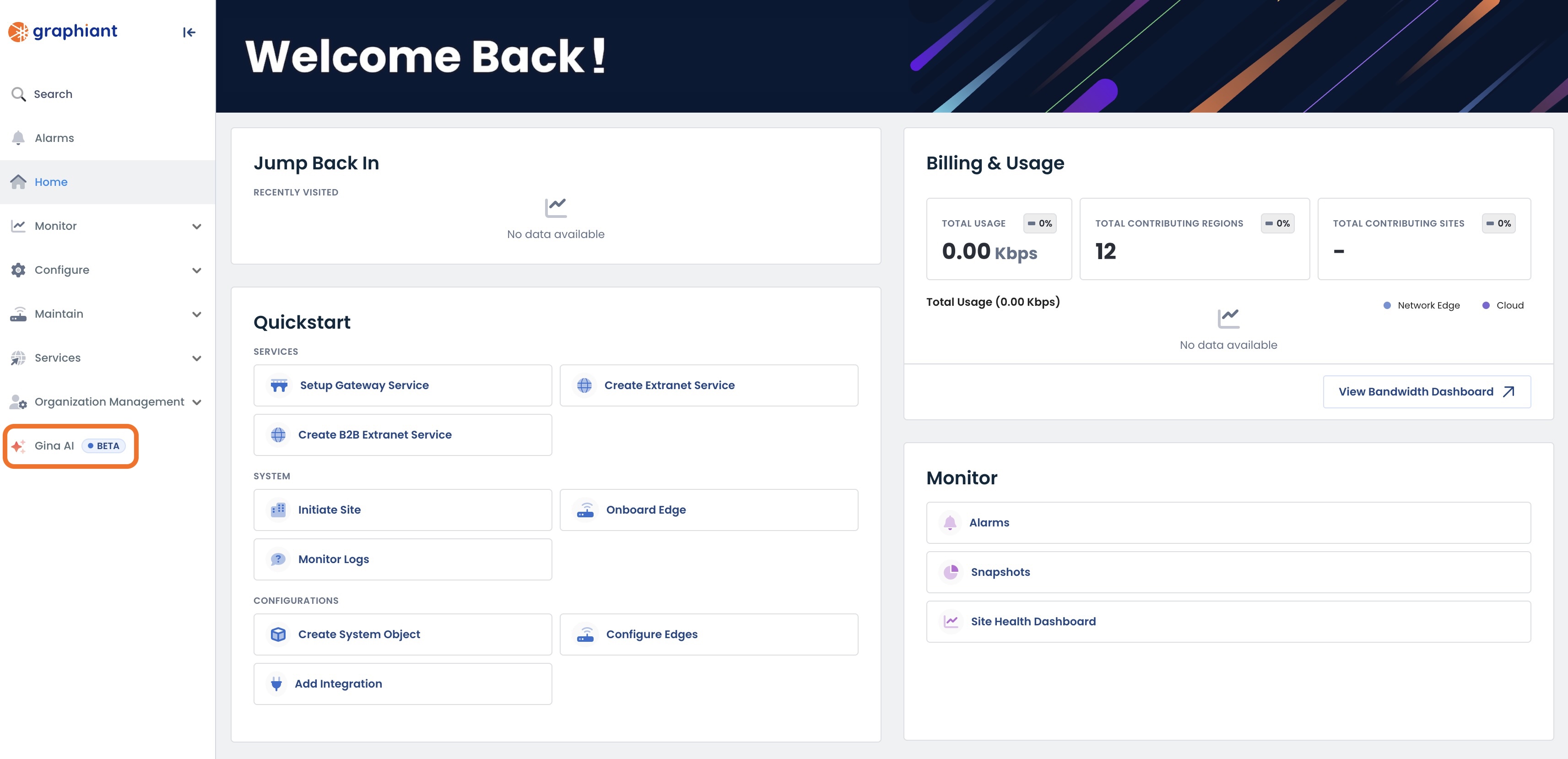
You will now see Gina AI as an option in your sidebar.
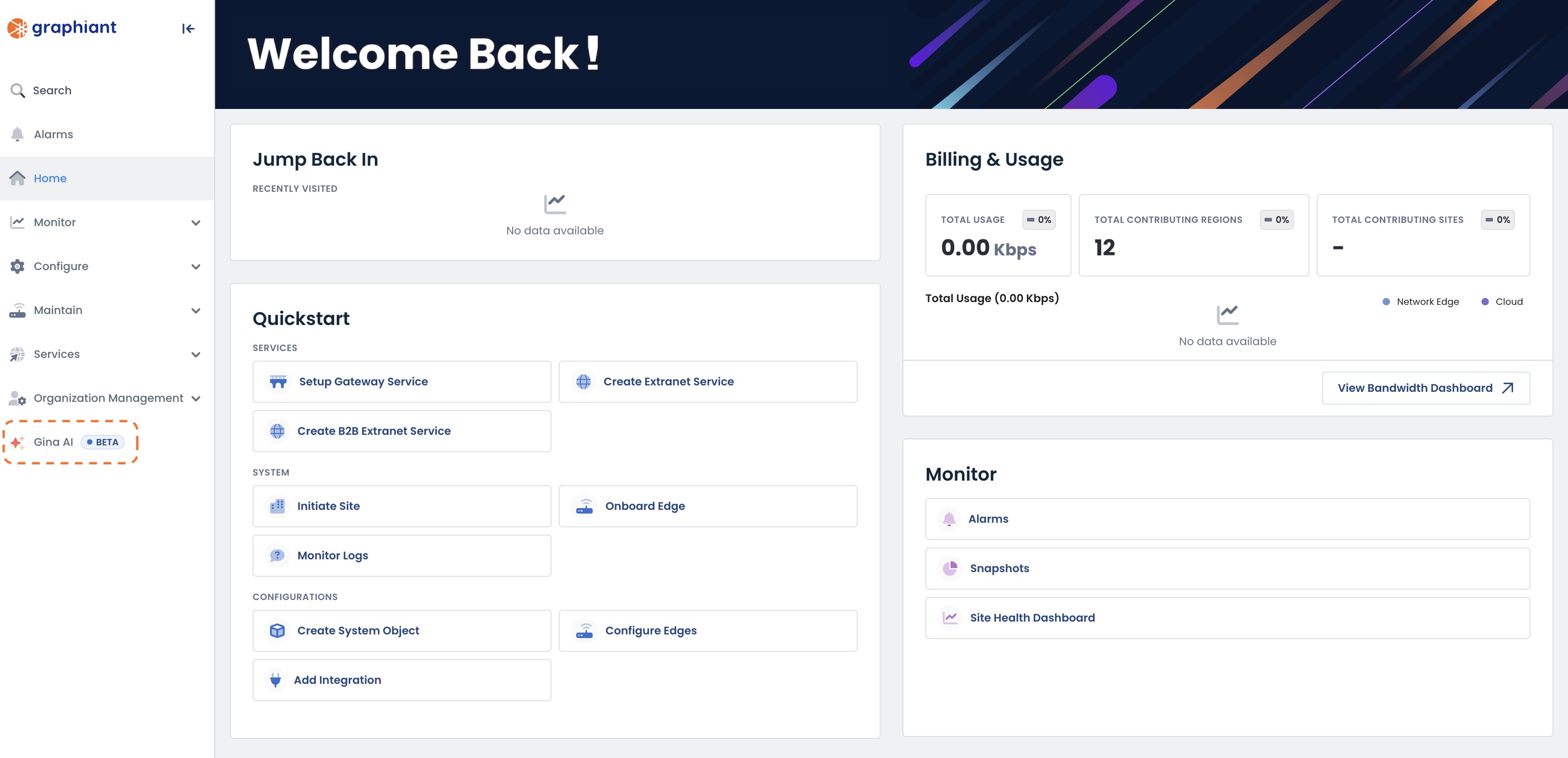
Locating Gina AI in the Graphiant Portal
Gina AI is accessed through your sidebar menu.
Note:
This option will only be present if Gina AI has been enabled.
For assistance with this, see the instructions on enabling Gina AI.
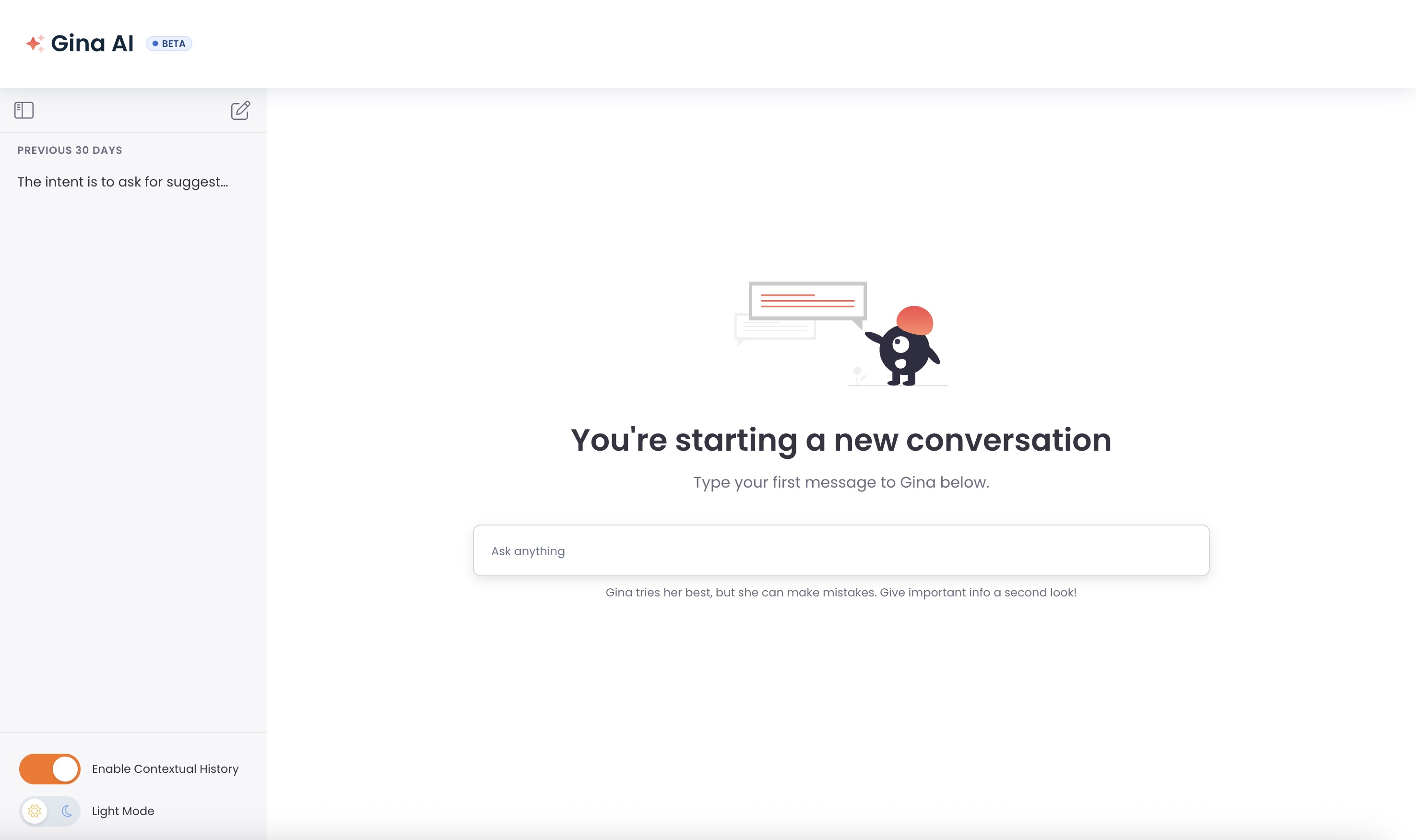
You will taken to the Gina AI interface within the Graphiant Portal.
Customizing Your Gina AI Experience
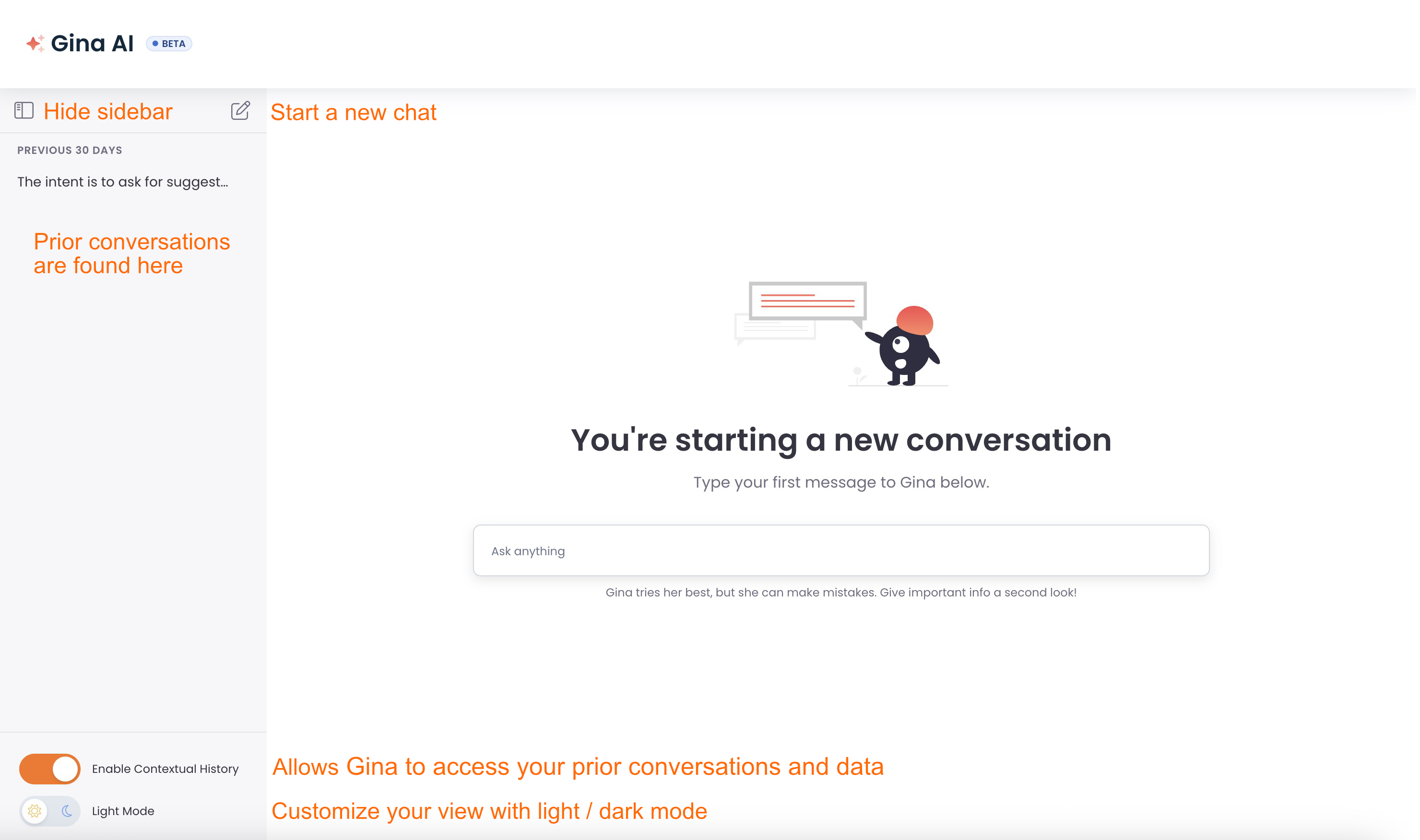
Your Gina AI interface is customizable to your needs.
You can:
Enable Contextual History: Gina AI will remember your past conversations and preferences to provide more helpful and specific responses
Choose Light / Dark Mode: For your viewing comfort
Hide / Reveal the Sidebar: Depending on if you prefer full-screen viewing / easy access to controls
Prior conversations with Gina AI will be found here as well.
Note:
The ‘New Chat’ icon will always be visible even with the sidebar hidden.
What Can Gina AI Help Me With?
Gina AI is your newest coworker!
With contextual awareness, Gina will learn what is important to you, and let you know what you should be looking at.
Gina will show you trends regarding your data and compliance, and make recommendations accordingly.
Gina AI can instantly transform complex data into clear, easy-to-understand visuals.
Gina AI can perform the following actions with regards to:
Device Status: Give the status and summary of all active devices in your enterprise, giving you an overview of your network infrastructure
Alerts and Notifications: Identify any potential issues or areas that need immediate attention
Data Assurance: Explore the Data Assurance summary to ensure data integrity and service reliability
Security Threats: Check for any reported threats or suspicious application activities
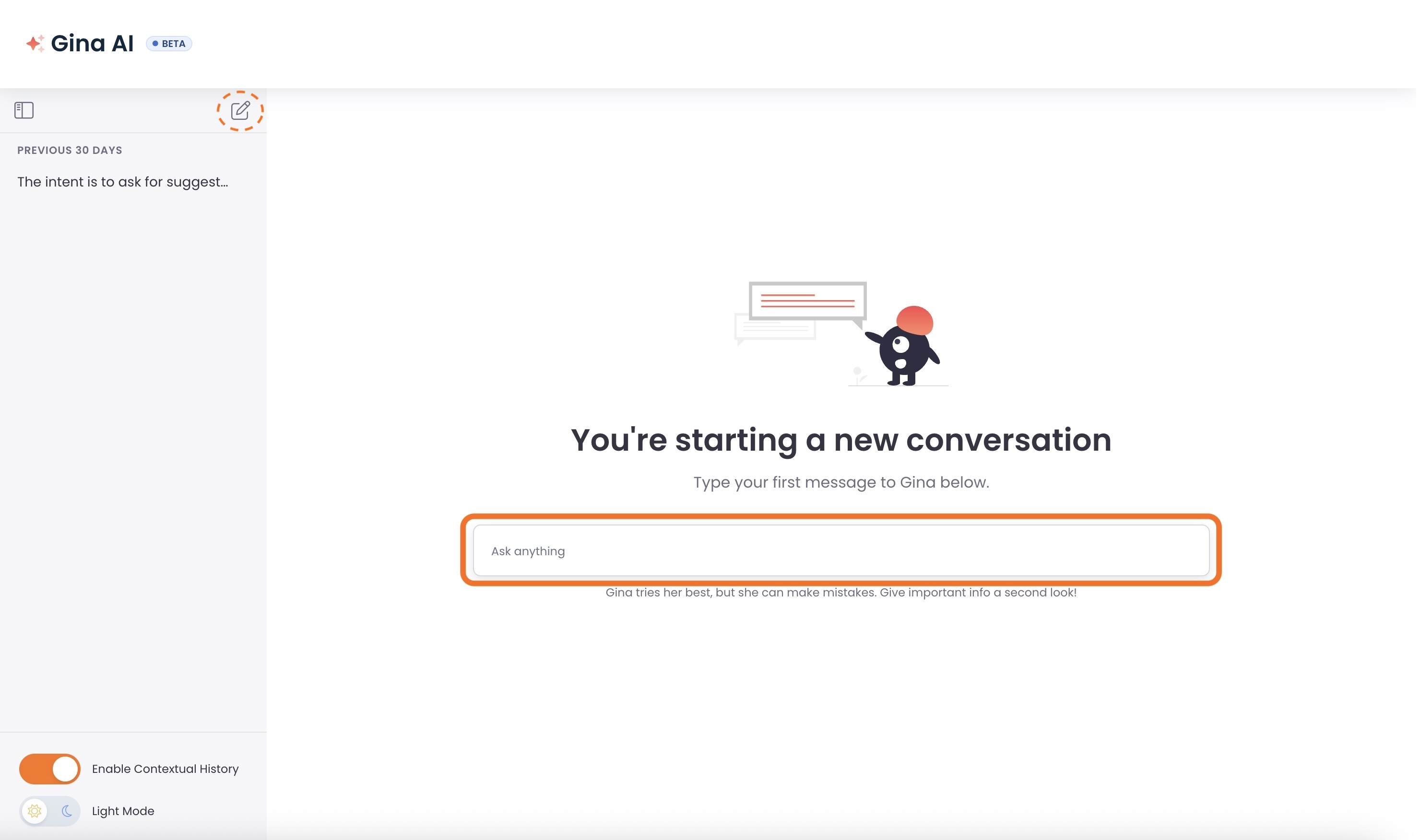
Simply start your conversation in the chat box and start a dialogue with Gina AI to have fast, trusted answers regarding your network’s health, traffic, and security.
If you are viewing a prior conversation:
Click the ‘New Chat’ pencil icon to bring up a new chatbox.
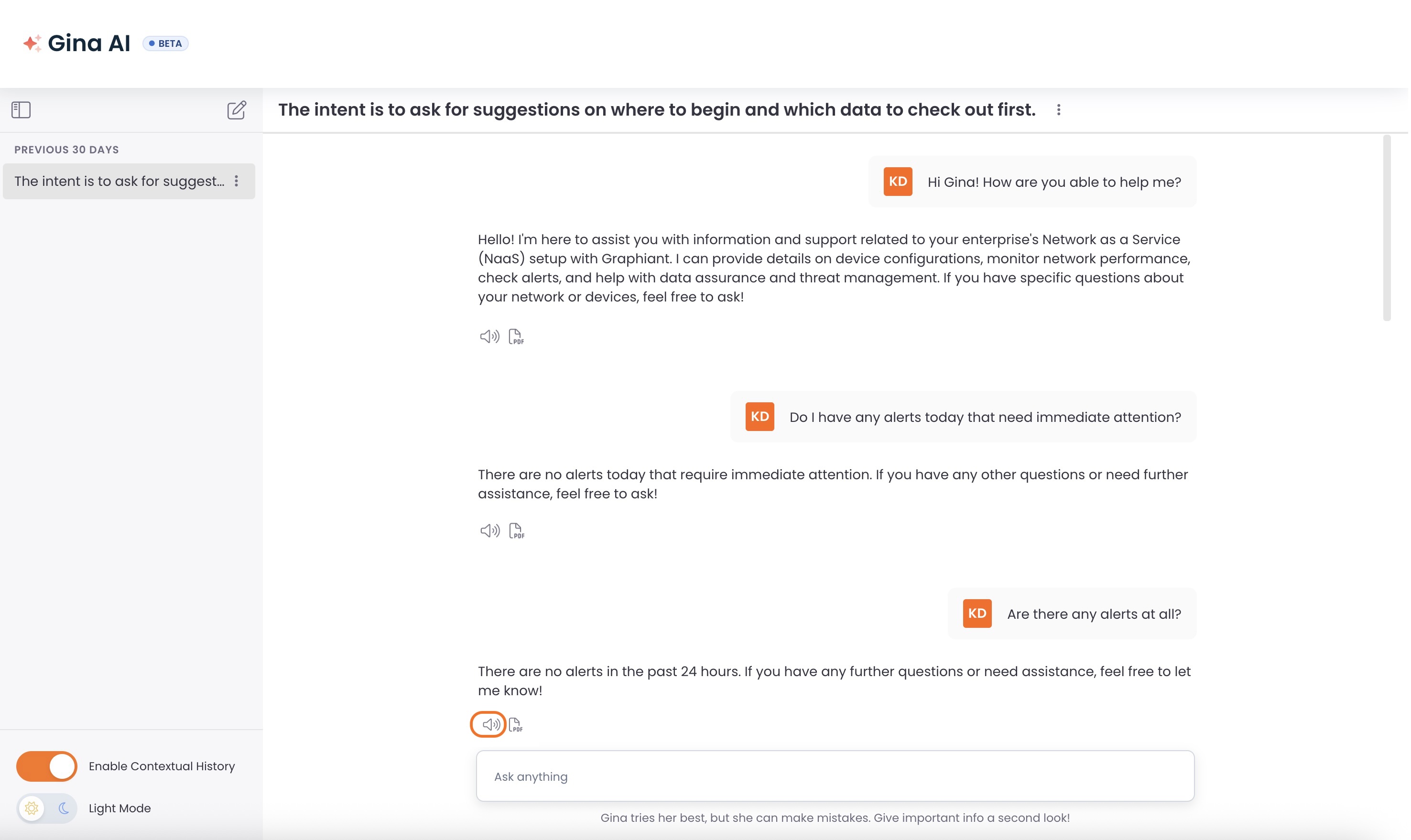
Gina AI will respond quickly and accurately to your inquiries.
.jpg)
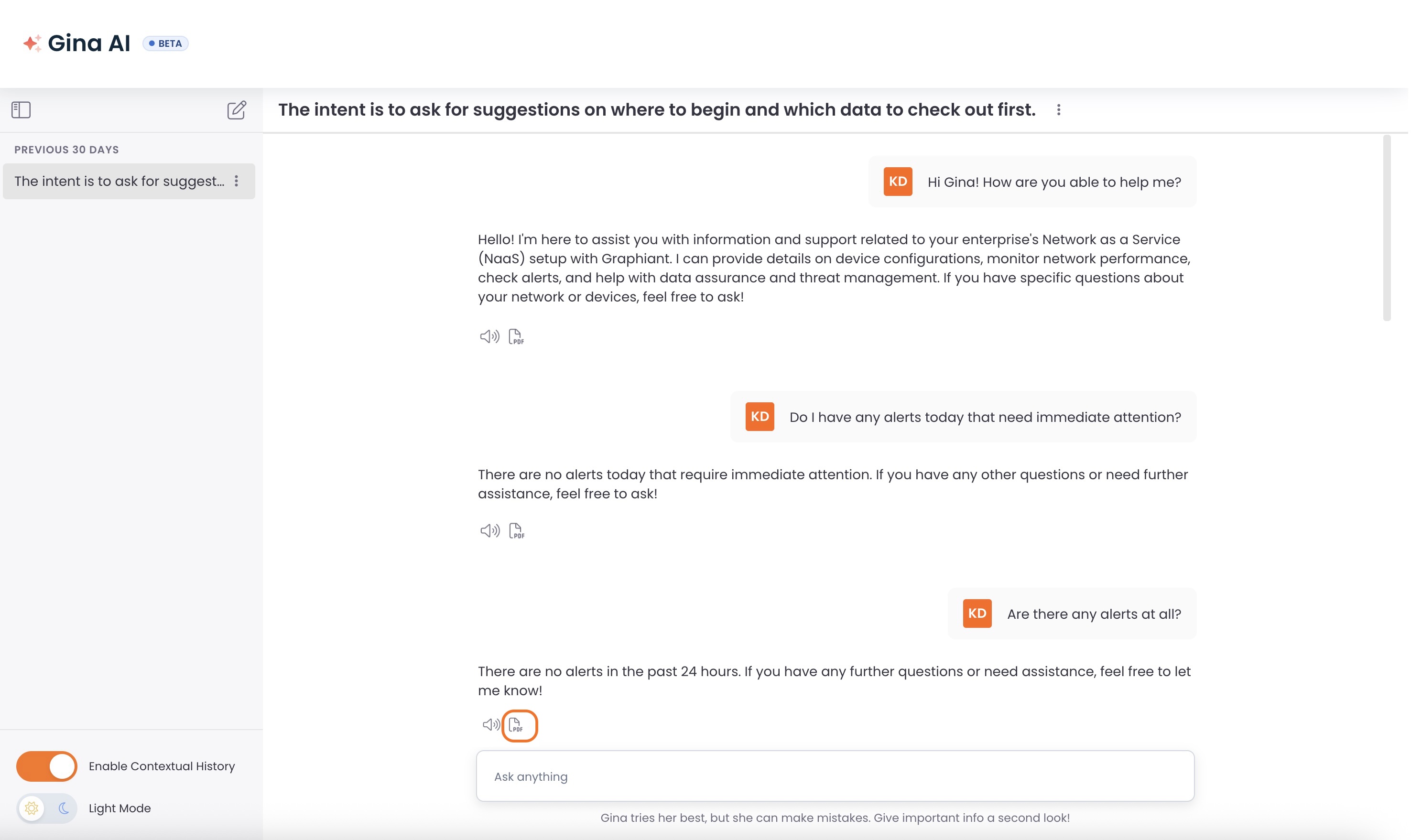
Text-to-Speech Option
Gina AI will also read aloud a response if you click on the [speaker] button for the desired response.
Downloading Gina AI’s Response
Gina AI’s responses can be downloaded as a .pdf; simply click the <download> button above the desired response.
Video Demo
Managing Your Conversations with Gina AI
Hovering over any conversation will reveal a vertical ellipses kebab menu for more options.
From here you can:
Note:
The vertical ellipses kebab menu is also available to the right of the title of the current chat.
.jpg)
Replaying a Gina AI Conversation
Just as you may have daily standup meetings to discuss recurring issues and questions, Gina AI allows you to generate current up-to-the-minute responses to the same chat at any time by utilizing the Replay function.
From the vertical ellipses kebab menu, click ‘Replay’.
.jpg)
The conversation will be regenerated, giving you the latest insights and recommendations by applying the replayed questions to your network data for that given moment.
.jpg)
Renaming a Gina AI Conversation
Gina AI Conversations can be renamed for future recognition purposes, should you so desire.
From the vertical ellipses kebab menu, click ‘Rename’.
.jpg)
A box will open, allowing you to rename this conversation.
Freeform type your new name for the conversation.
.jpg)
Click the green checkmark to confirm the new name.
.jpg)
You will receive a green banner stating that the conversation was renamed successfully, and the new name is now reflected for the chat.
.jpg)
Deleting a Gina AI Conversation
Conversations will be saved for 30 days; should you desire to delete a conversation prior to that time, Gina AI has a Delete feature.
From the vertical ellipses kebab menu, click ‘Delete’.
.jpg)
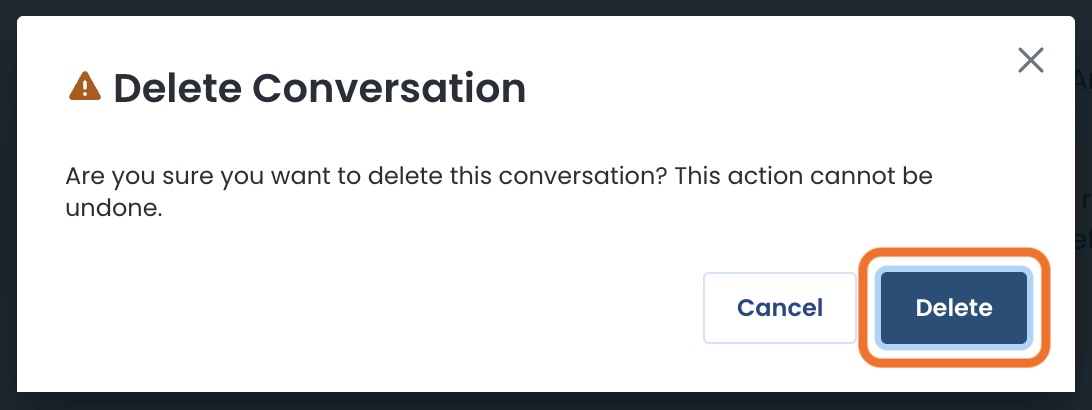
A modal will appear asking you to confirm the deletion.
Warning
A deleted conversation cannot be later recalled.
Click ‘Delete’.
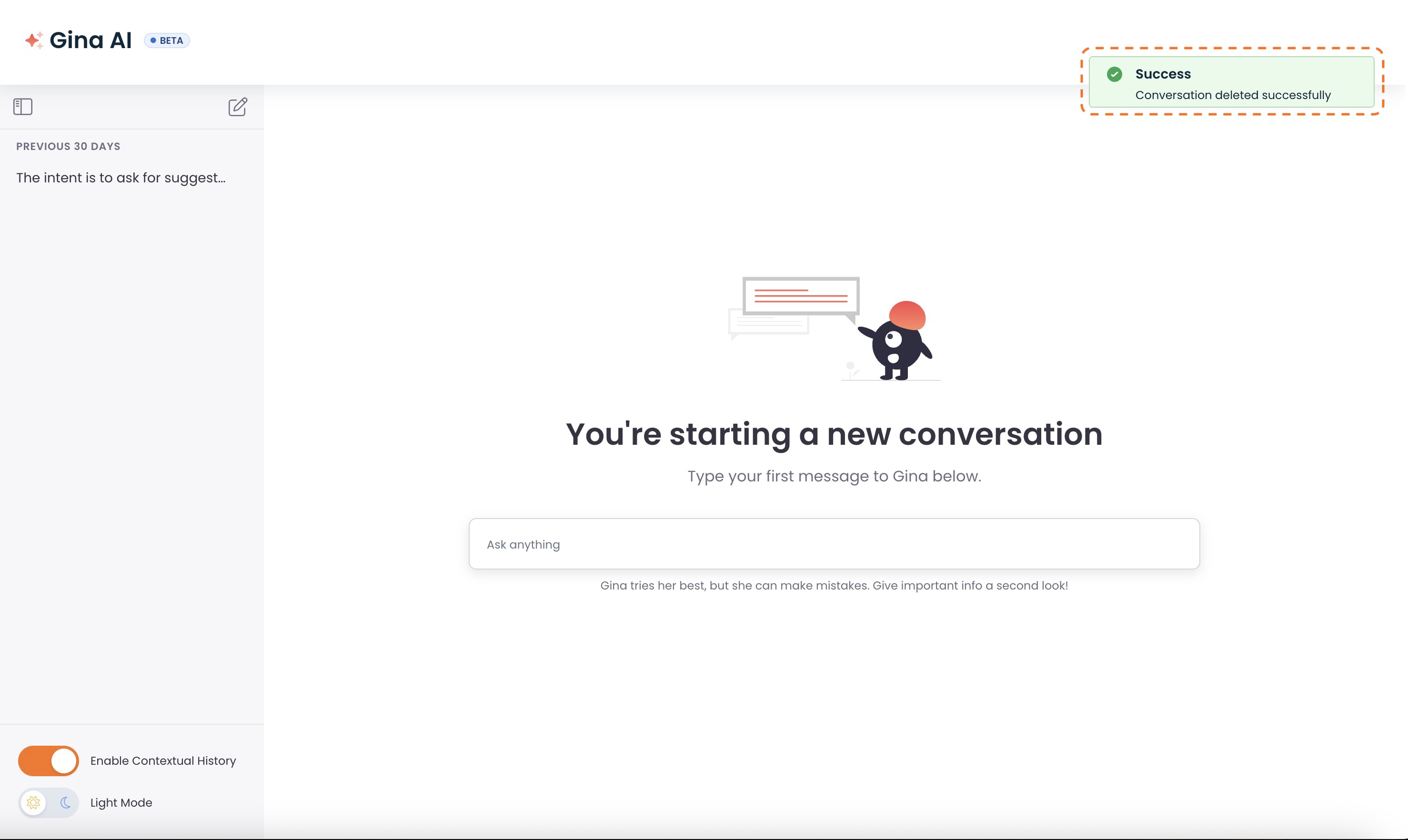
You will receive a green banner stating that the conversation was deleted successfully, and that conversation will no longer appear in your chat history.