This article explains how to create your password during your first login, access the Graphiant Portal, and change your password should the need arise.
Before you begin, ensure that you have:
A Graphiant Portal invitation email
Your registered email address
Logging In for the First Time
If this is your first time accessing the Graphiant Portal, you'll first create your password.
Step 1. Open the Invitation Email
Open the Graphiant invitation email.
Select Verify your email.

You will be taken to a screen that states your email has been verified, and a link to set your password.
Step 2. Create Your Password
Click ‘Set your password’.
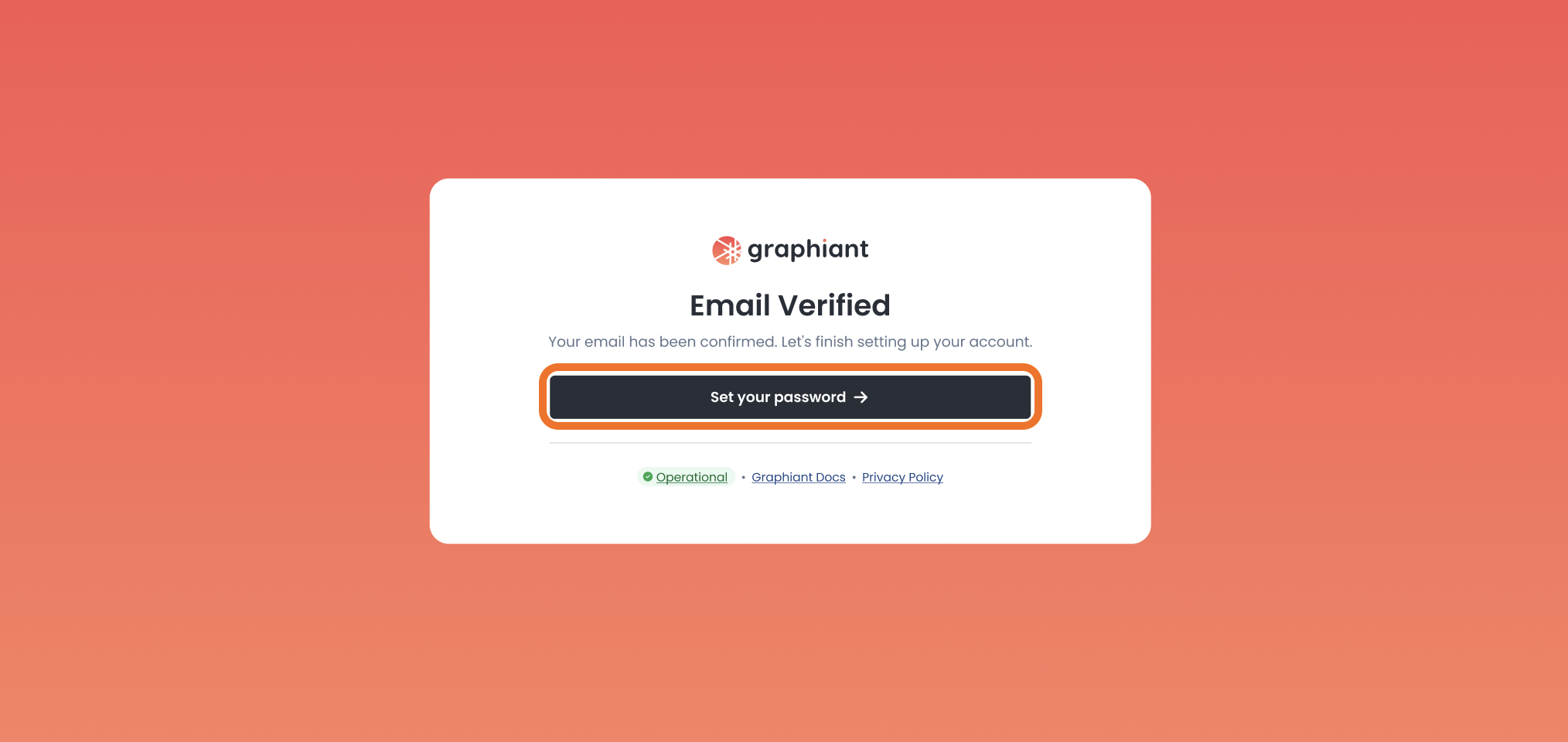
The verification link is single-use only, and valid for up to 24 hours
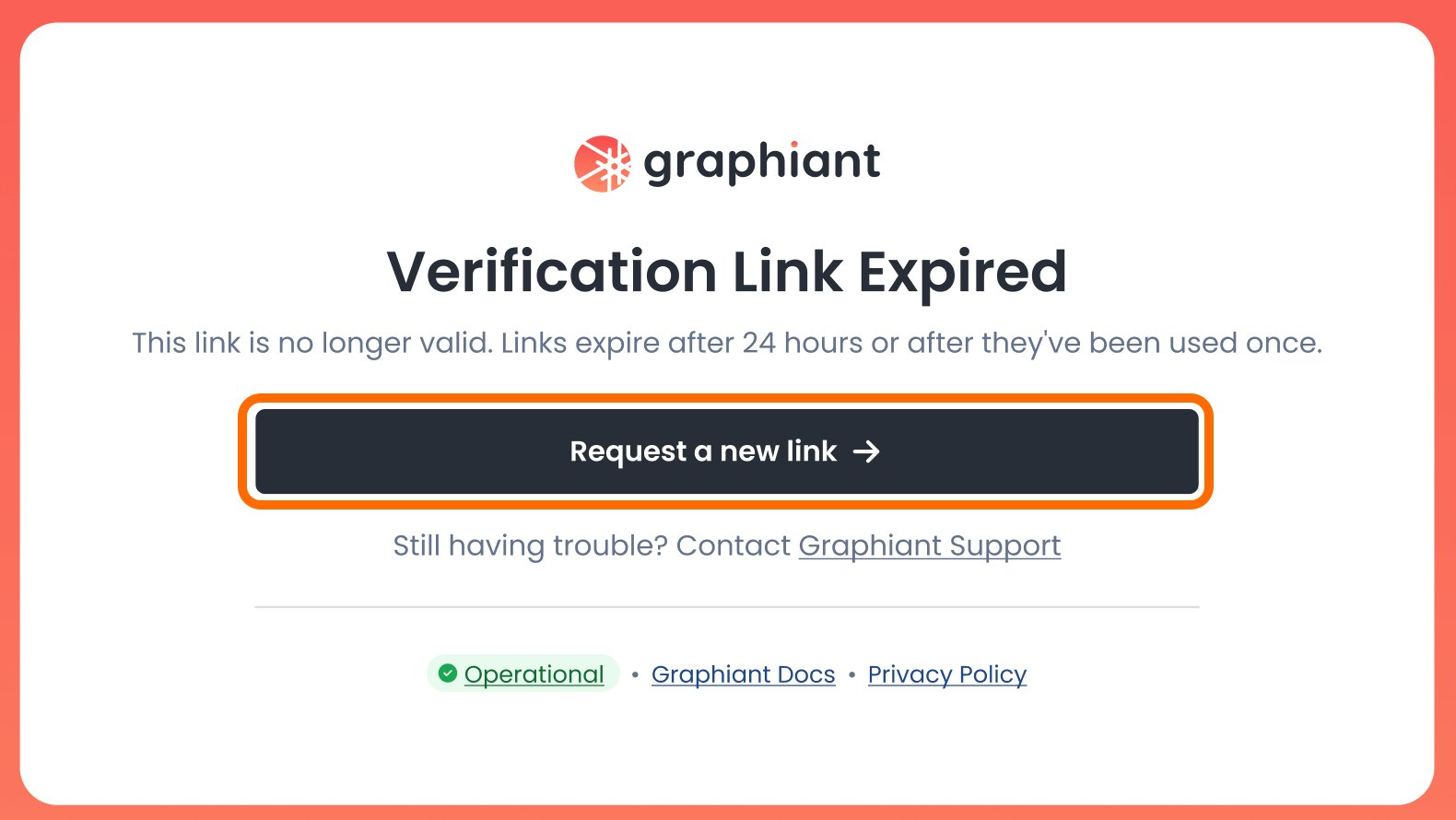
Should you need to request a new verification link, you will see this screen upon clicking your link included in your email.
Click ‘Request a new link’.
Follow instructions above.
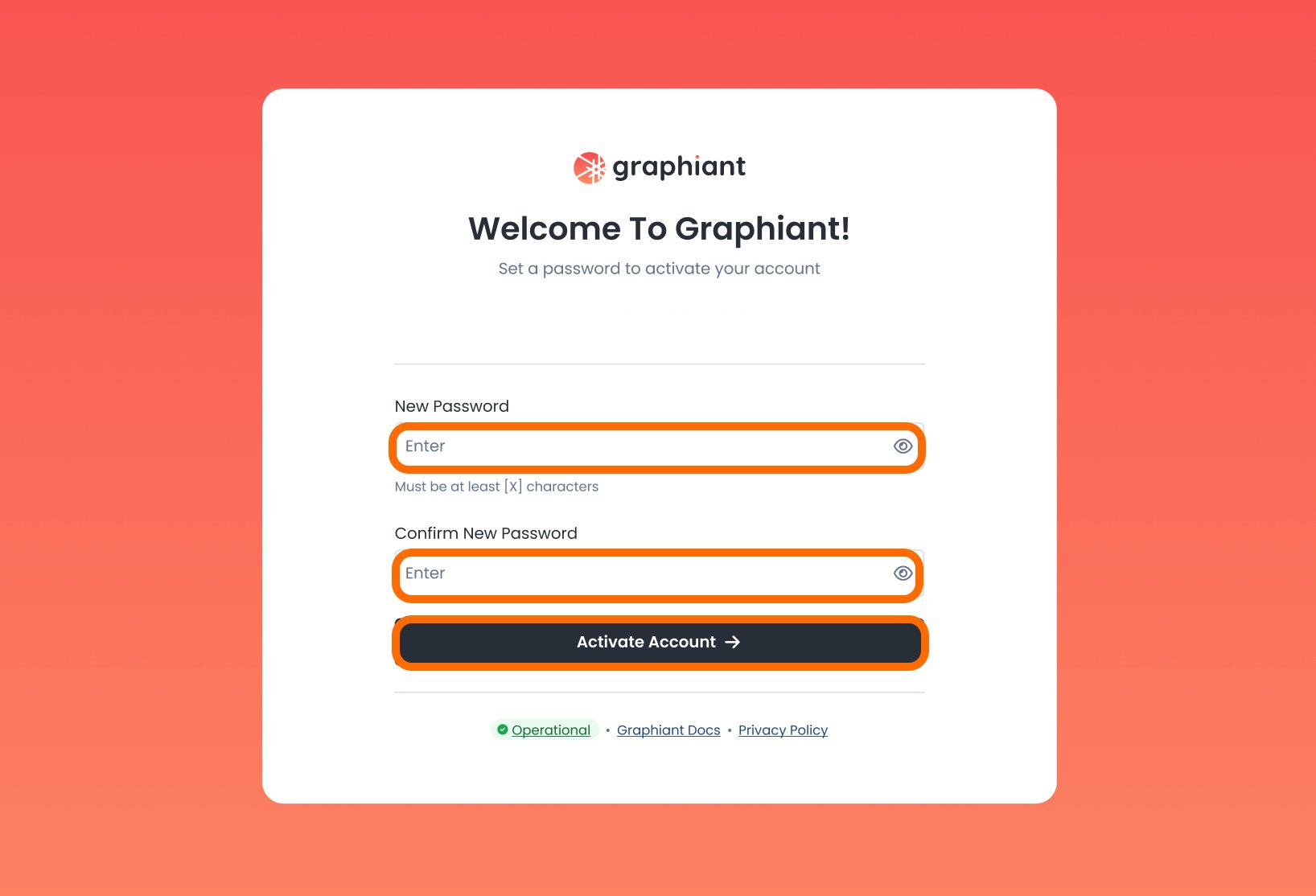
A modal will open that allows you to set your password.
Enter your chosen password in both fields.
The password must contain:
8 character minimum
1 uppercase letter
1 lowercase latter
1 numeral
Logging In After Your Account Has Been Created
Standard Login

Enter your registered email address.

Enter your password and Click “Sign In”
Okta SSO Login

Enter your registered email address and click “Continue”

MFA Login
First Time Logging in with MFA


Subsequent Logging in with MFA
.png)
.png)
.
Forgot / Reset Password


Landing Page

Logging Out
Process from carat by username bottom left.

Next Steps
You can now begin configuring and managing your Graphiant environment. Refer to the appropriate documentation for creating services, configuring connectivity, or managing users.